
EaseUS Data Recovery is a simple and safe option to recover all lost data from different devices and platforms. Currently, EaseUS Data Recovery facilitates easy free data recovery for Windows, Mac, iOS and Android.
Data loss situations, such as to recover deleted, formatted, inaccessible data from different data loss situations. The software supports many file types. It can be said that it can easy recover all types of lost files, including photos, documents, videos, audio, emails, compressed files etc for multiple kinds of supported devices – PCs, laptops, digital devices, hard drive(HDD, SSD, USB, etc), storage media, server, RAID etc. It has an option to recover lost partition data from deleted, hidden, lost or raw partition by scanning storage device in deep level.
The EaseUS Data Recovery Wizard, reconstructs lost files and perform photo recovery, regardless of whether they were deleted accidentally or they are inaccessible. In any of the case the software can work and recover data from a crashed hard drive or HDD suffering from other scenario such as hardware failure or virus infection. It is a full-featured hard drive easy recovery software which can perform multiple recovery operations such as recycle bin recovery, format recovery, photo recovery, documents recovery and more from both internal and external hard disk drives like Seagate, Samsung, Sandisk, Toshiba, etc.
It is super easy to use data recovery software free {EaseUS Data Recovery Wizard} to do hard disk recovery. All you have to do is to download and install EaseUS Data Recovery Wizard and launch the program. When the program is launched it will list all hard drives that are connected to the said computer. Upon seeing the options, choose a location first and then start the recovery process.
Apart from the deleted recovery of data, the software can recover data from lost partitions due to re-partition, boot manager, improper clone, system re-installation, disk accident etc.
How to recover data with EaseUS Data Recovery Wizard
Step 1. Open EaseUS Data Recovery Wizard software and select the drive from where you wish to recover the deleted data. Once selected, click “Scan” button.
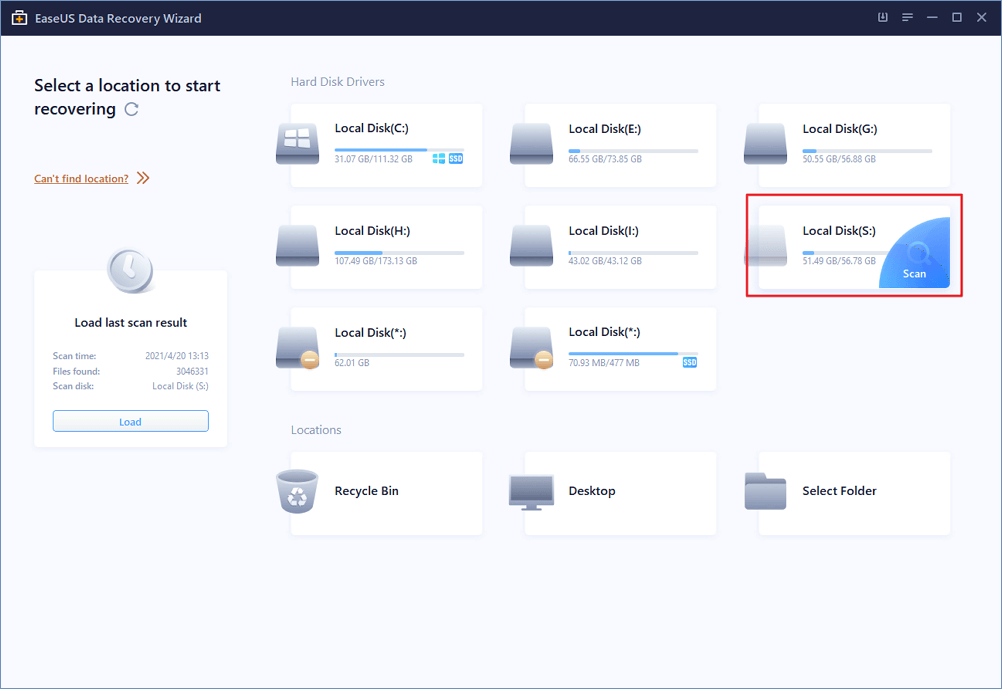
Step 2. As soon you press the scan button, it will perform a quick scan.
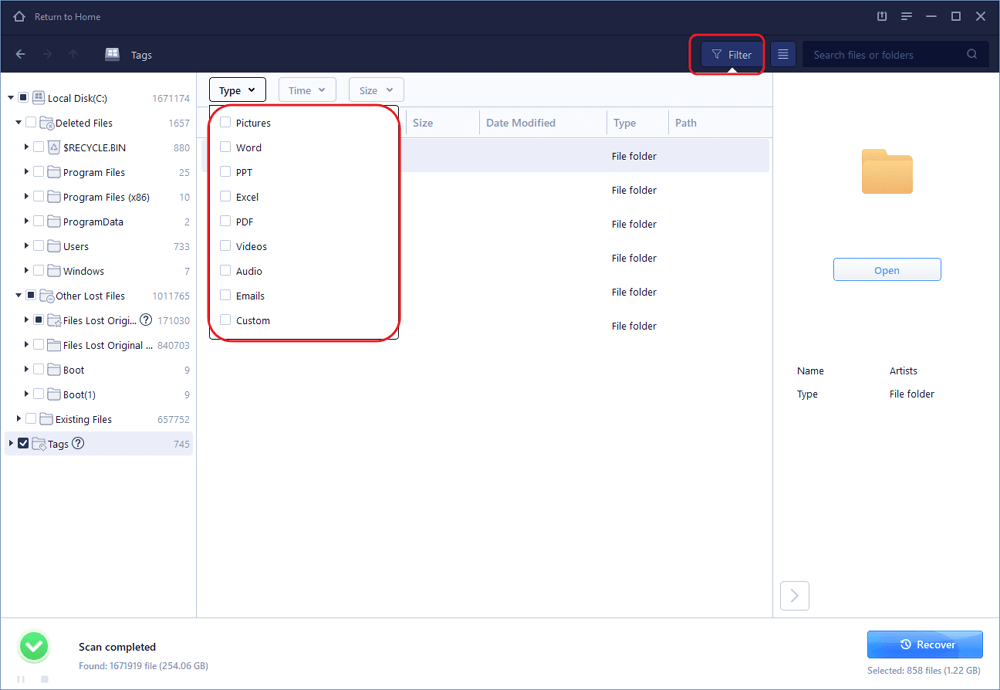
Step 3. After scan is complete, select the desired operation. Simply click “Recover” button to recover the lost data. During the process you will be asked to browse the folder to determine the location for the recovered data. Please select the destination folder carefully.
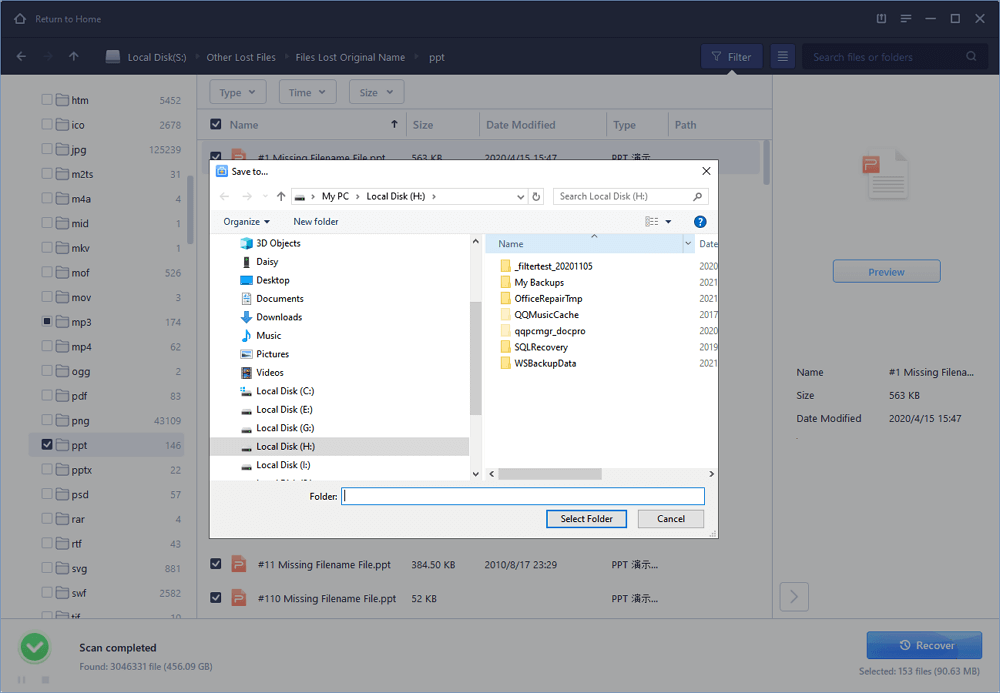
Step 4. Once the data recovery operation is complete, press OK and exit the software.
EaseUS Data Recovery
The EaseUS Data Recovery works for the following OS platforms:
- Data Recovery For Windows
1) Data Recovery Wizard Free
2) Data Recovery Wizard Pro
3) Data Recovery Wizard Technician
4) Email Recovery Wizard - Data Recovery for Mac
1) Data Recovery Wizard Free
2) Data Recovery Wizard Pro
3) Data Recovery Wizard Technician - Data Recovery for iOS
1)iPhone Data Recovery Free
2) iPhone Data Recovery Pro - Data Recovery for Android
1)Android Data Recovery Free
2) Android Data Recovery Pro
3) Android Data Recovery App