
Which is the command to find largest files in Linux Ubuntu. Here is a way on how to find top 10 largest files in Linux; largest files in directory recursively on a Ubuntu Linux System.
Open Terminal and type the following command to find out top 10 largest file/directories in Ubuntu systems:
du -a /var | sort -n -r | head -n 10
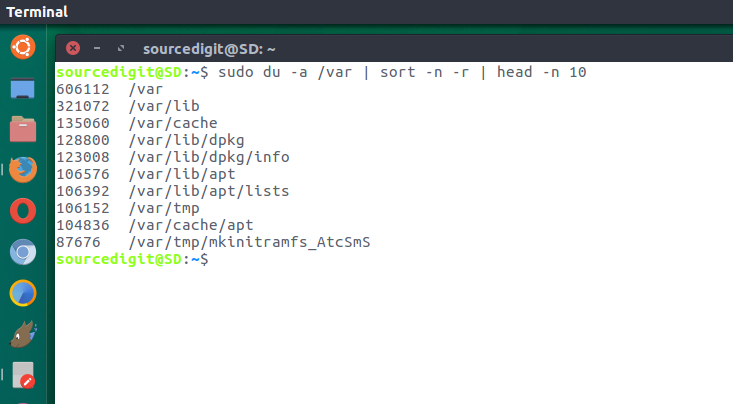
In the above command the options du is to estimate file space usage, sort if to sort lines of text files or given input data and head is to output the first part of files i.e. to display the n largest files/directories. n is to compare string numerical value and r to reverse the result being displayed.
It is somehow hard to interpret the numeric symbols of the file. So
to get a more human readable output of the command, try the following
command:
du -hsx * | sort -rh | head -10
You can also use the above command to find the top 10 largest files in a directory. To use this command, first change the directory and then use the command.
cd /path/to/directory

du -hsx * | sort -rh | head -10
Run the following command in terminal to find out the top 10 biggest files and directories in the /home folder partition:
sudo du -a /home | sort -n -r | head -n 10
Similarly if you want to find out the 10 biggest directories in the current working directory, run the command given below:
sudo du -a | sort -n -r | head -n 10
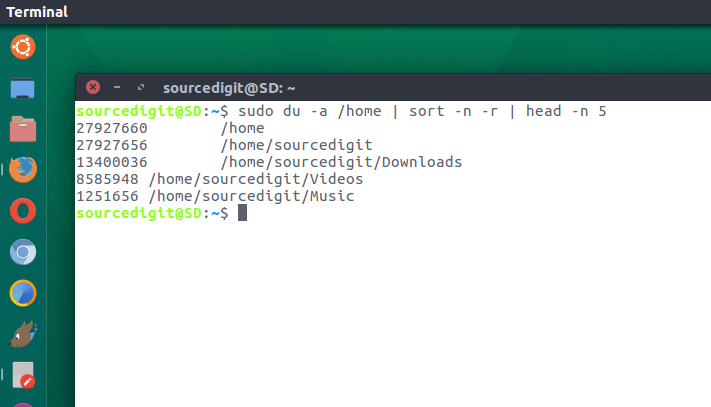
Let us understand the command:
- du command -h option : display file sizes in human readable format, in Kilobytes, Megabytes and Gigabytes.
- du command -s option : Show total for each argument.
- du command -x option : Skip directories. (if on different file systems)
- sort command -r option : Reverse the result of comparisons.
- sort command -h option : Compare the numbers.
- head command -10 OR -n 10 option : Displays the first 10 lines of the output.
Please note that the above command will only work if GNU (sort is installed by default). For other Unix systems, use the following command:
for i in G M K; do du -ah | grep [0-9]$i | sort -nr -k 1; done | head -n 11
Find top 10 files and directories consuming maximum disk space
You can use the sort command to find the top 10 files and directories consuming maximum disk space.
alias ducks='du -cks * | sort -rn | head'
Now run the following command to get top 10 files and directories consuming maximum disk space in Ubuntu system:
ducks