
• Skip to primary navigation
  • Skip to main content
  • Skip to primary sidebar
Source Digit

Source Digit

Linux, Ubuntu Tutorials & News, Technology, Gadgets & Gizmos

  • Home
  • How To
  • Ubuntu
  • Instagram
  • Blogging
  • Android
  • WordPress
  • +More
    • Cloud Computing
    • Gadgets
    • Social Media
    • Technology
  • Write for Us
Home / How To / Make Ubuntu 14.04 Look Like Windows 7, Windows 8 or Windows XP

Make Ubuntu 14.04 Look Like Windows 7, Windows 8 or Windows XP

By Sourabh / March 4, 2015 Category: How To, Ubuntu

How to make Ubuntu 14.04 LTS look like Windows 8. Make Ubuntu 14.04 look like Windows 7, Windows 8 and Windows XP. Install Windows 7/8 themes and icons in Ubuntu 14.04. Install YlmfOS Theme Pack (Win XP) in Ubuntu 14.04 Trusty Tahr.

Download Windows 8 Theme for Ubuntu

Download the themes from GNOME-Look and move them to ‘/usr/share/theme‘ folder and then apply the themes using Unity Tweak app.

Windows 8 GTK Theme on GNOME-Look

Windows 8 Metacity Theme on GNOME-Look

Make Ubuntu 14.04 look like Windows 7
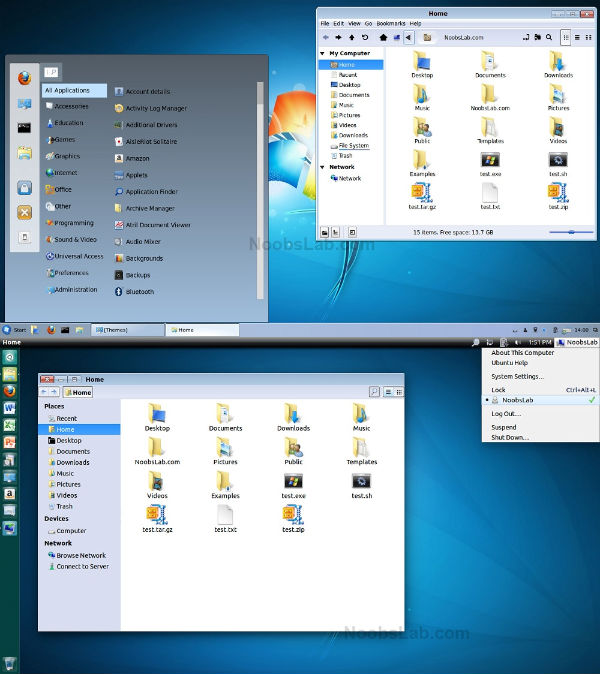
Make-Ubuntu-Windows 7-Windows 7 or 8- img01

Download relevant fonts and change them from tweak tool.

To install Windows 7 or 8 themes in Ubuntu/Linux Mint open Terminal (Press Ctrl+Alt+T) and copy the following commands in the Terminal:


sudo add-apt-repository ppa:noobslab/themes
sudo apt-get update
sudo apt-get install win-themes

To install Windows 7 or 8 icons in Ubuntu/Linux Mint open Terminal (Press Ctrl+Alt+T) and copy the following commands in the Terminal:

sudo add-apt-repository ppa:noobslab/icons
sudo apt-get update
sudo apt-get install win-icons

Make Ubuntu 14.04 look like Windows XP
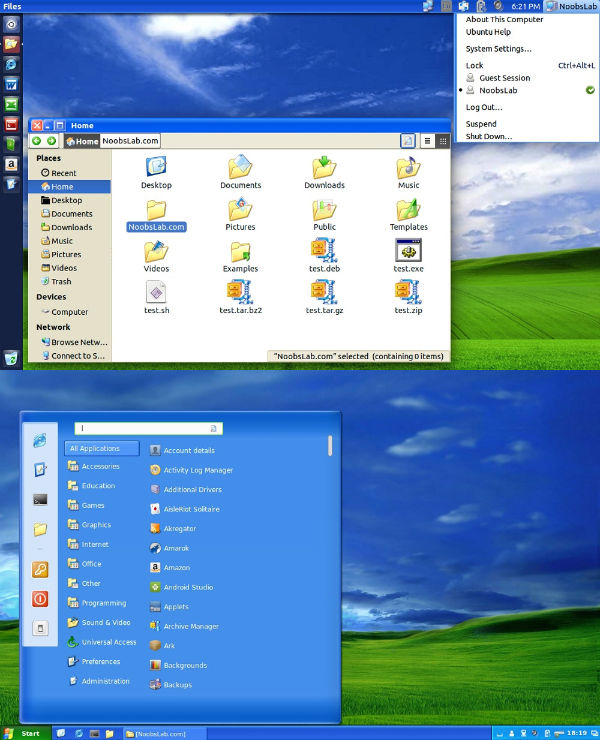
Make Ubuntu 14

Install YlmfOS Theme Pack (Win XP) in Ubuntu 14.04 Trusty/13.10 Saucy/Linux Mint 16/other Ubuntu derivatives

To install YlmfOS theme in Ubuntu 14.04/13.10/Linux Mint 16 open Terminal (Press Ctrl+Alt+T) and copy the following commands in the Terminal:

sudo add-apt-repository ppa:noobslab/themes
sudo apt-get update
sudo apt-get install ylmfos-theme

To install YlmfOS icons in Ubuntu/Linux Mint open Terminal (Press Ctrl+Alt+T) and copy the following commands in the Terminal:


wget -O ylmfos-icons.deb http://drive.noobslab.com/data/icons/ylmfos-icons_1.0.deb
sudo dpkg -i ylmfos-icons.deb; rm ylmfos-icons.deb

That’s it. Enjoy.

Tags: Download Windows 8 Theme for Ubuntu, How to make Ubuntu 14.04 LTS look like Windows 8, Linux Ubuntu Icons, Make Ubuntu 14.04 Look Like Windows 7 or 8, Make Ubuntu 14.04 Look Like Windows XP, Making the Ubuntu system look like Windows 8, METROlux for Ubuntu 14.04, Ubuntu 14.04 Icons Themes, Ubuntu 14.04 Windows 7 or 8 Icons Theme, Ubuntu 14.04 Windows XP Icons Theme, Windows 7 or 8 Icons Themes For Ubuntu 14.04, Windows 8 GTK Theme For Linux, Windows 8 Theme For Ubuntu, Windows XP Icons For Ubuntu 14.04, Windows XP Theme for Ubuntu

Primary Sidebar

Latest Posts

How To Fix Broken Packages On Ubuntu From Terminal

Re Execute The Previous Command In Linux Ubuntu Command Line

How Much RAM Is Needed For Ubuntu PC

How To Find Large Files And Directories In Linux Command Line

How To Use Clear Command History In Linux Terminal

Linux Command To Check RAM Size In Ubuntu Terminal In GB

How To Install Proprietary Drivers In Linux Ubuntu Using Terminal

How To Shutdown Linux With A 15 Minute Delay And Message

Free AI Courses With Certificate For Beginners In India

Best AI Plugins For WordPress To Use In 2026

© 2026 Source Digit • Linux, Ubuntu Tutorials & News, Technology, Gadgets & Gizmos

  • Home
  • About
  • Privacy Policy
  • Terms & Conditions
  • Contact Us
  • Sitemap