
How to install new WordPress themes from WordPress dashboard. We will also learn to install new WordPress themes (custom themes) in .zip format, manually.
You can get new WordPress themes from the official WordPress Theme Directory or from another external source – independent theme developers and authors. When you download a WordPress theme from an external source, you download the theme onto your PC and then upload and install it via the WordPress Dashboard. But, installing a new theme from the WordPress Dashboard is very easy (explained below).
Installing a custom downloaded WordPress theme
Many times you will find a theme which is not listed in the official WordPress theme directory. Such themes are developed by an independent theme developers and are shared via their own website. To download and install such themes, you will have to do it manually – saving the theme file (.zip folder) and uploading to your WordPress website.
1. Download and save the custom WordPress theme (.zip folder) on your PC.
2. Login to your WordPress admin account.
3. In the WordPress dashboard, click Appearance > Themes (left-side menu).
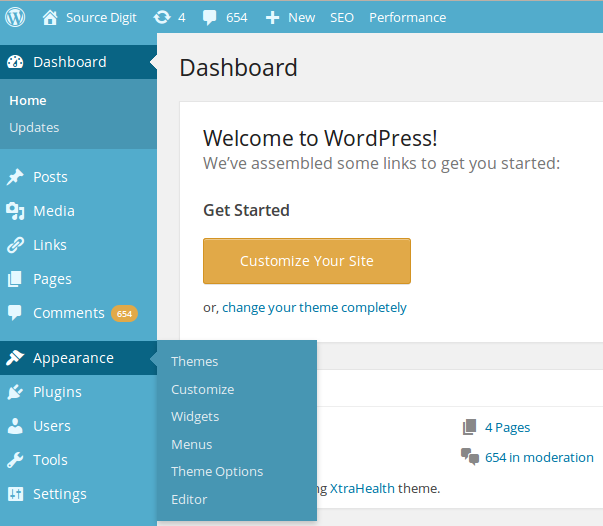
4. Click Add New.
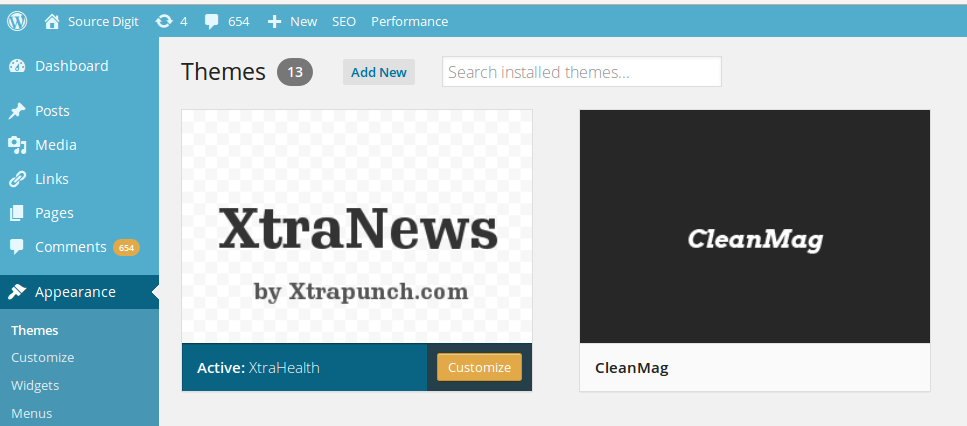
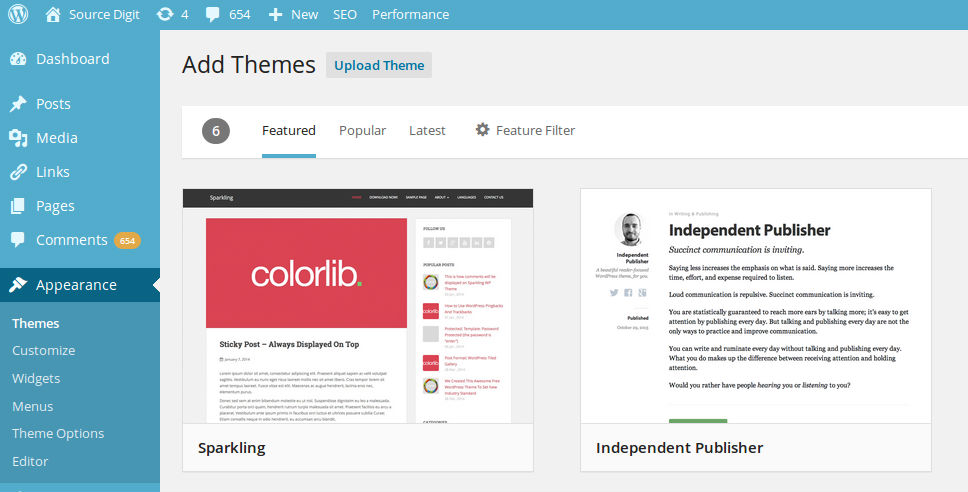
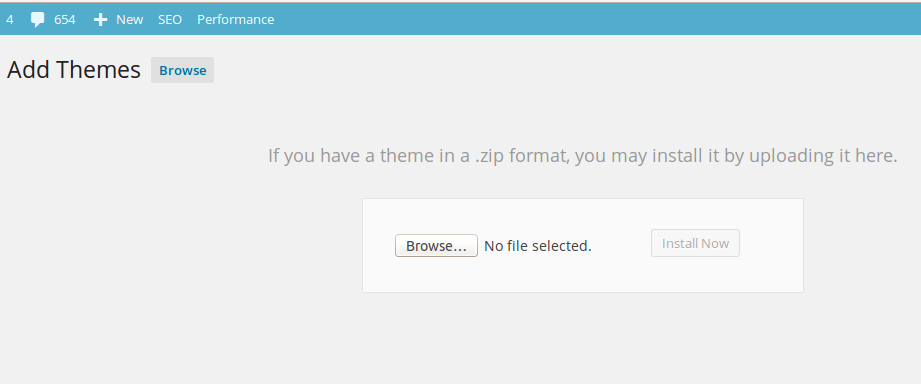
5. Now under Add Themes page, click Upload Theme.
6. Browse the WordPress theme (.zip folder) and select Install now.
7. Once the theme is installed, you can see three options –
- Live Preview: Live demo of the theme on your website before activating the theme.
- Activate: Make this theme live for your website.
- Return to Themes page: Click and go back for applying other theme.
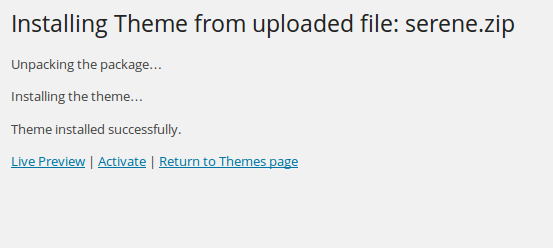
8. Try Live Preview of the theme before you activate the theme – make the theme live for your website.
9. Once everything is fine, click Activate to finally install the theme and make it live.
Installing a new WordPress theme via WordPress Dashboard
1. Login to your WordPress admin account.
2. In the WordPress dashboard, click Appearance > Themes (left-side menu).
3. Search a new WordPress theme or scroll down and click on Add New Theme option.
5. Now you can see Add Themes page.
6. Themes are displayed in three in-built categories – Featured, Popular and Latest.
7. You can also click on Feature Filter to search themes based on few options such as – Colors, Layout, Features and Subject.
8. Once you have found your theme, install the WordPress theme.
9. After installing the theme, you can either get a live preview or directly activate the theme to use it on your WordPress website.
If you want to get more search options, go to the official WordPress Theme Directory page. Here you can find all the available WordPress themes.