
How to check permissions of a file in or a directory in Linux command. Decode what is chmod 777 command for directory or how to use chmod 777 command in Linux.
File permissions determine who can access files and directories on a system and how.We can also say that file permissions specify who can do what and how.
There are three types of Linux file permissions: read, write, and execute.
File Permissions
- Read (r): Read permission is used to access the file’s contents. Users with read permission can view the contents of the file and folders.
- Write (w): Write permission is used to modify or change the contents of a file or a folder.
- Execute (x): Execute permission allows you to execute the contents of a file or to execute a file, such as a script or a program.
File permission octal values in Linux
In Linux, a three-digit value represents specific file permissions and these digital value are known as octal values. Octal values are base 8 numbers and they use the numbers 0 to 7 to represent file permissions.
Each number corresponds to the read, write, and execute file permissions for the owner, group, and others, respectively.
Each permission has a numeric value assigned to it with the following meaning:
- r (read): 4
- w (write): 2
- x (execute): 1
See below given table:
| Octal Value | File Permissions Set | File Permissions Description |
|---|---|---|
| 0 | — | No permissions |
| 1 | –x | Execute permission only |
| 2 | -w- | Write permission only |
| 3 | -wx | Write and execute permissions |
| 4 | r– | Read permission only |
| 5 | r-x | Read and execute permissions |
| 6 | rw- | Read and write permissions |
| 7 | rwx | Read, write, and execute permissions |
Let us understand this by an example, in the permission value 744, the first digit (7) corresponds to the user, the second digit (4) to the group, and the third digit (4) to others.
By adding up the value of each user classification (7, 4 and 4), you can find the file permissions.
For example, the first digit (7) corresponds to the user and have read (4), write (2), and execute (1) permissions for its owner (4+2+1=7), and only read permission for all other users (4 for read).
See the following explanation for a better understanding:
- Owner: rwx = 4+2+1 = 7
- Group: r– = 4+0+0 = 4
- Others: r– = 4+0+0 = 4
How to check file permissions in Linux command
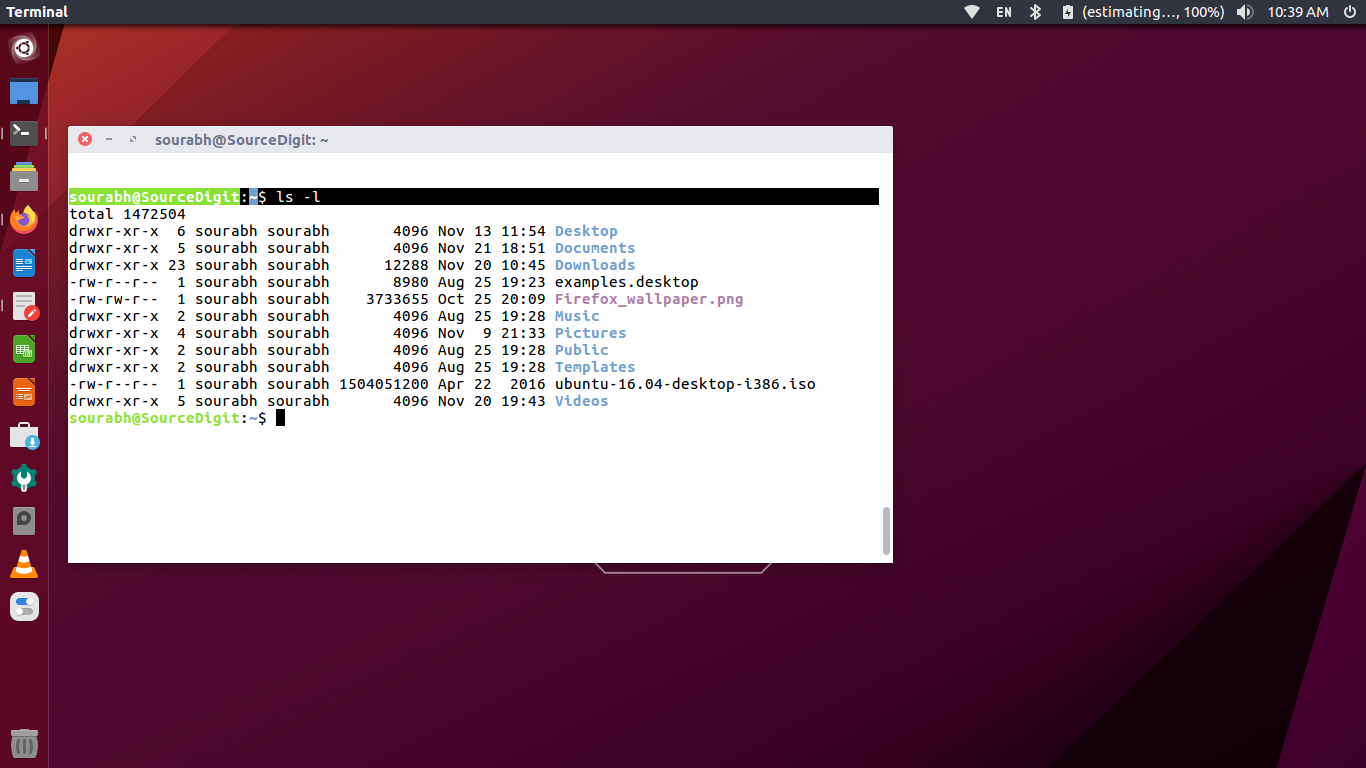
The ls command along with its -l shows the metadata including the permissions of the file.
$ ls -lIn Linux, file and folder permissions are represented by a string of ten characters. Where the first character represents the file type, “-” for a file or “d” for a directory. The other nine characters are grouped into sets of three, representing the permissions for the owner, group, and others, to whom these file permissions are assigned.
The file permissions are represented by three characters, “r,” “w,” and “x.” When the letters are present it indicates that the permission is enabled and when these letter are absent it indicates that the permission is disabled.
The file or directory permissions are assigned to three different categories of users – owner, group and others. These users are represented by letters, u for user owner, g for group owner, and o for others.
Check permissions of a directory in Linux command
The most easiest command to check permissions of a directory in Linux is ls -ld . The flag/command option -d is for directory.
What is chmod 777 command for directory?
The command chmod 777 directory_name changes the permissions of a directory so that everyone (owner, group, and others) has read, write, and execute permissions. As we can see above that 777 means:
- 7 Owner rwx – Read, write, execute
- 7 Group rwx – Read, write, execute
- 7 Others rwx – Read, write, execute
Where r (4) = Read, w (2) = Write and x (1) = Execute. Which means, 4 + 2 + 1 = 7 = rwx and hence 777 = rwxrwxrwx for any given directory.
You can use the chmod command to modify file permissions on Linux Systems.