
How to check system login and logout time for Linux Users. This post explains how to check user login history in Ubuntu Linux command line.
The login information of any Linux Ubuntu System is stored in three places:
- /var/log/wtmp – information logs of last login sessions
- /var/run/utmp – information logs of the current login sessions
- /var/log/btmp – information logs of the bad login attempts
1. View history of all logged users
To view the history of all the successful login on your system, simply use the command last.
last
2. View login history of a certain user
If you want to see the login information of only the selected user, add the username with last command.
last <username>
3. How to check the specific number of logins?
If numerous people are using the system, and you want to see the specific number of logins, use the last command with the number of logins to see:
$last -[X]
Simply replace “X” with the number of logins you want to display.
W Command: w command used to show who is logged on and what they are doing. w displays information about the users currently on the machine, and their processes. The header shows, in this order, the current time, how long the system has been running, how many users are currently logged on, and the system load averages for the past 1, 5, and 15 minutes.
The following entries are displayed for each user:
- login name
- the tty name
- the remote host
- login time
- idle time
- JCPU & PCPU
- command line of their current process
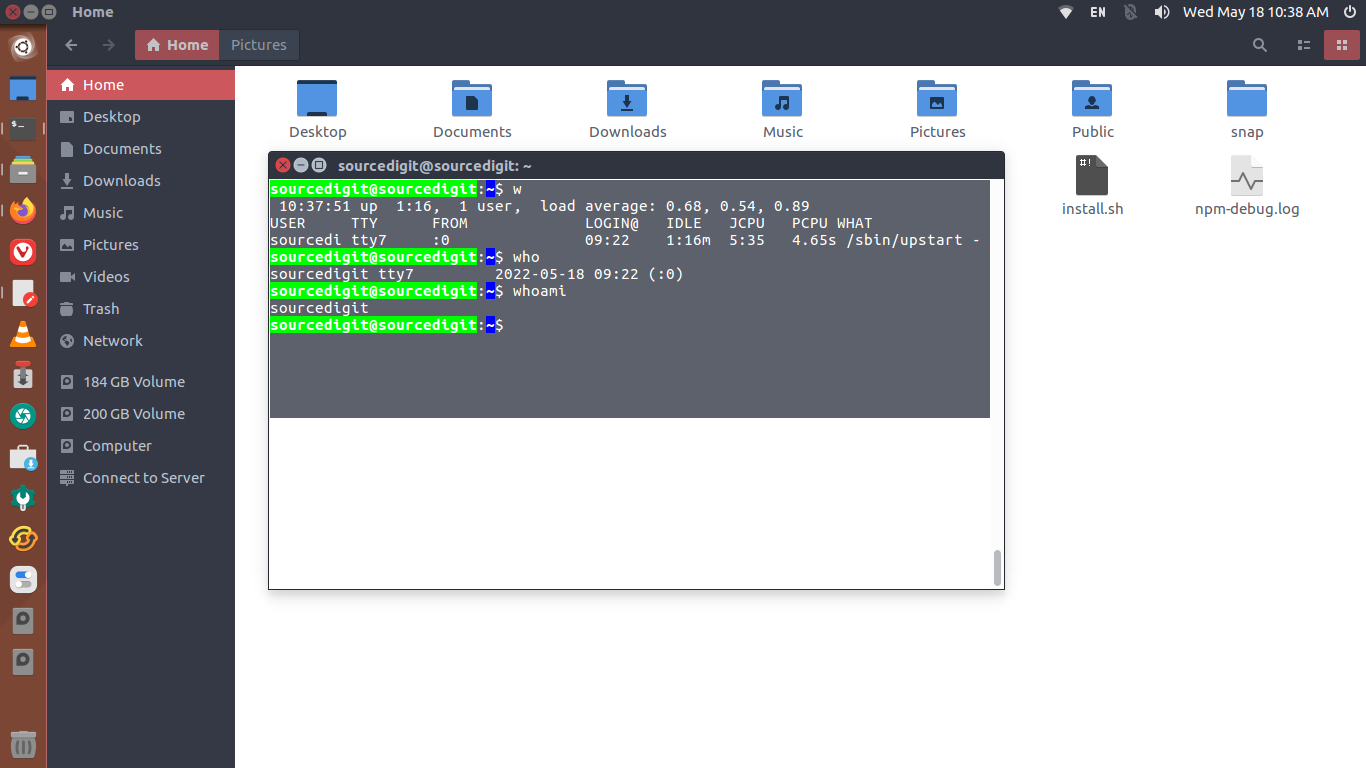
You can also use Who Command. It prints information about users who are currently logged on. When no non-option argument is given with the command, ‘who’ prints the following information for each user currently logged on:
- login name
- terminal line
- login time
- remote hostname or X display
If you want to see the date and time of last system boot, run the who command with ‘–boot’ argument.