
• Skip to primary navigation
  • Skip to main content
  • Skip to primary sidebar
Source Digit

Source Digit

Linux, Ubuntu Tutorials & News, Technology, Gadgets & Gizmos

  • Home
  • How To
  • Ubuntu
  • Instagram
  • Blogging
  • Android
  • WordPress
  • +More
    • Cloud Computing
    • Gadgets
    • Social Media
    • Technology
  • Write for Us
Home / How To / How to Add Multiple Time Zones (Clock) in Windows OS?

How to Add Multiple Time Zones (Clock) in Windows OS?

By Sourabh / January 5, 2015 Category: How To, Instagram

ow to add clocks and time zones to the Windows Taskbar? Add multiple time zones to your Windows OS system clock. You can set time zone for three locations at once, which will be displayed in taskbar of your Windows OS.

How to Add Multiple Time Zones (Clock) in Windows OS?

multiple-clocks-image

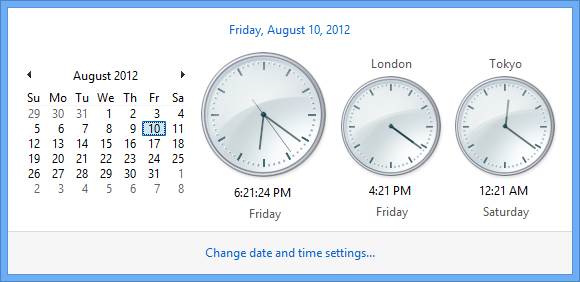
Windows OS allows you to set your local time (default). But, you ca also set two additional clocks for different time zones. Here’s how to add multiple clocks with different time zone:

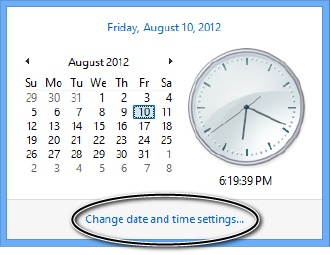
1: Click current clock/time area of the system tray (taskbar). It will open a window with current date and time info.

2. Click change date and time settings to open the Date And Time window.
multiple clock


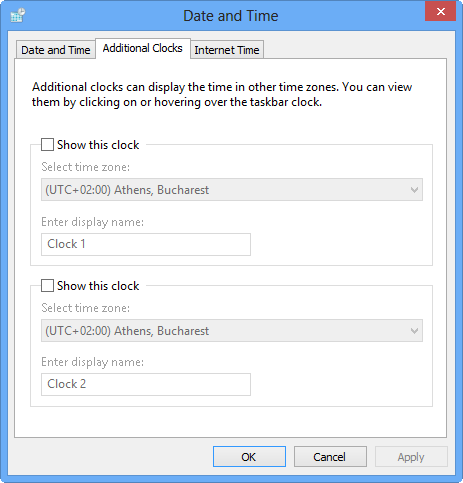
3: Click on the Additional Clocks tab.
multiple clocks-image-2


4. Click the checkbox “Show this clock.”

5: Select time zones and assign names for each place.

6. Click OK.

It’s done. You will now have multiple time zone clocks in Windows OS taskbar. It will be available after clicking the current time in the taskbar.

Tags: Add Multiple Clocks, Add Multiple Clocks in Windows OS, Add Multiple Time Zones in Windows OS, Windows OS

Primary Sidebar

Latest Posts

Delete Directory And Contents Recursively Without Prompt On Linux

Check User Login History In Ubuntu Linux Command Line

Use Locate Command To Find File In Linux Terminal By Name

How To Change Terminal Color In Ubuntu Command Line

How To Run Fsck Manually In Linux To Fix Unexpected Inconsistency

How To Fix Broken Packages On Ubuntu From Terminal

Re Execute The Previous Command In Linux Ubuntu Command Line

How Much RAM Is Needed For Ubuntu PC

How To Find Large Files And Directories In Linux Command Line

How To Use Clear Command History In Linux Terminal

© 2026 Source Digit • Linux, Ubuntu Tutorials & News, Technology, Gadgets & Gizmos

  • Home
  • About
  • Privacy Policy
  • Terms & Conditions
  • Contact Us
  • Sitemap