
• Skip to primary navigation
  • Skip to main content
  • Skip to primary sidebar
Source Digit

Source Digit

Linux, Ubuntu Tutorials & News, Technology, Gadgets & Gizmos

  • Home
  • How To
  • Ubuntu
  • Instagram
  • Blogging
  • Android
  • WordPress
  • +More
    • Cloud Computing
    • Gadgets
    • Social Media
    • Technology
  • Write for Us
Home / How To / How to Auto Hide the Unity Launcher In Ubuntu 14.04

How to Auto Hide the Unity Launcher In Ubuntu 14.04

By Sourabh / February 28, 2015 Category: How To, Ubuntu

Hide the Unity Launcher in Ubuntu 14.04 automatically when you’re not using it. You can show it again by moving the mouse to the left side, or the upper-left corner of the screen. This is a great trick to clear extra space on the screen. Let us see how:

Auto-Hide the Unity Launcher In Ubuntu 14.04

1. Click the system menu in the upper-right corner of the screen on the top panel.
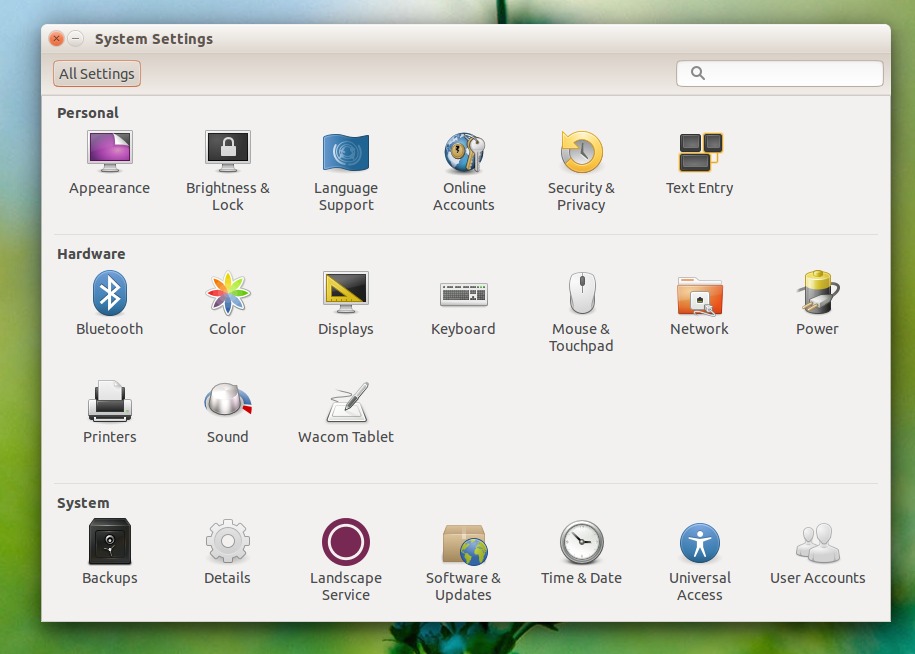
2. Select “System Settings” from the drop-down menu.
Hide-Unity-Launcher-Ubuntu-01
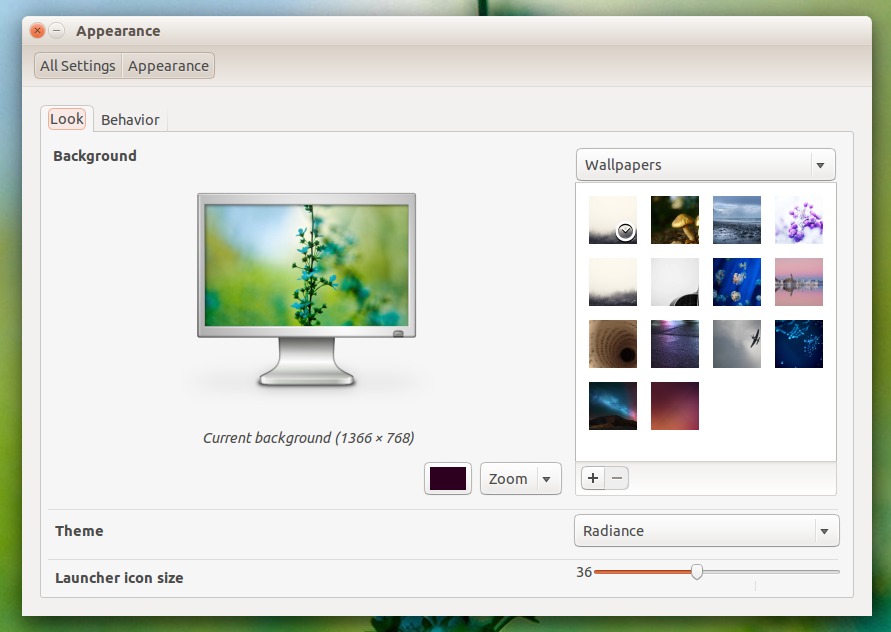
3. Under the “System Settings” dialog box, click “Personal” then click “Appearance.”
4. On the “Appearance” tab, click the “Behavior.”
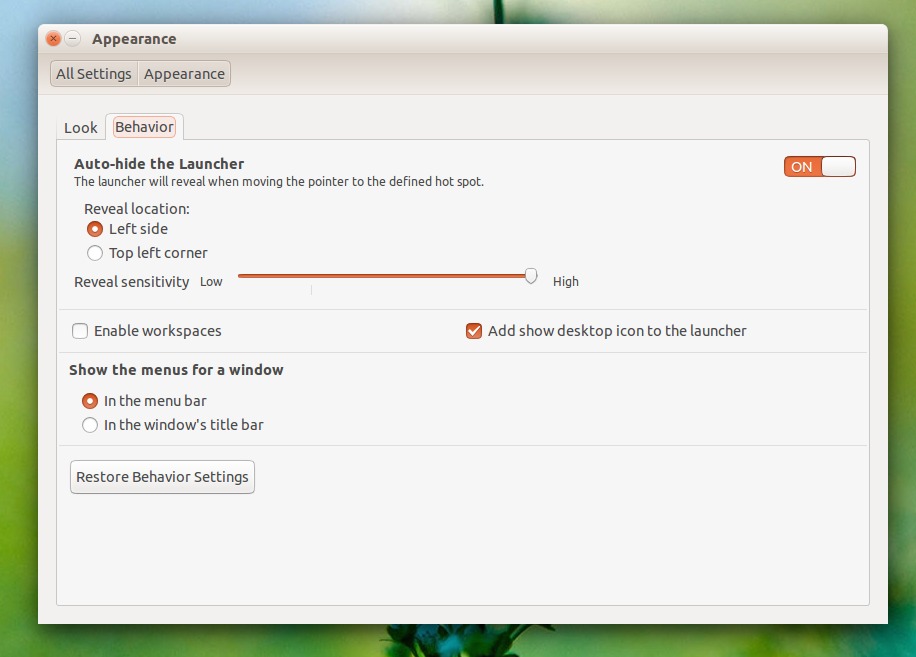
5. Click the switch to ON. You can see the ON/OFF switch on the right side of the “Behavior” tab.
Hide-Unity-Launcher-Ubuntu-02
6. When you click the swithc ON, it turns orange and you can now see the additional options in the “Auto-hide the Launcher.”
7. Under “Reveal location,” select the “Left side” or “Top left corner” of the screen to show the Unity Launcher.
8. Adjust the “Reveal sensitivity” slider to determine the sensitivity of the reveal location.
 

Hide-Unity-Launcher-Ubuntu-03
9. Once you are done with the settings, close the “Settings” dialog box.

Unity Launcher Auto-Hide Not Working in Ubuntu 14.04

If you are getting problem with the auto-hide feature of the Unity Launcher, you can use the Super key. The Super key reveals the sidebar. You can just tap Super twice if the sidebar gets stuck. You can also tap Super + L or Alt+Ctrl+L to lock and unlock the system.

If the above step doesn’t solve the problem, try re-installing or upgrading the Unity. To do so, open the Terminal and run the following command:


sudo apt-get upgrade unity
sudo apt-get update && sudo apt-get upgrade

Tags: Auto Hide the Unity in Ubuntu, Automatically Hide Unity Launcher in Ubuntu, Customize Ubuntu Desktop, Customize Ubuntu Screen, Hide the Unity Launcher in Ubuntu 14.04, Hide the Unity Launcher Ubuntu 14.04, How to Auto Hide the Unity Launcher In Ubuntu 14.04, Launcher auto-hide not working Ubuntu 14.04, Ubuntu 14.04, Ubuntu Unity Launcher Customize

Primary Sidebar

Latest Posts

Delete Directory And Contents Recursively Without Prompt On Linux

Check User Login History In Ubuntu Linux Command Line

Use Locate Command To Find File In Linux Terminal By Name

How To Change Terminal Color In Ubuntu Command Line

How To Run Fsck Manually In Linux To Fix Unexpected Inconsistency

How To Fix Broken Packages On Ubuntu From Terminal

Re Execute The Previous Command In Linux Ubuntu Command Line

How Much RAM Is Needed For Ubuntu PC

How To Find Large Files And Directories In Linux Command Line

How To Use Clear Command History In Linux Terminal

© 2026 Source Digit • Linux, Ubuntu Tutorials & News, Technology, Gadgets & Gizmos

  • Home
  • About
  • Privacy Policy
  • Terms & Conditions
  • Contact Us
  • Sitemap