
• Skip to primary navigation
  • Skip to main content
  • Skip to primary sidebar
Source Digit

Source Digit

Linux, Ubuntu Tutorials & News, Technology, Gadgets & Gizmos

  • Home
  • How To
  • Ubuntu
  • Instagram
  • Blogging
  • Android
  • WordPress
  • +More
    • Cloud Computing
    • Gadgets
    • Social Media
    • Technology
  • Write for Us
Home / How To / How to Customize Ubuntu Panel Bar (Unity Top Panel) in Ubuntu Systems

How to Customize Ubuntu Panel Bar (Unity Top Panel) in Ubuntu Systems

By Sourabh / February 1, 2016 Category: How To, Ubuntu

Customize Ubuntu Panel Bar – How to add Date & Time and Username on the Ubuntu Panel Bar in Ubuntu 14.10 & Ubuntu 14.04 LTS. Customize the Unity top panel – change Ubuntu Top bar Icons, add Date & Time, show Username on Ubuntu Panel Bar in Unity (Ubuntu 14.10 & Ubuntu 14.04 systems).

I assume you have installed the Unity Tweak Tool. If not, you will have to install the Unity Tweak Tool, before you customize the Ubuntu Panel Bar.

The Panel option is primarily to set different Panel bar options such as: show different indicators on Panel bar, show your name and fix menu sizes (displayed on Panel bar).  You can see different options for Panel bar, tick those which you want and leave the rest.
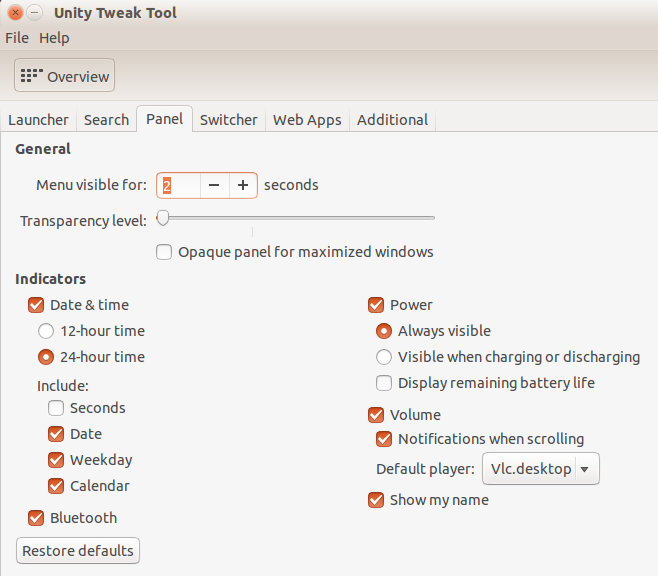
Panel Unity Tweak Tool

You can change the Date & Time format and include seconds, date, weekday, calendar on the Unity Panel Bar. You can set the Date & Time format in 12-Hour Time or 24-Hour Time format.

Other Ubuntu Panel Bar options that you can customize are:
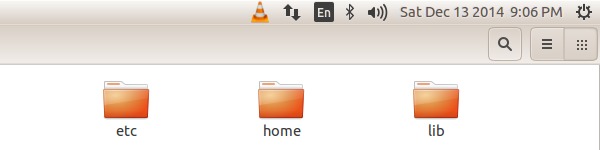
Customize-Ubuntu-Panel-Bar

  1. Menu Visibility (Time) – You can set the menu visibility time in seconds and set the transparency level. You can also enable opaque panel for maximized windows.
  2. Power – Show or hide Battery status & percentage. You can also enable visibility of the Battery icon in Ubuntu when charging or discharging along with the remaining battery life in Ubuntu.
  3. Volume – Show the volume icon and sound-notifications.
  4. Default Player – Set and change the default player.
  5. Show Username – Display or hide the username on the Ubuntu Panel Bar.

At any give time, if you want to get back the default settings, click on the Restore Defualts button. This option will restore the each and every options of the Ubuntu Panel Bar to the system restore settings.

Tags: Customize Ubuntu 14.04, Customize Ubuntu 14.10, How to add Date & Time on the Ubuntu Panel Bar in Ubuntu, How to add Username on the Ubuntu Panel Bar in Ubuntu, How to Customize Ubuntu Panel Bar, How to Customize Unity Top Panel, Set and change the default audio player in Ubuntu 14.04, Show battery charging status in Ubuntu, Show or hide Battery status in Ubuntu 14.04, Show username on the Ubuntu Panel Bar, Ubuntu Panel Bar Settings, Unity Top Panel Settings, Unity Tweak Tool

Primary Sidebar

Latest Posts

Delete Directory And Contents Recursively Without Prompt On Linux

Check User Login History In Ubuntu Linux Command Line

Use Locate Command To Find File In Linux Terminal By Name

How To Change Terminal Color In Ubuntu Command Line

How To Run Fsck Manually In Linux To Fix Unexpected Inconsistency

How To Fix Broken Packages On Ubuntu From Terminal

Re Execute The Previous Command In Linux Ubuntu Command Line

How Much RAM Is Needed For Ubuntu PC

How To Find Large Files And Directories In Linux Command Line

How To Use Clear Command History In Linux Terminal

© 2026 Source Digit • Linux, Ubuntu Tutorials & News, Technology, Gadgets & Gizmos

  • Home
  • About
  • Privacy Policy
  • Terms & Conditions
  • Contact Us
  • Sitemap