
Google Analytics Acquisition Reports is changed. Here’s how to see the Google Analytics keyword report to get your organic traffic list. Where to get the keyword search terms for organic traffic for your website.
It is an easier way to know the all keyword search terms for organic traffic for your website. Here is how to find the Google Analytics keyword traffic report in the new Google Analytics interface.
Google has updated the Acquisition section and the old method to look for the keyword terms for the organic traffic no longer works. The organic traffic report section has been amalgamated with the “All Traffic” section to make it easier to navigate.
Google says the Acquisition reports provide a window on your users’ Acquisition-Behavior-Conversion (ABC) cycle: how you acquire users, their behavior on your site after acquisition, and their conversion patterns.
Within the Acquisitions Reports, you can get details about the “Organic Search” – the search engines from which traffic originated and their “Traffic Source Dimensions.”
The “Acquisitions Reports: Traffic Source Dimensions” shows the source, medium and keyword of each organic traffic. It also show the content and campaign. The Campaign is the referring AdWords campaign or a custom campaign that you may have created. The Content identifies a specific link or content item in a campaign.
How to Get The Keyword Search Term Organic Traffic Report
Method 1
- Login to your Google Analytics account.
- Click on Acquisitions > All Traffic > Source/Medium.
- Now click on the Keywords option. It is on the top right of the report page. Look screenshot below:
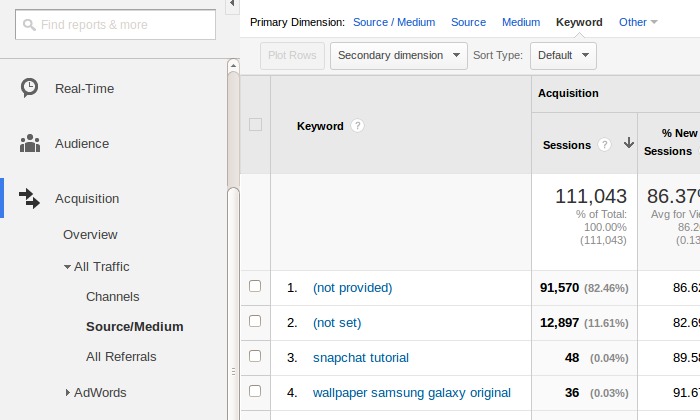
Method 2
- Login to your Google Analytics account.
- Click on Acquisitions > Overview.
- Now scroll below and click on the Organic Search tab. It is on the bottom right of the report page. Look screenshot below:
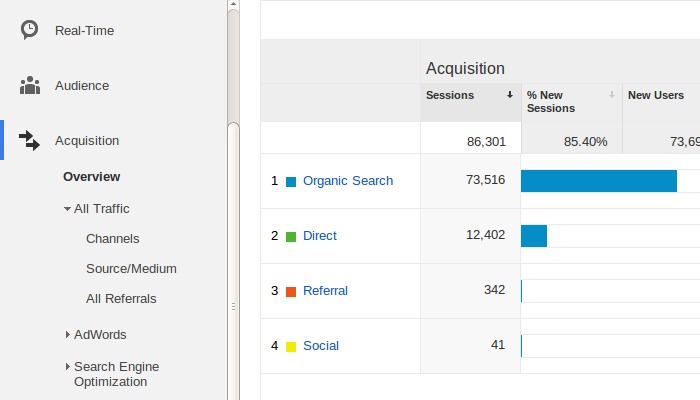
That’s all. Here you can see all the Acquisitions > All Traffic > Channels and then select keyword options. It is on the top right of the report page.
Traffic Source Dimensions Options
- Source: Every referral to a web site has an origin, or source. Possible sources include: “google” (the name of a search engine), “facebook.com” (the name of a referring site), “spring_newsletter” (the name of one of your newsletters), and “direct” (users that typed your URL directly into their browser, or who had bookmarked your site).
- Medium: Every referral to a website also has a medium. Possible medium include: “organic” (unpaid search), “cpc” (cost per click, i.e. paid search), “referral” (referral), “email” (the name of a custom medium you have created), “none” (direct traffic has a medium of “none”).
- Keyword: The keywords that users searched are usually captured in the case of search engine referrals. This is true for both organic and paid search. Note, however, that when SSL search is employed, Keyword will have the value (not provided).
Campaign is the name of the referring AdWords campaign or a custom campaign that you have created. Content identifies a specific link or content item in a custom campaign.