
• Skip to primary navigation
  • Skip to main content
  • Skip to primary sidebar
Source Digit

Source Digit

Linux, Ubuntu Tutorials & News, Technology, Gadgets & Gizmos

  • Home
  • How To
  • Ubuntu
  • Instagram
  • Blogging
  • Android
  • WordPress
  • +More
    • Cloud Computing
    • Gadgets
    • Social Media
    • Technology
  • Write for Us
Home / How To / Install Folder Color Nautilus Tool & Change Folder/Icons Color in Ubuntu 14.10/14.04

Install Folder Color Nautilus Tool & Change Folder/Icons Color in Ubuntu 14.10/14.04

By Sourabh / June 1, 2015 Category: How To, Ubuntu

How to change folder color in Ubuntu systems. How to install Folder Color Nautilus Tool and change color of folder icons in Ubuntu 14.10/14.04. Change folder background color and text color in Ubuntu.

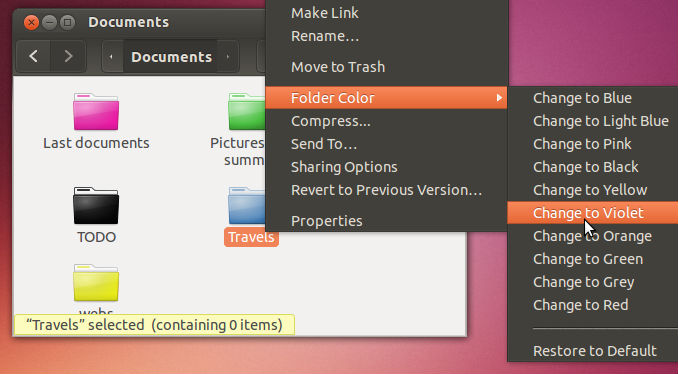
Folder Color is a Nautilus tool/extension which allows you to easily change the folder or icon color in Ubuntu. You can change folder color to blue, pink, black, yellow, violet, orange, green, grey or red. You can also use this extension with Nemo file manager.

Install Folder Color in Ubuntu
Folder-Colour

Open Terminal and run the following command to install Folder Color (via PPA) for Ubuntu 14.10, Ubuntu 14.04 and Ubuntu 12.04.

sudo add-apt-repository ppa:costales/folder-color
sudo apt-get update
sudo apt-get install folder-color

Install Folder Color Nautilus Tool for Nemo

You can also install the Folder Color Nautilus Tool for Nemo to use on Linux Mint with Cinnamon. To install Folder Color for Nemo, run the following commands:

sudo add-apt-repository ppa:costales/folder-color
sudo apt-get update
sudo apt-get install python-nemo libgtk2.0-bin folder-color-nemo

You can also install the Folder Color using the deb file. You can download the .deb file from the official page.

Once you have installed the Folder Color, you will need to log out and back. You can also restart Nautilus using the Terminal command. Run the following command to restart Nautilus using terminal:

nautilus -q

Run the following commands to restart Nemo:

nemo -q

How to Use Folder Color Tool

To use the Folder Color Nautilus Tool, simply right click any folder in Nautilus. Select “Folder Color” from the menu and then select the color you want to use for that folder or icon. (See screenshot above)

Image via OMG Ubuntu

Tags: Change Color of Folder Icons in Ubuntu, Change Color of Icons in Ubuntu, Change folder background color in Ubuntu, Change Folder Color in Ubuntu, Change Folder Icons Color in Ubuntu, Change text color in Ubuntu, Download Folder Color Nautilus Tool, Folder Color Nautilus Tool, Folder Color PPA, Install Folder Color Deb File, Install Folder Color for Nautilus Nemo, Install Folder Color for Nemo, Install Folder Color in Ubuntu, Install Folder Color Nautilus Tool for Nemo, Install Folder Color on Ubuntu, Restart Nautilus using terminal, Ubuntu 14.04, Ubuntu 14.10, Ubuntu Change Folder Color

Primary Sidebar

Latest Posts

Delete Directory And Contents Recursively Without Prompt On Linux

Check User Login History In Ubuntu Linux Command Line

Use Locate Command To Find File In Linux Terminal By Name

How To Change Terminal Color In Ubuntu Command Line

How To Run Fsck Manually In Linux To Fix Unexpected Inconsistency

How To Fix Broken Packages On Ubuntu From Terminal

Re Execute The Previous Command In Linux Ubuntu Command Line

How Much RAM Is Needed For Ubuntu PC

How To Find Large Files And Directories In Linux Command Line

How To Use Clear Command History In Linux Terminal

© 2026 Source Digit • Linux, Ubuntu Tutorials & News, Technology, Gadgets & Gizmos

  • Home
  • About
  • Privacy Policy
  • Terms & Conditions
  • Contact Us
  • Sitemap