
• Skip to primary navigation
  • Skip to main content
  • Skip to primary sidebar
Source Digit

Source Digit

Linux, Ubuntu Tutorials & News, Technology, Gadgets & Gizmos

  • Home
  • How To
  • Ubuntu
  • Instagram
  • Blogging
  • Android
  • WordPress
  • +More
    • Cloud Computing
    • Gadgets
    • Social Media
    • Technology
  • Write for Us
Home / How To / How To Install Install Unsettings 0.09 – Unity Configuration Tool in Ubuntu

How To Install Install Unsettings 0.09 – Unity Configuration Tool in Ubuntu

By Sourabh / March 23, 2015 Category: How To, Ubuntu

Unsettings 0.09 – Unity Configuration Tool for Ubuntu. Install Unsettings 0.09 in Ubuntu 14.10, Ubuntu 14.04 and Ubuntu 12.04. Unsettings is the graphical configuration tool for Unity desktop.

The latest version Unsettings 0.09 supports Ubuntu 14.10 and Ubuntu 14.04. Versions older than Ubuntu 12.04 “Precise Pangolin” are not supported.

What is Unsettings?
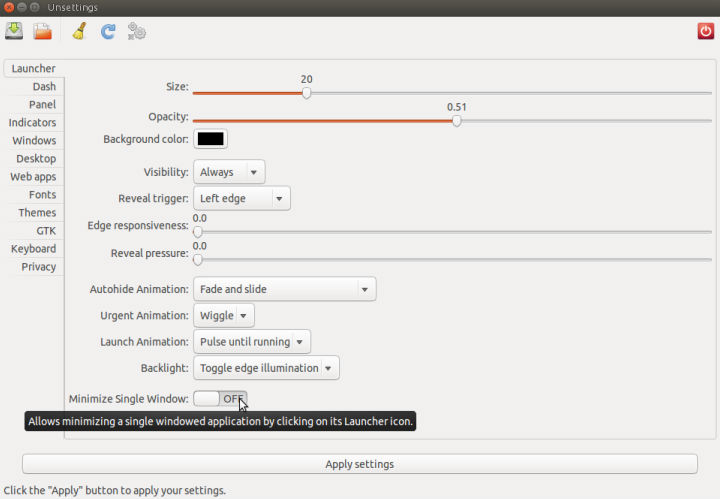
Unsettings-Unity-Configuration-Tool

Unsettings is a graphical configuration program for the Unity desktop environment that lets you change some of the Unity settings. Unsettings can only change your users’s settings, you can’t use it to change settings that needs root privileges. You can use Unsettings to change the themes for GTK, window manager, icons and cursors. But it doesn’t support the installation of new themes. With Unsettings you can switch off the global menu and the overlay scrollbars used in Unity.

Unsettings lets you to save your settings into and load from a text file (JSON format) so you can easily backup or copy the settings to a different account or system.

Install Unsettings Unity Configuration Tool

You can install the Unsettings via the PPA or via the .deb package.

Install Unsettings via DEB Pakcage

Download the binary package (.deb) from the link below, then double-click to open it with Ubuntu Software Center and finally click install Unsettings.

Download Unsettings (.deb)

Install Unsettings via PPA

Unsettings is available from the PPA(“Personal Package Archive”) for Ubuntu 12.04 “Precise Pangolin”, Ubuntu 14.04 “Trusty Tahr”, and Ubuntu 14.10 “Utopic Unicorn”. It also supports the upcoming version – Ubuntu 15.04 “Vivid Vervet”.

The PPA:diesch/testing automatically installs the newer versions of Unsettings, when they are available. Open Terminal and run the commands given below to add the PPA and install Unsettings on Ubuntu system:


sudo add-apt-repository -y ppa:diesch/testing
sudo apt-get update
sudo apt-get install unsettings

Once installed, you can start the Unsettings configuration tool from the Unity Dash.

Tags: Best Text Editor For Linux Ubuntu, Best Text Editor Unsettings Unity Configuration Tool, Download Unsettings Unity Configuration Tool, How To Install Unsettings Unity Configuration Tool on Ubuntu, Install Unsettings 0.09 – Unity Configuration Tool, Install Unsettings Ubuntu Tool, Install Unsettings Unity Configuration Tool, Install Unsettings Unity Configuration Tool On Ubuntu 12.04, Install Unsettings Unity Configuration Tool On Ubuntu 14.04, Install Unsettings Unity Configuration Tool On Ubuntu 14.10, Install Unsettings Unity Configuration Tool On Ubuntu 15.04, Linux Ubuntu Unsettings Unity Configuration Tool, Ubuntu 14.04 Install Unsettings Unity Configuration Tool, Ubuntu 14.10 Install Unsettings Unity Configuration Tool, Ubuntu 15.04 Install Unsettings Unity Configuration Tool, Unsettings Unity Configuration Tool, Unsettings Unity Configuration Tool Download .deb, Unsettings Unity Configuration Tool Download .rpm, Unsettings Unity Configuration Tool PPA, Unsettings Unity Configuration Tool Ubuntu

Primary Sidebar

Latest Posts

Delete Directory And Contents Recursively Without Prompt On Linux

Check User Login History In Ubuntu Linux Command Line

Use Locate Command To Find File In Linux Terminal By Name

How To Change Terminal Color In Ubuntu Command Line

How To Run Fsck Manually In Linux To Fix Unexpected Inconsistency

How To Fix Broken Packages On Ubuntu From Terminal

Re Execute The Previous Command In Linux Ubuntu Command Line

How Much RAM Is Needed For Ubuntu PC

How To Find Large Files And Directories In Linux Command Line

How To Use Clear Command History In Linux Terminal

© 2026 Source Digit • Linux, Ubuntu Tutorials & News, Technology, Gadgets & Gizmos

  • Home
  • About
  • Privacy Policy
  • Terms & Conditions
  • Contact Us
  • Sitemap