
Install (LAMP) Linux-Apache-MySQL-PHP on Ubuntu. How to Install Linux, Apache, MySQL, PHP (LAMP) stack on Ubuntu 15.04/14.10/14.04 Systems.
LAMP is a web service solution stacks, named as an acronym of four components: the Linux operating system, the Apache HTTP Server, the MySQL relational database management system (RDBMS), and the PHP programming language.
Apache
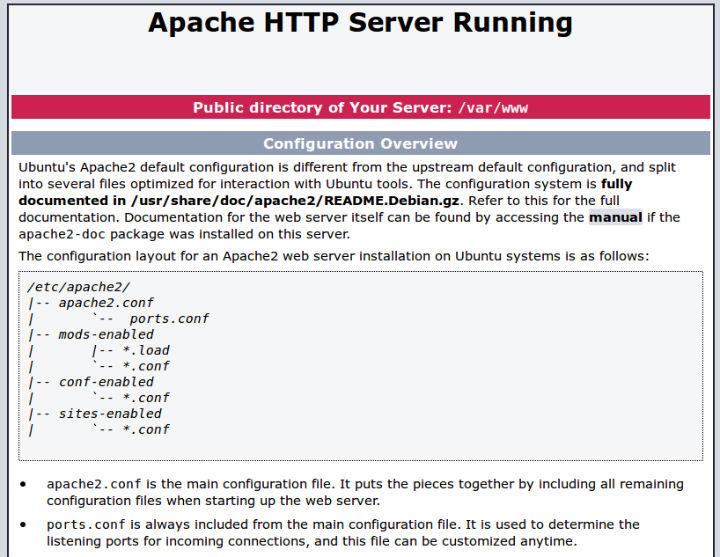
Apache is an open-source multi-platform web server. It provides a full range of web server features including CGI, SSL and virtual domains. To install Apache, run the following commands:
sudo apt-get update

sudo apt-get install apache2
The above commands will install Apache with web root folder under /var/www on your system. To test Apache, open your web browser and type http://localhost/ or http://server-ip-address/ in the URL box and it will test for it. If Apache works, you will see a page that says “It Works!”.
If you are wondering how to find your Server’s IP address, run the following command to know your server’s IP address.
ifconfig eth0 | grep inet | awk '{ print $2 }'
MY SQL
The next step is to install MySQL. MySQL is very popular, widely used open source relation database management system. To install MySQL, we execute the following command:
sudo apt-get install mysql-server libapache2-mod-auth-mysql php5-mysql
It will install the MySQL server along-with the required libraries. During the installation, enter MySQL root password.
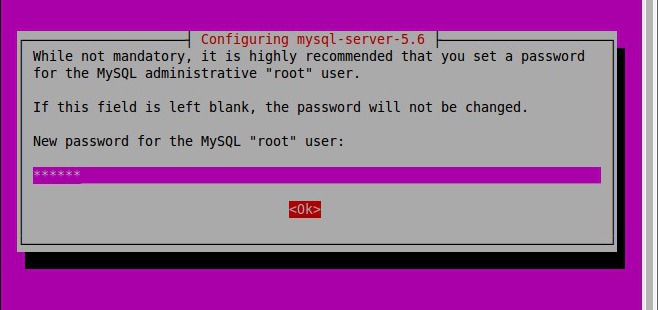
Once the installation is complete, run the following command to install MySQL system tables:
sudo mysql_install_db
Once MySQL is installed, you can verify the MySQL server status using the following command:
On Ubuntu 15.04
sudo systemctl status mysql
On Ubuntu 14.10 and previous versions
sudo service mysql status
PHP
PHP is an open source general-purpose scripting language for web development which can be embedded into HTML. To install PHP run the following command:
sudo apt-get install php5 libapache2-mod-php5 php5-mcrypt
Follow the on screen instructions and confirm prompts and PHP will be installed automatically. Once installed, it’s time to test it. To test PHP, create a “testphp.php” file in Apache document root folder. To do so, run the following command:
sudo nano /var/www/html/testphp.php
Once open, add the following lines.
Now restart the Apache2 service.
On Ubuntu 15.04
sudo systemctl restart apache2
On Ubuntu 14.10 and previous versions
sudo service apache2 restart
Open web browser and go to http://server-ip-address/testphp.php. It will then display all the details about php including its version, build date and commands etc.