
Download and install Visual Studio Code on Linux Ubuntu. How to install Visual Studio Code on Ubuntu 15.04, Ubuntu 14.10, Ubuntu 14.04 and Derivatives.
Visual Studio Code provides developers with a new choice of developer tool that combines the simplicity and streamlined experience of a code editor with the best of what developers need for their core code-edit-debug cycle. Visual Studio Code is the first code editor, and first cross-platform development tool – supporting OSX, Linux, and Windows – in the Visual Studio family.
Install Microsoft Visual Studio Code in Linux Ubuntu
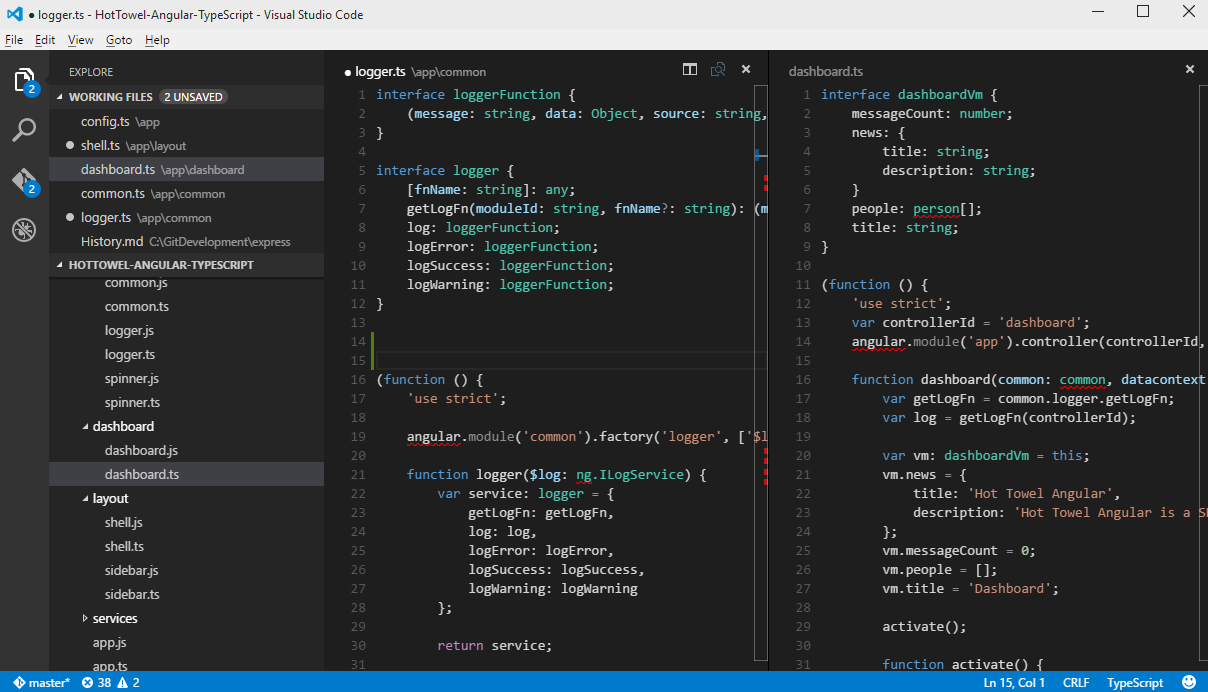
We will install Visual Studio Code in Ubuntu using Ubuntu Make (Ubuntu Developer Tools Center). Ubuntu Make is a command line utility that allows to easily install various development tools, languages and IDEs on Linux Systems. So before installing Visual Studio Code, we will install Ubuntu Make.
Open Terminal and run the following commands to install Ubuntu Make:
sudo add-apt-repository ppa:ubuntu-desktop/ubuntu-make

sudo apt-get update

sudo apt-get install ubuntu-make


Once Ubuntu Make is installed, run the command given below to install Visual Studio Code on Ubuntu System:


umake web visual-studio-code


Please note that during the installation, you’ll be asked to give a path for the insatllation packages. After that it will ask to submit your permission to install Visual Studio Code. Please press 'a' to install ('a' denotes accept terms and condition).
Once installed, you can search it via Dash.
How To Setup
- Download Visual Studio Code for Linux
- Make a new folder and extract VSCode-linux-x64.zip inside that folder
- Double click on Code to run Visual Studio Code
If you want to run VSCode from the terminal, create the following link substituting /path/to/vscode/Code with the absolute path to the Code executable
sudo ln -s /path/to/vscode/Code /usr/local/bin/code
Now, you can simply type code . in any folder to start editing files in that folder.
Uninstall Microsoft Visual Studio Code From Ubuntu
To uninstall and remove Visual Studio Code from Ubuntu Systems, run the following command in Terminal:
umake web visual-studio-code --remove

sudo apt-get remove ubuntu-make