
• Skip to primary navigation
  • Skip to main content
  • Skip to primary sidebar
Source Digit

Source Digit

Linux, Ubuntu Tutorials & News, Technology, Gadgets & Gizmos

  • Home
  • How To
  • Ubuntu
  • Instagram
  • Blogging
  • Android
  • WordPress
  • +More
    • Cloud Computing
    • Gadgets
    • Social Media
    • Technology
  • Write for Us
Home / How To / How To Share Internet Connection With Android in Ubuntu 15.04 & Ubuntu 14.04

How To Share Internet Connection With Android in Ubuntu 15.04 & Ubuntu 14.04

By Sourabh / June 11, 2015 Category: How To, Ubuntu

How to share Internet connection with Android in Ubuntu 15.04 and Ubuntu 14.04. Create Wifi Hotspot on Ubuntu laptop for Android phones.

The tutorial explains how to create wifi hotspot in Ubuntu 15.04 and Ubuntu 14.04. You can share wired Internet connection with Android smartphones.

For many users, the pre-installed Network Manager in Ubuntu Unity doesn’t support Access Point (AP) mode. The AP Mode is required to share Ubuntu’s Internet connection with the Android smartphones.

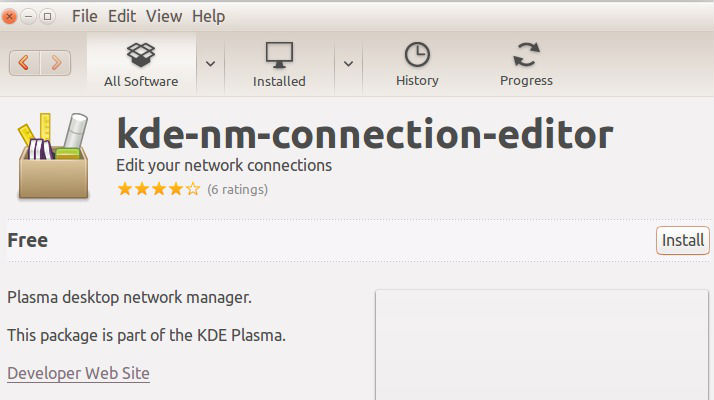
1. To begin, install the KDE’s Network Manager. The KDE’s Network Manager is an applet written in QML for managing network connections. It allows to manage your network connections. This application allows you to create, edit and delete network connections.
ubuntu-network

Click the link below to install the KDE’s Network Manager. You can also directly search and install the KDE’s Network Manager from Ubuntu Software Center:

Click Install KDE’s Network Manager

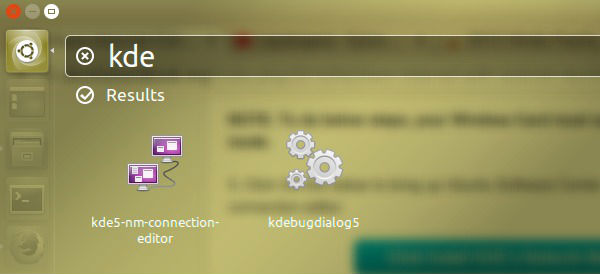
2. Once installed, open Dash (press Alt+F2) and search for KDE’s Network Manager. Search “kde-nm-connection-editor” in Ubuntu Dash.
Kde-ubuntu

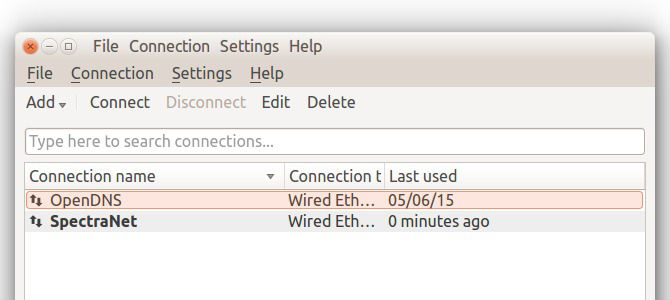
3. Once open, click Add button and select “Wi-Fi” (Wireless [shared])” from the drop-down menu.
Kde-02

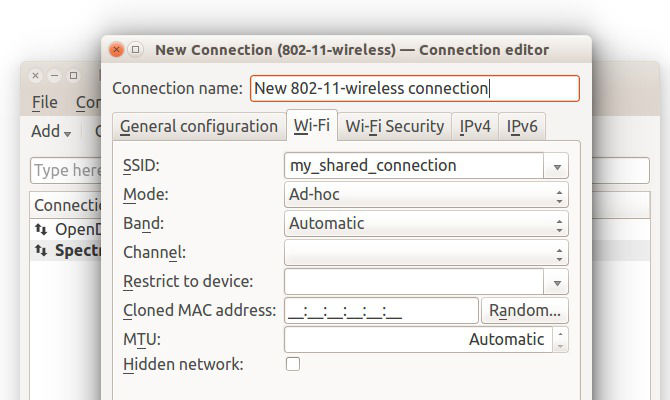
4. In the dialog box, type a name, ssid, and select Access Point mode for the shared-network conenction. You can also set up a password under Wireless Security tab. Once done, click OK.
Kde-0234

5. Once done, click Network Manager applet on Unity panel and select “Connect to Hidden Wi-Fi network.” Choose the shared Interet connection you created in the previous step and click Connect.

6. Finally your shared Internet connection will be ready to get connected.

To connect the Android and other devices, turn on WLAN on your Android smartphone. You will be able to see the created shared Internet connection as the access point in the netwrok list. Click connect and you are ready to enjoy.

Please note that for this tutorial, your Wireless Card must support Access Point (AP) mode.

Tags: Share Internet Connection in Ubuntu, Share Internet Connection Ubuntu 14, Share Internet Connection Ubuntu 15, Share Internet Connection With Android in Ubuntu 14.04 Share Ubuntu Internet Connection, Share Internet Connection With Android in Ubuntu 15.04, Share Ubuntu Internet Connection (Wired & Wireless), Share Ubuntu Internet Connection Ubuntu 14.04, Share Ubuntu Internet Connection Ubuntu 15.04, Share Wired Internet Connection on Ubuntu, Ubuntu 14.04, Ubuntu 15.04, Ubuntu Internet Connection Command Line, Ubuntu Internet Connection Not Working, Ubuntu Internet Connection Sharing Dhcp Server, Ubuntu Internet Connection Sharing Wireless, Ubuntu Internet Connection Troubleshooting, Ubuntu Share Internet Connection Bluetooth, Ubuntu Share Internet Connection Wifi

Primary Sidebar

Latest Posts

Delete Directory And Contents Recursively Without Prompt On Linux

Check User Login History In Ubuntu Linux Command Line

Use Locate Command To Find File In Linux Terminal By Name

How To Change Terminal Color In Ubuntu Command Line

How To Run Fsck Manually In Linux To Fix Unexpected Inconsistency

How To Fix Broken Packages On Ubuntu From Terminal

Re Execute The Previous Command In Linux Ubuntu Command Line

How Much RAM Is Needed For Ubuntu PC

How To Find Large Files And Directories In Linux Command Line

How To Use Clear Command History In Linux Terminal

© 2026 Source Digit • Linux, Ubuntu Tutorials & News, Technology, Gadgets & Gizmos

  • Home
  • About
  • Privacy Policy
  • Terms & Conditions
  • Contact Us
  • Sitemap