
Install Mozilla Thunderbird 38.0.1 on Linux Ubuntu 15.04, Ubuntu 14.04 and Derivatives. Thunderbird 38.0.1 supports OAuth2 authentication and support for Yahoo Messenger in Chat.
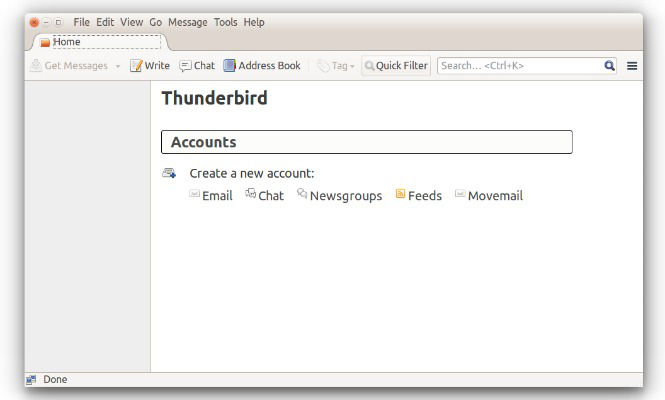
What’s New in Thunderbird 38.0.1:
- GMail supports OAuth2 authentication, removing the need to manually select “allow less secure applications” in Google options for the account
- Ship Lightning calendar addon with Thunderbird and enable with an opt-out dialog
- Filter sent messages
- Filter messages when archived
- Enable search in multiple/all address books
- Add support for Yahoo Messenger in Chat
- Support Internationalized domain name URLs for RSS feeds
- Show expanded columns in folder pane
- Allow file-per-message (maildir) local message storage
- Add a Learn more link to the support page in feeds subscribe dialog
- Add reading position marker line to conversations
- The editor for twitter should show inputtable character count
Please note that when you install Thunderbird 38.0.1 on Linux Ubuntu Systems, it will replace the version of Thunderbird already installed on the system.
Install Thunderbird 38.0.1 on Ubuntu
32 bit Linux Ubuntu Systems
Run the following command to install the latest Thunderbird version (Thunderbird 38.0.1) on 32 bit Linux Ubuntu Systems:
$ wget ftp.mozilla.org/pub/mozilla.org/thunderbird/releases/38.0.1/linux-i686/en-US/thunderbird-38.0.1.tar.bz2

$ tar -xjvf thunderbird-38.0.1.tar.bz2

$ sudo rm -rf /opt/thunderbird*

$ sudo mv thunderbird /opt/thunderbird

$ sudo ln -sf /opt/thunderbird/thunderbird /usr/bin/thunderbird
64 bit Linux Ubuntu Systems
Run the following command to install the latest Thunderbird version (Thunderbird 38.0.1) on 32 bit Linux Ubuntu Systems:
$ wget ftp.mozilla.org/pub/mozilla.org/thunderbird/releases/38.0.1/linux-x86_64/en-US/thunderbird-38.0.1.tar.bz2

$ tar -xjvf thunderbird-38.0.1.tar.bz2

$ sudo rm -rf /opt/thunderbird*

$ sudo mv thunderbird /opt/thunderbird

$ sudo ln -sf /opt/thunderbird/thunderbird /usr/bin/thunderbird
Once installed, to start Thunderbird, type thunderbird in Terminal and hit enter. You can also open Thunderbird via Ubuntu Dash.