
• Skip to primary navigation
  • Skip to main content
  • Skip to primary sidebar
Source Digit

Source Digit

Linux, Ubuntu Tutorials & News, Technology, Gadgets & Gizmos

  • Home
  • How To
  • Ubuntu
  • Instagram
  • Blogging
  • Android
  • WordPress
  • +More
    • Cloud Computing
    • Gadgets
    • Social Media
    • Technology
  • Write for Us
Home / Uncategorized / Install Gnome-Pie Application Launcher on Ubuntu 15.04, Ubuntu 14.04 & Ubuntu 14.10

Install Gnome-Pie Application Launcher on Ubuntu 15.04, Ubuntu 14.04 & Ubuntu 14.10

By Sourabh / July 27, 2015 Category: Uncategorized

How to install Gnome-Pie Application Launcher on Linux Ubuntu 15.04, Ubuntu 14.04 and Ubuntu 14.10. Install and update Gnome-Pie Application Launcher on Ubuntu Unity Desktop.

Gnome-Pie a slick application launcher for Linux. It’s eye candy and pretty fun to work with. It offers multiple ways to improve your desktop experience. The circular application launcher is made of several pies, each consisting of multiple slices. The user presses a key stroke which opens the desired pie. By activating one of its slices, applications may be launched, key presses may be simulated or files can be opened.

Gnome Pie 0.6.4 is the latest version of the launcher. It has been released with various new features and improvements.

  • New Feature: A new theme based on “Adwaita”. It features bigger icons than the original theme. This looks awesome with some icon themes.
  • Bugfix: Fixed missing icon of status icon in message tray.

Install Gnome Pie on Ubuntu
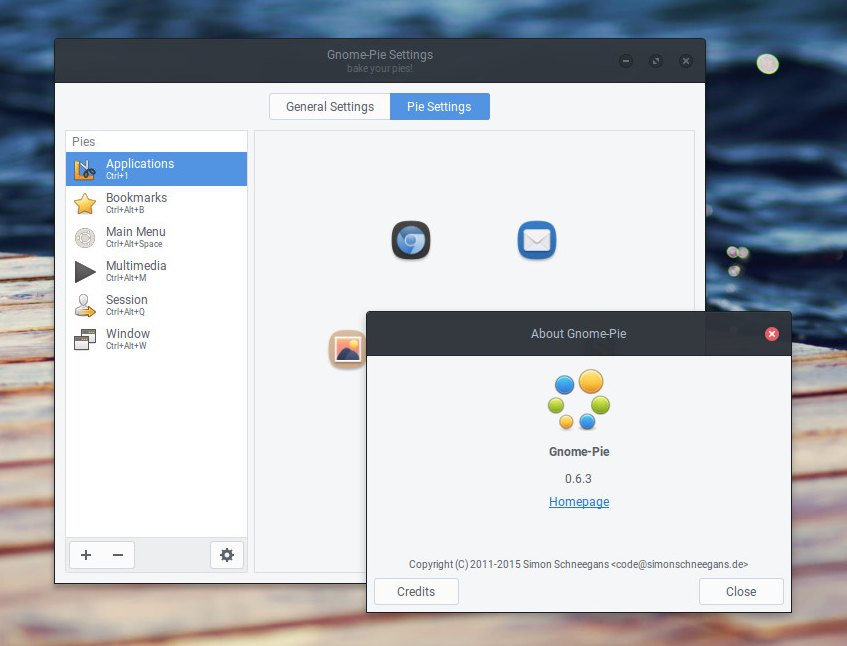
gnome-pie063

The Gnome-Pie Application Launcher can be installed on Linux Ubuntu via PPA. Open Terminal and run the following commands to install Gnome-Pie Application Launcher on Linux Ubuntu 15.04, Ubuntu 14.04, Ubuntu 14.10 and derivatives:


$ sudo add-apt-repository ppa:simonschneegans/testing
$ sudo apt-get update
$ sudo apt-get install gnome-pie

Once installed, the Gnome-Pie launcher can opened from Ubuntu Dash. It can be customized as per user’s requirements. By clicking on the panel-indicator of Gnome-Pie or by launching the application a second time, you can open its settings menu.

Here you can set up your Pies. All your Pies are listed on the left — you can add new or delete existing pies with the little plus and minus sign in the lower left-hand corner. On the right is a preview of each Pie. Simply drag and drop the Slice to reorder them. You can drag stuff from your computer to this preview in order to add it to the Pie.

By clicking on the “General Settings”-button in the tool bar, you can specify some behavior options (such as Startup on Login or a Global Scale factor). Furthermore you can select a theme which skins all of your pies to match your taste.

If you wish to uninstall and remove gnome-pie, run the following command:


$ sudo apt-get remove gnome-pie

Tags: Application Launcher Ubuntu, Download Gnome-Pie Application Launcher on Ubuntu, Gnome-Pie Application Launcher, Gnome-Pie Application Launcher on Linux, Gnome-Pie Application Launcher on Ubuntu, How To Install Gnome-Pie Application Launcher on Linux Ubuntu 14.04, How To Install Gnome-Pie Application Launcher on Linux Ubuntu 14.10, How To Install Gnome-Pie Application Launcher on Linux Ubuntu 15.04, Install Gnome-Pie Application Launcher on Linux, Install Gnome-Pie Application Launcher on Ubuntu, Install Gnome-Pie Application Launcher on Ubuntu 14.04, Install Gnome-Pie Application Launcher on Ubuntu 14.10, Install Gnome-Pie Application Launcher on Ubuntu 15.04, Linux Ubuntu Install Gnome-Pie Application Launcher, Ubuntu 14.04 Gnome-Pie Application Launcher, Ubuntu 14.10 Gnome-Pie Application Launcher, Ubuntu 15.04 Gnome-Pie Application Launcher, Ubuntu Application Launcher

Primary Sidebar

Latest Posts

Delete Directory And Contents Recursively Without Prompt On Linux

Check User Login History In Ubuntu Linux Command Line

Use Locate Command To Find File In Linux Terminal By Name

How To Change Terminal Color In Ubuntu Command Line

How To Run Fsck Manually In Linux To Fix Unexpected Inconsistency

How To Fix Broken Packages On Ubuntu From Terminal

Re Execute The Previous Command In Linux Ubuntu Command Line

How Much RAM Is Needed For Ubuntu PC

How To Find Large Files And Directories In Linux Command Line

How To Use Clear Command History In Linux Terminal

© 2026 Source Digit • Linux, Ubuntu Tutorials & News, Technology, Gadgets & Gizmos

  • Home
  • About
  • Privacy Policy
  • Terms & Conditions
  • Contact Us
  • Sitemap