
How to open and read epub files (books) in Linux Ubuntu. Linux app (software) to open, read and view epub documents. Although there are many softwares to read epub/ebooks on Linux Ubuntu Systems, Calibre is one of the most popular e-book library management software. It is a wonderful ebook (epub) file reader for Ubuntu.
To get a complete list of available ebook/epub readers for Linux Ubuntu, open “Software Center” and search for “Ebook Reader”. In the results page you will see the list of available software (see screenshot below).
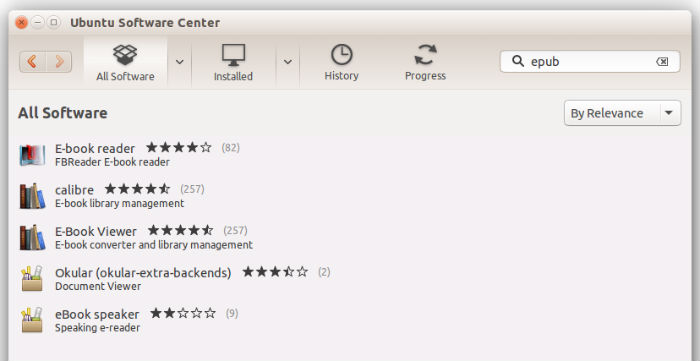
Epub(Electronic Publications) is an open book standard for reading documents on computers and mobile devices. Epub books format is a popular format as it adjusts its font size to the device display. In other words, epub format are responsive.
By default, one can not open epub files using the default pdf reader software in Linux Ubuntu. To read epub books one need epub reader such as Calibre to be installed on Linux Ubuntu.
Calibre is meant to be a complete e-library solution. It includes library management, format conversion, news feeds to e-book conversion as well as e-book reader sync features.

Calibre is primarily an e-book cataloging program. It manages your e-book collection for you. It is designed around the concept of the logical book, i.e. a single entry in the database that may correspond to e-books in several formats. It also supports conversion from a dozen different e-book formats to LRF and EPUB. A graphical interface to the conversion software can be accessed easily by just clicking the “Convert E-books” button.
Calibre has also a built-in e-book viewer that can display all the major e-book formats. Supported input formats are: MOBI, LIT, PRC, EPUB, ODT, HTML, CBR, CBZ, RTF, TXT, PDF and LRS.
Install Calibre on Linux Ubuntu
Calibre ebook reader can be installed on Linux Ubuntu systems via Software Center or Terminal commands.
The easiest method to install Calibre on Ubuntu is via Software Center. Open Software Center and search for Calibre. Click on the install button and it will be installed automatically.

Once installed, open Caibre via Ubuntu Dash. For the first time users, it will ask you to configure Calibre. Simply select the default options are you are ready to use the software.
If you wish to install Calibre on Ubuntu via Command Line (Terminal), run the following commands:
$ sudo -v && wget -nv -O- https://raw.githubusercontent.com/kovidgoyal/calibre/master/setup/linux-installer.py | sudo python -c “import sys; main=lambda:sys.stderr.write(‘Download failed\n’); exec(sys.stdin.read()); main()”