• Skip to primary navigation
  • Skip to main content
  • Skip to primary sidebar
Source Digit

Source Digit

Linux, Ubuntu Tutorials & News, Technology, Gadgets & Gizmos

  • Home
  • How To
  • Ubuntu
  • Instagram
  • Blogging
  • Android
  • WordPress
  • +More
    • Cloud Computing
    • Gadgets
    • Social Media
    • Technology
  • Write for Us
Home / Uncategorized / Install Syncthing File Synchronization Tool On Ubuntu 15.04 & Ubuntu 14.04

Install Syncthing File Synchronization Tool On Ubuntu 15.04 & Ubuntu 14.04

By Sourabh / August 12, 2015 Category: Uncategorized

Syncthing 0.11.19 File Synchronization Tool for Linux Ubuntu. Install Syncthing (Ubuntu PPA) on Ubuntu 15.04, Ubuntu 14.04 and Derivatives. Syncthing is a popular file synchronization client/server application.

Features of Syncthing App

  • None of your data is ever stored anywhere else than on your computers. There is no central server that might be compromised, legally or illegally.
  • All communication is secured using TLS. The encryption used includes perfect forward secrecy to prevent any eavesdropper from ever gaining access to your data.
  • Every node is identified by a strong cryptographic certificate. Only nodes you have explicitly allowed can connect to your cluster.
  • Configure and monitor Syncthing via a responsive and powerful interface accessible via your browser.
  • Syncthing doesn’t need IP addresses or advanced configuration: it just works, over LAN and over the Internet.

Install Syncthing Official PPA

To install Syncthing official PPA in Ubuntu/Linux Mint and Debian, run the following commands:

sudo apt-get install curl
curl -s https://syncthing.net/release-key.txt | sudo apt-key add -
echo "deb http://apt.syncthing.net/ syncthing release" | sudo tee /etc/apt/sources.list.d/syncthing-release.list
sudo apt-get update
sudo apt-get install syncthing

The Syncthing appl has only a Web UI to perform Syncthing tasks.

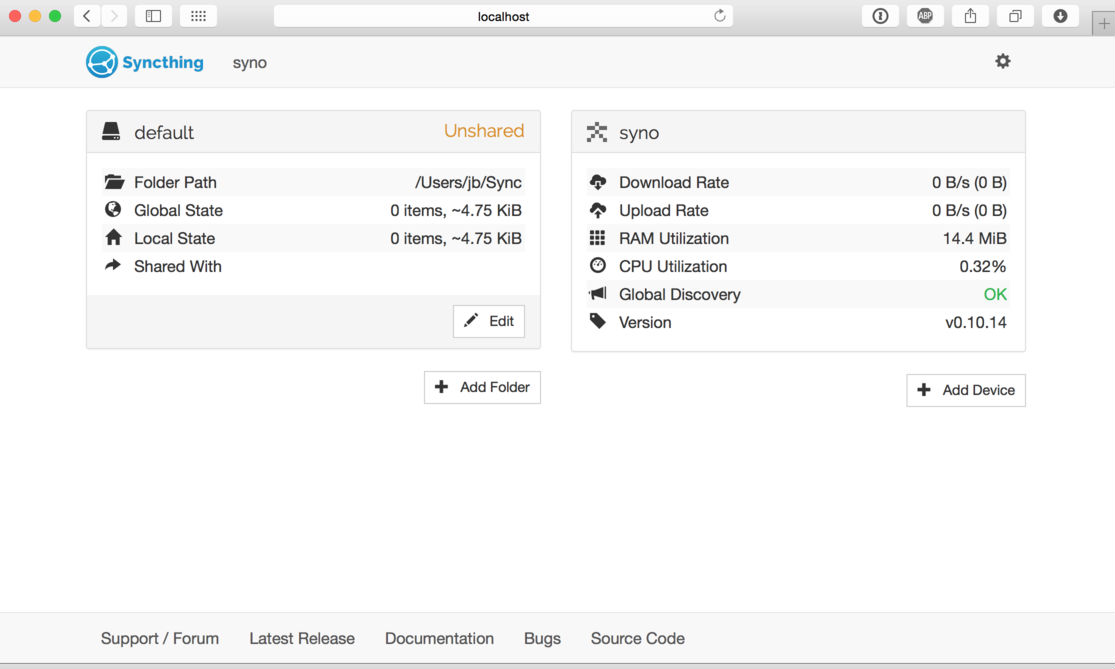
The admin GUI starts automatically and remains available on http://localhost:8080/. It looks like this:

  • On the left is the list of “folders”, or directories to synchronize.
  • On the right is the list of devices.

Syncthing-Ubuntu

Currently there is only one device, the computer you are running this on. For Syncthing to be able to synchronize files with another device, it must be told about that device. This is accomplished by exchanging “device IDs”.

Uninstall Syncthing and Syncthink GTK From Ubuntu Systems

Run the following command to uninstall and remove Syncthing and Syncthing-GTK:

sudo apt-get remove syncthing
sudo apt-get remove syncthing-gtk
sudo rm -rf /opt/syncthing

Tags: Install Syncthing File Synchronization Tool, Install Syncthing File Synchronization Tool Ubuntu 14.04, Install Syncthing File Synchronization Tool Ubuntu 15.04, Install Syncthing GTK 0.11.19 Open Source File Synchronization Tool, Install Syncthing GTK Open Source File Synchronization Tool, Install Syncthing Linux, Install Syncthing Official PPA, Install Syncthing On Ubuntu 14.04, Install Syncthing On Ubuntu 15.04, Install Syncthing Ubuntu, Install Syncthing Ubuntu 14.04, Install Syncthing Ubuntu 15.04, Syncthing File Synchronization Tool, Syncthing File Synchronization Tool Ubuntu PPA, Syncthing GTK File Synchronization Tool, Syncthing Ubuntu, Syncthing Ubuntu PPA, Ubuntu 14.04 Syncthing File Synchronization Tool, Ubuntu 15.04 Syncthing File Synchronization Tool, Ubuntu PPA Syncthing, Ubuntu PPA Syncthing File Synchronization Tool

Primary Sidebar

Latest Posts

Delete Directory And Contents Recursively Without Prompt On Linux

Check User Login History In Ubuntu Linux Command Line

Use Locate Command To Find File In Linux Terminal By Name

How To Change Terminal Color In Ubuntu Command Line

How To Run Fsck Manually In Linux To Fix Unexpected Inconsistency

How To Fix Broken Packages On Ubuntu From Terminal

Re Execute The Previous Command In Linux Ubuntu Command Line

How Much RAM Is Needed For Ubuntu PC

How To Find Large Files And Directories In Linux Command Line

How To Use Clear Command History In Linux Terminal

© 2026 Source Digit • Linux, Ubuntu Tutorials & News, Technology, Gadgets & Gizmos

  • Home
  • About
  • Privacy Policy
  • Terms & Conditions
  • Contact Us
  • Sitemap