
Dekko Ubuntu Touch email client. You can install Dekko 0.5.7 Beta (Email Client for Ubuntu Touch) on Ubuntu Systems (Unity Desktop). Dekko email client for Ubuntu is a native IMAP email client for Ubuntu Touch Devices. Luckily, it can be installed on Ubuntu Desktops.
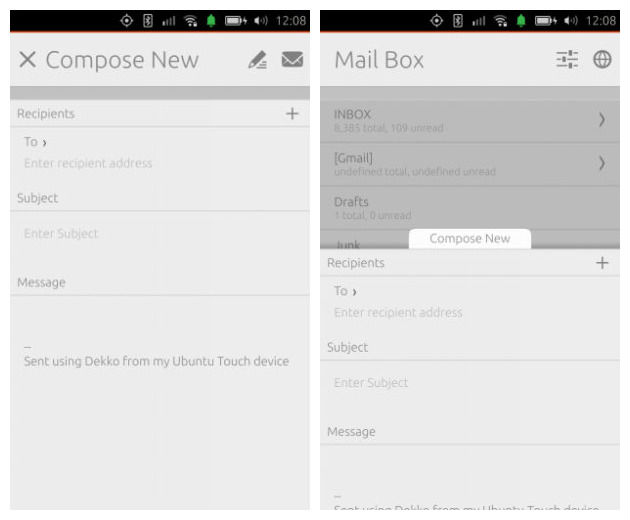
Dekko is still in beta phase and has few flaws. It is a light-weight and powerful email client with all the features of any modern email client available in the market. The Dekko project uses Ubuntu SDK and is powered by Trojitá IMAP library.
Daniel Chapman writes a quick list of current features in Dekko,
- Support for viewing of plain text messages. We cannot show html messages, due to not being able to block network requests with QtWebKits custom url scheme functionality (If you are an Oxide dev who happens to be reading this. But is great for viewing all your launchpad mail.
- Navigating the mailbox hierarchy, it’s not entirely obvious at first (Open to new ideas here) If you see a progression arrow on a mailbox, tapping the arrow displays the nested mailbox’s. Otherwise tapping elsewhere shows the messages within that mailbox.
- Composing and replying to messages, this utilizes the bottom edge so pulling up on an opened message will set up a reply to the opened message. One thing to note with replying to messages, at the moment it basically does a “reply all” action so you need to delete or add recipients to the message manually until support for mailing lists and other reply modes are implemented.
- Supports defining a single sender identity for mail submission.
- Mark message as deleted, expunge mailbox and auto-expunge on marked for deletion options.
- Mark all messages as read.
- Offline, Online and Bandwidth saving mode, perfect for mobile data connections
There is a known bug with the message list view sometimes not updating properly, but can usually be resolved by closing and reopening that mailbox.
Install Dekko on Ubuntu
Dekko Email Client can be installed on Ubuntu Ubuntu 15.04 via PPA. To do so, run the following commands in Terminal:
$ sudo add-apt-repository ppa:ubuntu-touch-coreapps-drivers/daily

$ sudo apt-get update

$ sudo apt-get install dekko
Once installed, open the Dekko app from Ubuntu Dash. For the first time, you will have to provide a valid email id and authenticate it to use it.
As I said earlier, the Dekko Email App is still in Beta version, it may be not perfect (at the moment). If you are having any kind of problem using it, you can uninstall and remove the Dekko app using the following command:
$ sudo apt-get remove dekko