APT (Advanced Package Tool) – The default package manager for Debian and Ubuntu Systems. Install APT 1.1 on Linux Ubuntu 15.04 and Ubuntu 14.04. The latest release (APT 1.1) comes with some powerful usability improvements.
You must be aware that starting from APT 1.0, the APT package manager displays the installed and upgradable packages. It searches in the local repositories for packages and displays the packages in alphabetical order. Not only this, APT show displays information about packages, updates the local repository index and installs packages from the repositories with a progress bar.
APT 1.1 comes with some powerful usability improvements such as:
- apt install foo_1.0_all.deb works now and apt will correctly resolve the dependencies
- “apt-get build-dep foo_1.0_all.dsc” works now and apt will install the build-dependencies of the given .dsc file
- The commands ‘autoremove’ and ‘autoclean’ can now be written as ‘auto-remove’ and ‘auto-clean’, respectively.
- The option ‘–upgradable’ can now be written as ‘–upgradeable’
- When a package is specified on the command-line, and it already is the current version, the version number is now shown in the message, that is, instead of “apt is already the newest version” it now displays “apt is already the newest version (1.1~exp9)”.
Other changes are:
- The Acquire system got reworked and is more transactional also much smarter about what files to fetch and what compression formats to use. It will strictly stick to the information provided in InRelease and will no longer do any speculative fetching.
- The apt in experimental also provides a fix for a long standing race-condition that sometimes, when the archive is getting mirrored users may experience a “hashsum mismatch” error. A new fetching schema is introduced called “by-hash” where apt will fetch the Packages.xz data by its hashsum instead of its name. Once the archive uses this the race condition should appear no more.
- Furthermore, the progress reporting now shows the final repository a file is downloaded from, so instead of ‘httpredir.debian.org’ it now reports the real mirror, such as ‘mirror.dc15.debconf.org’.
- Oh, and APT can now download additional files from a repository, verifying their signature. Other package can use that, for example, a software installer can add a configuration to download AppStream data from the repository.
Install APT 1.1 on Linux Ubuntu

You can install the latest version of APT package (APT 1.1 in this case) on Linux Ubuntu Systems – Ubuntu 15.04, Ubuntu 14.10, Ubuntu 14.04 and derivatives. To install APT 1.1, run the following commands:
$ sudo add-apt-repository ppa:deity/sid

$ sudo apt-get update

$ sudo apt-get install apt
For further information about the use of APT, read the comprehensive Debian APT User Manual or type:
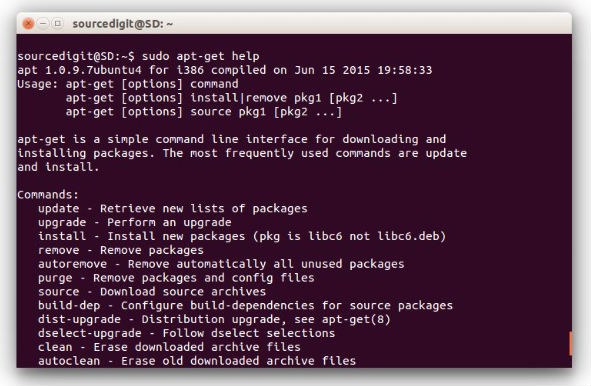
$ sudo apt-get help