
• Skip to primary navigation
  • Skip to main content
  • Skip to primary sidebar
Source Digit

Source Digit

Linux, Ubuntu Tutorials & News, Technology, Gadgets & Gizmos

  • Home
  • How To
  • Ubuntu
  • Instagram
  • Blogging
  • Android
  • WordPress
  • +More
    • Cloud Computing
    • Gadgets
    • Social Media
    • Technology
  • Write for Us
Home / Uncategorized / How To Install Vim Text Editor on Linux Ubuntu

How To Install Vim Text Editor on Linux Ubuntu

By Sourabh / September 11, 2015 Category: Uncategorized

How to install Vim Text Editor on Ubuntu 15.04, Ubuntu 14.04 and Derivatives. Vim Text Editor (Vi IMproved) is an advance text editor built to enable efficient text editing. It is a highly configurable improved version of the vi editor distributed with most UNIX systems.

Vim is often called a “programmer’s editor,” and so useful for programming that many consider it an entire IDE. Vim is perfect for all kinds of text editing, from composing email to editing configuration files. Vim can also be configured to work in a very simple (Notepad-like) way, known as evim or Easy Vim.

Install VIM Text Editor On Ubuntu
vim

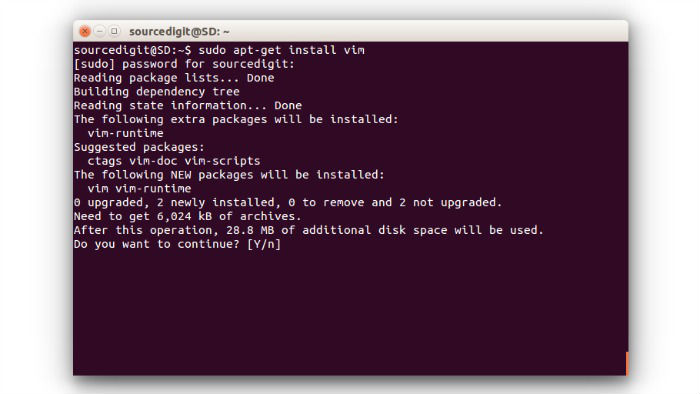
The Vim text editor can be installed on Ubuntu Systems via CLI (Terminal). Open terminal and run the following command to install vim text editor:

sudo apt-get install vim

You can also install Vim on Unix using the sources. This requires a compiler and its support files. Compiling Vim isn’t difficult at all. You can simply type “make install” when you are happy with the default features. Edit the Makefile in the “src” directory to select specific features.

This is the simplest and most efficient way to obtain the latest version, including all patches. This requires the “git” command.

git clone https://github.com/vim/vim.git
cd vim/src
make

And update to the latest version with:

cd vim
git fetch
git merge

If you don’t have local changes you can also combine the last two:

cd vim
git pull

How To Open & Use Vim on Ubuntu

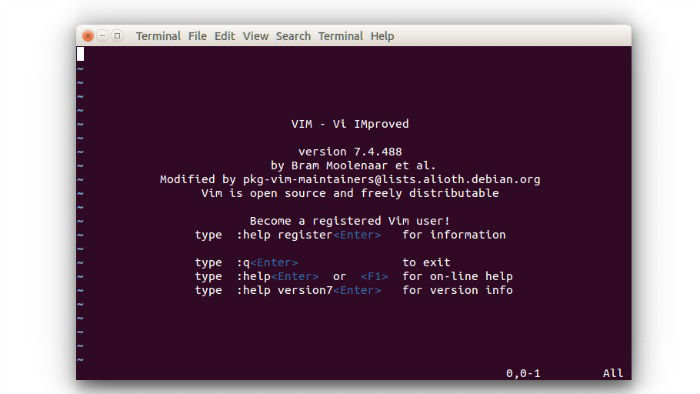
Once installed, you can open Vim via Ubuntu Dash or Terminal. To open Vim text editor, type vim in Terminal and press enter.
vim-editor

Once opened, press i to enter Insert mode, and start typing.

  • q<Enter> to exit
  • help<Enter>  or  <F1>  for on-line help
  • help version7<Enter>   for version info

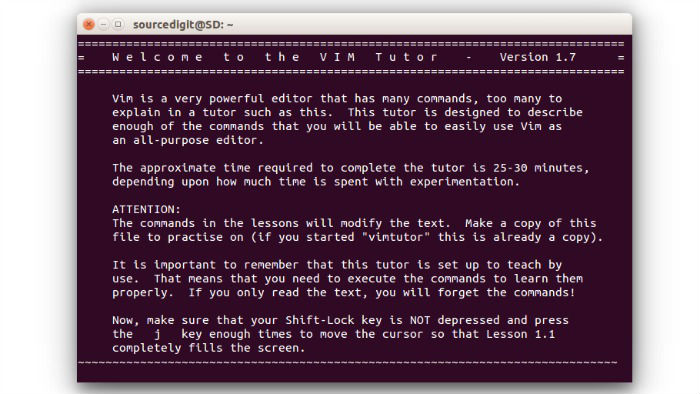
If you need help on how to use Vim text editor, you can open the Vim manual called “vimtutor.” To open Vim manual, type vimtutor in Terminal and press enter. The tutorial teaches all the useful (basic and advance) Vim usage and functionality.
vim-tutor

Tags: How To Install Vim Text Editor on Linux, How To Install Vim Text Editor on Ubuntu, How To Open & Use Vim on Linux, How To Open & Use Vim on Ubuntu, How To Open Vim on Ubuntu, How To Use Vim on Ubuntu, Install Vim Text Editor on Linux, Install Vim Text Editor on Ubuntu, Install Vim Text Editor on Ubuntu 14.04, Install Vim Text Editor on Ubuntu 14.10, Install Vim Text Editor on Ubuntu 15.04, Open Vim Text Editor on Ubuntu, Use Vim Text Editor on Ubuntu, Vim Text Editor (Vi IMproved) Ubuntu, Vim Text Editor (Vi IMproved) Ubuntu 14.04, Vim Text Editor (Vi IMproved) Ubuntu 14.10, Vim Text Editor (Vi IMproved) Ubuntu 15.04, Vim Text Editor Linux, Vim Text Editor Ubuntu

Primary Sidebar

Latest Posts

How Much RAM Is Needed For Ubuntu PC

How To Find Large Files And Directories In Linux Command Line

How To Use Clear Command History In Linux Terminal

Linux Command To Check RAM Size In Ubuntu Terminal In GB

How To Install Proprietary Drivers In Linux Ubuntu Using Terminal

How To Shutdown Linux With A 15 Minute Delay And Message

Free AI Courses With Certificate For Beginners In India

Best AI Plugins For WordPress To Use In 2026

3 Commands To Check USB Connection In Linux Terminal

Linux Terminal Commands for Beginners With Examples

© 2026 Source Digit • Linux, Ubuntu Tutorials & News, Technology, Gadgets & Gizmos

  • Home
  • About
  • Privacy Policy
  • Terms & Conditions
  • Contact Us
  • Sitemap