
• Skip to primary navigation
  • Skip to main content
  • Skip to primary sidebar
Source Digit

Source Digit

Linux, Ubuntu Tutorials & News, Technology, Gadgets & Gizmos

  • Home
  • How To
  • Ubuntu
  • Instagram
  • Blogging
  • Android
  • WordPress
  • +More
    • Cloud Computing
    • Gadgets
    • Social Media
    • Technology
  • Write for Us
Home / Uncategorized / Turn Off The Shutdown & Restart Confirmation DIalog Box In Ubuntu 15.04 and Ubuntu 14.04

Turn Off The Shutdown & Restart Confirmation DIalog Box In Ubuntu 15.04 and Ubuntu 14.04

By Sourabh / September 13, 2015 Category: Uncategorized

How to turn off the Shutdown, Restart, Lock & Suspend confirmation dialog box in Ubuntu. Terminal commands to remove Shut Down & Restart confirmation dialog box in Ubuntu 15.04 and Ubuntu 14.04. You can easily disable the shutdown, restart and logout confirmation box in Ubuntu 15.04 and Ubuntu 14.04.

Shutdown-Confirm

By default, Ubuntu 15.04 and Ubuntu 14.04 is configured to always prompt you with a dialog box when you wish to shutdown, restart or logout from your current session. This prevents you from mistakenly shutting down or restarting your Ubuntu 15.04 and Ubuntu 14.04 PC.

Luckily, you can disable the confirmation dialog box to appear everytime you select to shutdown, restart and logout Ubuntu 15.04 and Ubuntu 14.04.

Disable shutdown confirmation dialog box in Ubuntu 15.04 and Ubuntu 14.04

Note: When you disable the shutdown/restart confirmation dialog box, it also disable the log out/lock confirmation dialog box.
Disable shutdown confirmation dialog box in Ubuntu 15.04 and Ubuntu 14.04

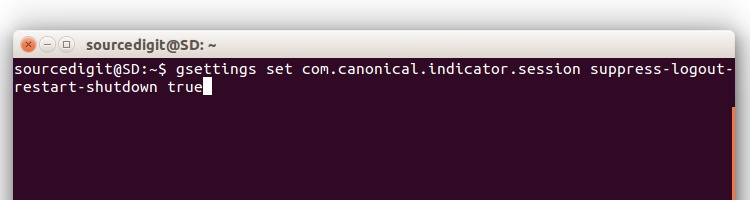
To disable shutdown dialog box, open a Terminal (Ctrl+Alt+T) and use the following command:

gsettings set com.canonical.indicator.session suppress-logout-restart-shutdown true
studown-1

After executing the above command there is no need of a system restart. Next time when you click on shutdown, it will immediately shut down the system without asking for your confirmation.

Enable shutdown confirmation dialog box in Ubuntu 15.04 and Ubuntu 14.04

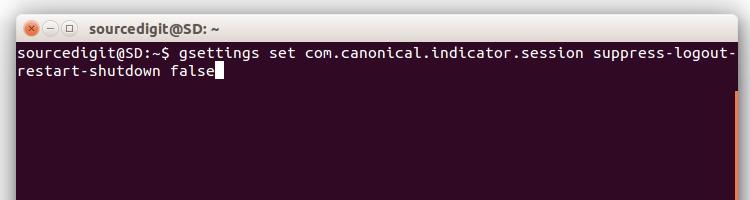
To enable the confirmation dialog box again, open a Terminal and type the following command:

gsettings set com.canonical.indicator.session suppress-logout-restart-shutdown false
shutdown-02

Tags: How to Remove LogOut Confirmation Dialog Box In Ubuntu, How to Remove Restart Confirmation Dialog Box In Ubuntu, How to Remove Shutdown Confirmation Dialog Box In Ubuntu, How to Turn Off the Restart Confirmation Dialog in Ubuntu, How to Turn Off the Shutdown Confirmation Dialog in Ubuntu, Remove Hibernate Buttons in Ubuntu, Remove Hibernate Confirmation Dialog Box in Ubuntu, Remove Hibernate Menu in Ubuntu, Remove Lock Screen Buttons in Ubuntu, Remove Lock Screen Confirmation Dialog Box in Ubuntu, Remove Lock Screen Menu in Ubuntu, Remove Log Out Confirm Dialog Box in Ubuntu, Remove Logout Buttons in Ubuntu, Remove Logout Confirmation Dialog Box in Ubuntu, Remove Logout Menu in Ubuntu, Remove Restart Buttons in Ubuntu, Remove Restart Confirm Dialog Box in Ubuntu, Remove Restart Confirmation Dialog Box in Ubuntu, Remove Restart Menu in Ubuntu, Remove Shutdown Buttons in Ubuntu, Remove Shutdown Confirm Dialog Box in Ubuntu, Remove Shutdown Confirmation Dialog Box in Ubuntu, Remove Shutdown Menu in Ubuntu

Primary Sidebar

Latest Posts

Delete Directory And Contents Recursively Without Prompt On Linux

Check User Login History In Ubuntu Linux Command Line

Use Locate Command To Find File In Linux Terminal By Name

How To Change Terminal Color In Ubuntu Command Line

How To Run Fsck Manually In Linux To Fix Unexpected Inconsistency

How To Fix Broken Packages On Ubuntu From Terminal

Re Execute The Previous Command In Linux Ubuntu Command Line

How Much RAM Is Needed For Ubuntu PC

How To Find Large Files And Directories In Linux Command Line

How To Use Clear Command History In Linux Terminal

© 2026 Source Digit • Linux, Ubuntu Tutorials & News, Technology, Gadgets & Gizmos

  • Home
  • About
  • Privacy Policy
  • Terms & Conditions
  • Contact Us
  • Sitemap