
• Skip to primary navigation
  • Skip to main content
  • Skip to primary sidebar
Source Digit

Source Digit

Linux, Ubuntu Tutorials & News, Technology, Gadgets & Gizmos

  • Home
  • How To
  • Ubuntu
  • Instagram
  • Blogging
  • Android
  • WordPress
  • +More
    • Cloud Computing
    • Gadgets
    • Social Media
    • Technology
  • Write for Us
Home / How To / How To Install Foxit Reader In Ubuntu 15.04 & Ubuntu 14.04

How To Install Foxit Reader In Ubuntu 15.04 & Ubuntu 14.04

By Sourabh / September 28, 2015 Category: How To, Ubuntu

Foxit Reader 7 – the secure PDF Reader / Foxit Pdf Editor for Linux Ubuntu. How to install Foxit Reader in Ubuntu 15.04 and Ubuntu 14.04.

screen-foxit-ubuntu-01

The Foxit PDF Reader has an intuitive user interface with Microsoft Office 2013 Style Ribbon Toolbar. The Foxit Reader can be used to create standard compliant PDF’s that are 100% compatible with other PDF products. Users can also create PDF with integrated fully functional Word, PowerPoint, and Excel Add-Ins. Not only this, it can also scan documents into PDF or insert images, videos, and files in your PDF.

Capabilities of the Foxit Reader for the Mac OS X and Linux platforms include:

View PDF

  • Open and view PDF files quickly and accurately
  • Open multiple documents at the same time and switch among open documents using tabs
  • Open password protected PDF files
  • View PDF files in single page, continuous, facing, or facing continuous mode
  • Easily navigate PDF files by page number, page thumbnail, or bookmark
  • Support zoom in or out of PDF files
  • Support page rotation
  • Support text search
  • Open password protected documents

Annotate PDF

  • Mark up the text in PDF files with text markup tools
  • Add notes in PDF files using the typewriter tool
  • Make comments in PDF files with sticky notes

Print Documents

  • Print PDF documents to physical printers

Install Foxit PDF Reader in Ubuntu

Foxit PDF Reader has officially added Linux support and is officially available for the Linux Systems:

  • Visit the Foxit Page [https://www.foxitsoftware.com/downloads/]. Click “Free Download” and select Linux 32-bit or 64-bit and download the installer.
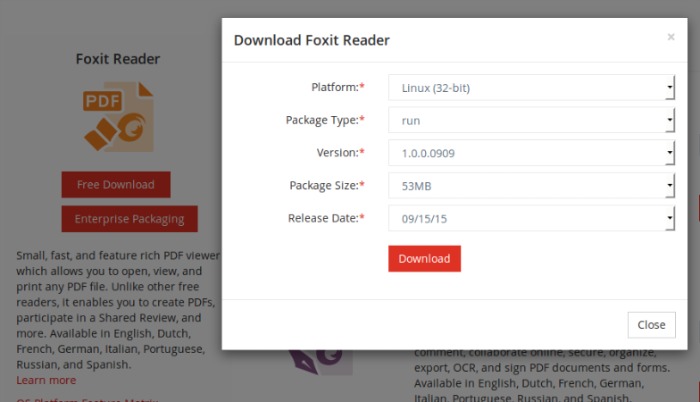
download-foxit-reader

  • Once downloaded, extract the downloaded .tar.gz archive package and run the result .run installer.
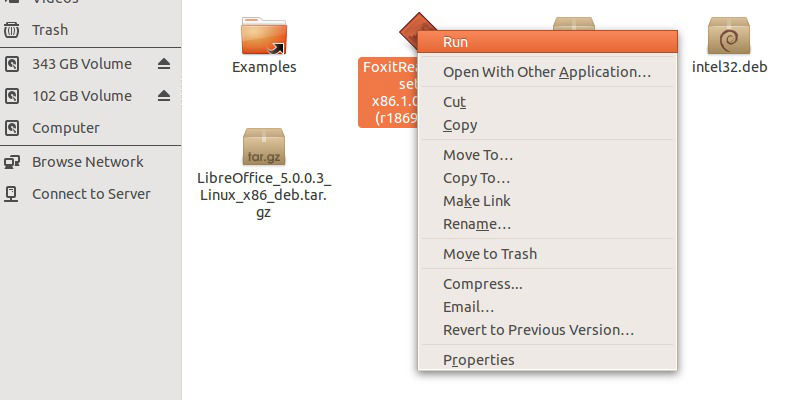
install-foxit-ubuntu-01

  • If you are having trouble and you aren’t able to see the “Run” option, follow the steps given below:
    • Select File Browser menu, then Edit > Preferences > Behavior.
    • Select and check the box – “Run executable text files when they are opened”
    • Save and apply changes. Run “nautilus -q” (without quotes) in Terminal.
  • Now run the .run installer file. As soon you run it, you can see the setup wizard on the screen. Simply follow the on-screen instructions.
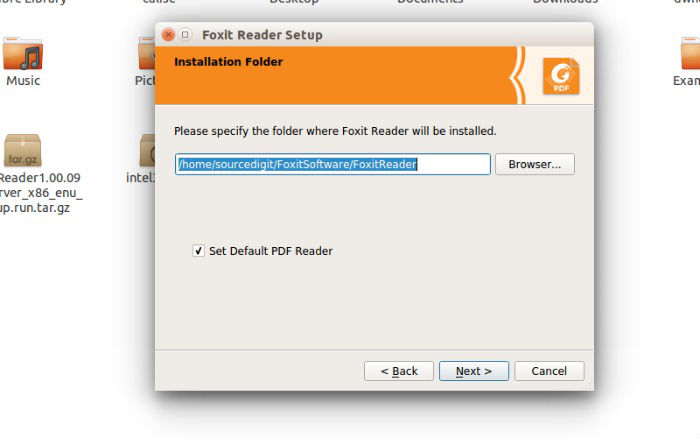
install-foxit-ubuntu-02

  • Once installed, open the Foxit Reader from Ubuntu Dash.
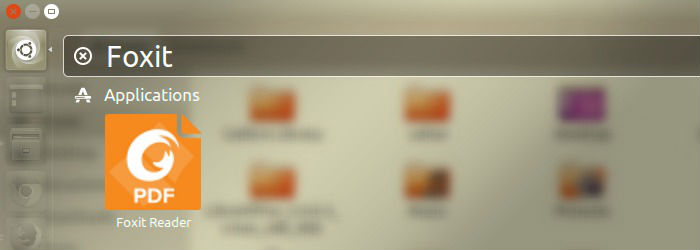
open-foxit-ubuntu

Tags: Download Foxit Reader For Linux, Foxit Linux 32 Bit, Foxit Linux 64 Bit, Foxit Pdf Editor For Linux, Foxit Pdf Editor For Ubuntu, Foxit Reader Linux, Foxit Reader Ubuntu, Free Linux Pdf Reader, How To Install Foxit Reader In Linux, How To Install Foxit Reader In Ubuntu, Install Foxit PDF Reader In Ubuntu 13.04, Install Foxit PDF Reader In Ubuntu 14.04, Install Foxit PDF Reader In Ubuntu 15.04, Install Foxit PDF Reader In Ubuntu 15.10, Install Foxit PDF Reader Linux, Install Foxit PDF Reader Linux Ubuntu, Install Foxit Reader In Ubuntu 13.04, Install Foxit Reader In Ubuntu 14.04, Install Foxit Reader In Ubuntu 15.04, Install Foxit Reader In Ubuntu 15.10, Linux Install Foxit PDF Reader, Linux Ubuntu Install Foxit PDF Reader, Ubuntu 14.04 Install Foxit PDF Reader, Ubuntu 14.04 Install Foxit Reader, Ubuntu 15.04 Install Foxit PDF Reader, Ubuntu 15.04 Install Foxit Reader, Ubuntu Foxit Reader Install, Ubuntu Pdf Reader Download, Uninstall Foxit Linux

Primary Sidebar

Latest Posts

Delete Directory And Contents Recursively Without Prompt On Linux

Check User Login History In Ubuntu Linux Command Line

Use Locate Command To Find File In Linux Terminal By Name

How To Change Terminal Color In Ubuntu Command Line

How To Run Fsck Manually In Linux To Fix Unexpected Inconsistency

How To Fix Broken Packages On Ubuntu From Terminal

Re Execute The Previous Command In Linux Ubuntu Command Line

How Much RAM Is Needed For Ubuntu PC

How To Find Large Files And Directories In Linux Command Line

How To Use Clear Command History In Linux Terminal

© 2026 Source Digit • Linux, Ubuntu Tutorials & News, Technology, Gadgets & Gizmos

  • Home
  • About
  • Privacy Policy
  • Terms & Conditions
  • Contact Us
  • Sitemap