
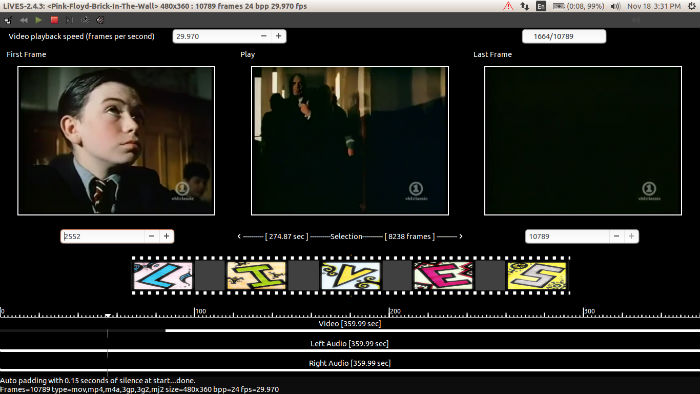
Install LiVES Video Editor on Ubuntu 15.10, Ubuntu 14.04, Ubuntu 14.10, Ubuntu 15,04 and Derivatives. LiVES is a Video Editing System for Linux Ubuntu Systems. The LiVES Video Editor can edit video in realtime or non-realtime and works with almost any type of video file. The LiVES Video Editor software is fully extendable through plugins can can be controlled via keyboard, joystick, MIDI or remote network (OSC compatible).
It can be used as a VJ keyboard control during playback to mix clips and apply effects during playback, as well as changing the speed and direction of play. Users can encoding to over 50 different video types. The software is also compatible with various effects framworks: projectM, frei0r, libvisual and LADSPA audio.
Install LiVES Video Editor on Ubuntu
LiVES 2.4,3 is the latest version available of the LiVES Video Editor. The latest version of software brings the following fixes:
- Fix occasional hang when inserting frames in clips.
- Fix possible dataloss (effects applied) when re-entering multitrack mode.
- Work around a GTK+ bug where menu items with submenus can no longer be set insensitive.
- Fix for setting cdplayer device in Preferences.
- Fix gtk critical in clip info window.
- Fix window sizing errors in rfxbuilder.
- Fix for encoding with sox version 14.4.2
- Theming updates for darker themes with gtk+ 3.x
- Add icedax as altname for cdda2wav.
- Make better use of missing CD device warning.
- Remove some spurious effect reinitialisations for webcams.
- Allow application of audio effects to the backing audio track in multitrack mode.
- Minor GUI improvements.
- Prepend current directory to filenames in startup options when necessary.
LiVES Video Editor can be installed on Ubuntu 15.10, Ubuntu 14.04, Ubuntu 14.10, Ubuntu 15,04 and Derivatives. Run the following commands to install LiVES Video Editor on Ubuntu Systems:
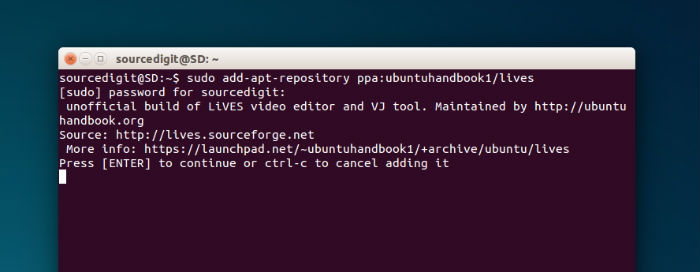
$ sudo add-apt-repository ppa:ubuntuhandbook1/lives

$ sudo apt-get update

$ sudo apt-get install lives
Once installed, you can open the LiVES Video Editor from Ubuntu Dash. If you unable to open it, go to /Usr/Share/Applications and look for lives editor icon. Click on the icon to open the application.
If you aren’t happy with the LiVES Video Editor, you can uninstall and remove the LiVES Video Editor from Linux Ubuntu Systems:
$ sudo apt-get remove lives