
Install Clementine music player on Ubuntu 15.10, Ubuntu 14.04 and Derivatives. Clementine is a modern music player and library organizer. Clementine is a multiplatform music player. It is inspired by Amarok 1.4, focusing on a fast and easy-to-use interface for searching and playing your music.
Clementine can play music stored in online accounts such as Box, Dropbox, Skydrive and Ubuntu One account. Users can also control Clementine remotely from an Android device using the Clementine Remote app. To use this feature, install the Clementine Remote app on the Android device and then enable it on your System. Go to Clementine Preferences > General > Network Remote, check the “Use a network remote control” box.
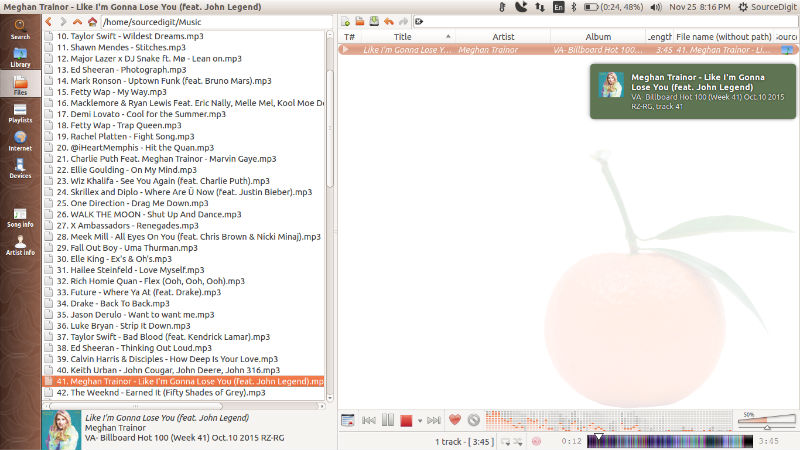
Other notable features of Clementine music player are:
- Search and play your local music library.
- Listen to internet radio from Spotify, Grooveshark, SomaFM, Magnatune, Jamendo, SKY.fm, Digitally Imported, JAZZRADIO.com, Soundcloud, Icecast and Subsonic servers.
- Search and play songs you’ve uploaded to Box, Dropbox, Google Drive, and OneDrive
- Create smart playlists and dynamic playlists.
- Tabbed playlists, import and export M3U, XSPF, PLS and ASX.
- CUE sheet support.
- Play audio CDs.
- Visualisations from projectM.
- Lyrics and artist biographies and photos.
- Transcode music into MP3, Ogg Vorbis, Ogg Speex, FLAC or AAC.
- Edit tags on MP3 and OGG files, organise your music.
- Fetch missing tags from MusicBrainz.
- Discover and download Podcasts.
- Download missing album cover art from Last.fm and Amazon.
- Cross-platform – works on Windows, Mac OS X and Linux.
- Native desktop notifications on Linux (libnotify) and Mac OS X (Growl).
- Remote control using an Android device, a Wii Remote, MPRIS or the command-line.
- Copy music to your iPod, iPhone, MTP or mass-storage USB player.
- Queue manager
Install Clementine music player
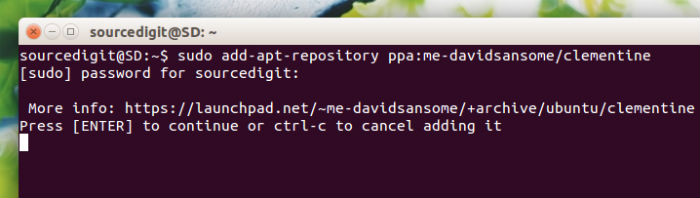
Clementine music player can be installed on Ubuntu Systems, via PPA. Run the following commands in Terminal to install Clementine music player:
$ sudo add-apt-repository ppa:me-davidsansome/clementine

$ sudo apt-get update

$ sudo apt-get install clementine
You can install the deb files from here: https://github.com/clementine-player/Clementine/releases
Compile from source
Get the code (if you haven’t already):
git clone https://github.com/clementine-player/Clementine.git && cd Clementine
Compile and install:
cd bin

cmake ..

make -j8

sudo make install
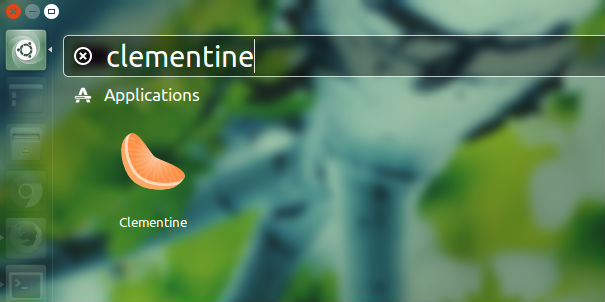
Once installed, you can open the Clementine music player via Ubuntu Dash.
If you aren’t happy with the Clementine music player, you can uninstall and remove the Clementine music player from Ubuntu. To uninstall, run the following commands:
$ sudo apt-get remove clementine