
How to download and install N1 Email Client on Linux Ubuntu Systems. Here’s how to set up and use Nylas N1 Email Client on Ubuntu. N1 is an extensible, open source mail client for Linux Systems.
N1 mail client has many powerful features such as offline mode, Javascript plugin architecture and multi-account support. The mail client features full screen mode with single or two-panel layout. It also supports notifications integration and desktop shortcuts for quick replies.
The N1 mail client doesn’t connect directly via IMAP & SMTP. N1 is compatible with the same providers as the Nylas Platform, including Gmail, Yahoo, iCloud, Microsoft Exchange, and hundreds of others. The search is powered by the backend IMAP/ActiveSync search APIs.
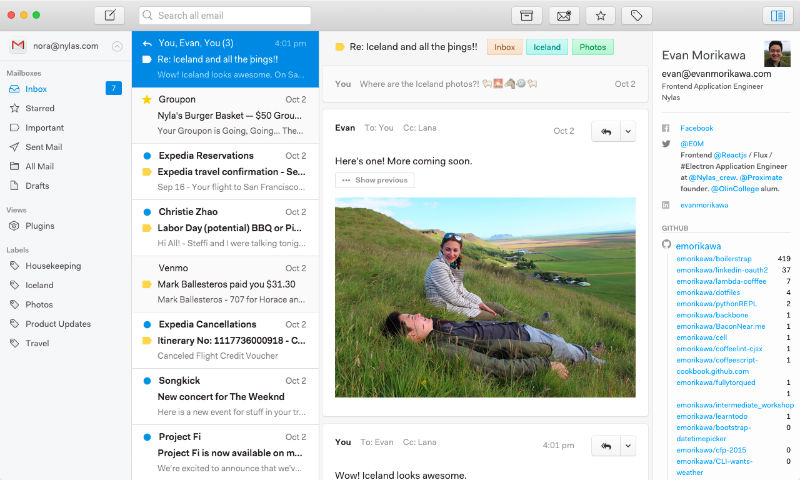
Some of the other features of NI mail client are:
- Beautiful inside and out – N1 is designed to be friendly, with an emphasis on clean typography, subtle drop shadows, and delightful buttons. When you use N1, things feel familiar with nothing out of place. It’s just the way things should be.
- All platforms and providers – N1 is compatible with hundreds of email providers, including Gmail, Yahoo, iCloud, Microsoft Exchange, and more. It’s a desktop app that can run offline, and feels great on Mac, Windows, and Linux. N1 is for everyone.
- Developers welcome – N1 is designed for extensibility, and includes a JavaScript plugin architecture that enables anyone to create powerful new features. Plugins can add buttons, sidebars, composer elements, or remix the entire UI. And if plugins aren’t enough, the N1 codebase is also open source free software. Developers, start your engines
- Born from the browser – N1 can be extended using JavaScript, NodeJS, React, Flux, and Electron.
Download and Install N1 Mail Client
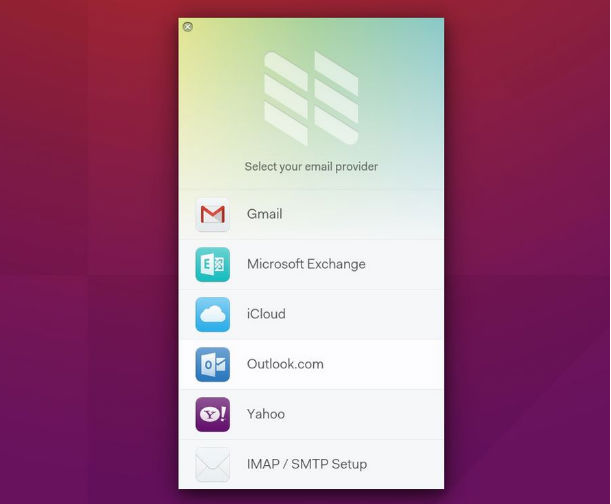
The N1 mail client can easily be installed on Linux Ubuntu Systems – Ubuntu 15.10, Ubuntu 15.04, Ubuntu 14.04 and Ubuntu 14.10 Systems. THe official download page provides RPM and DEB package for installing N1 Email Client.
- Visit the N1 download page and download the .deb file.
- Once the file is downloaded, it will automatically open in Ubuntu Software Center. If doesn’t, double-click on the N1.deb file.
- Click Install button.
- Enter user password and hit Enter key.
- Wait until the installation is complete.
Once the installation is complete, open the Nylas N1 Mail Client from Ubuntu Dash or Menu.
You can also install the N1 Mail Client, via Terminal (command line). To do so, download the .deb file from the N1 download page and save it to ~/Downloads directory. Now open terminal and change the directory path to ~/Downloads directory. Once you are there, run the command: $ sudo dpkg -i N1.deb Enter the sudo password and press enter key. If everything is OK, the file installation will begin.