
Download and install OpenShot video editor on Linux Ubuntu Systems. Terminal commands to install OpenShot 2.0.7 video editor on Ubuntu 15.04, Ubuntu 14.04, Ubuntu 14.10 and Ubuntu 15.10 Systems. OpenShot Video Editor is a free, open-source video editor for Linux licensed under the GPL version 3.0.
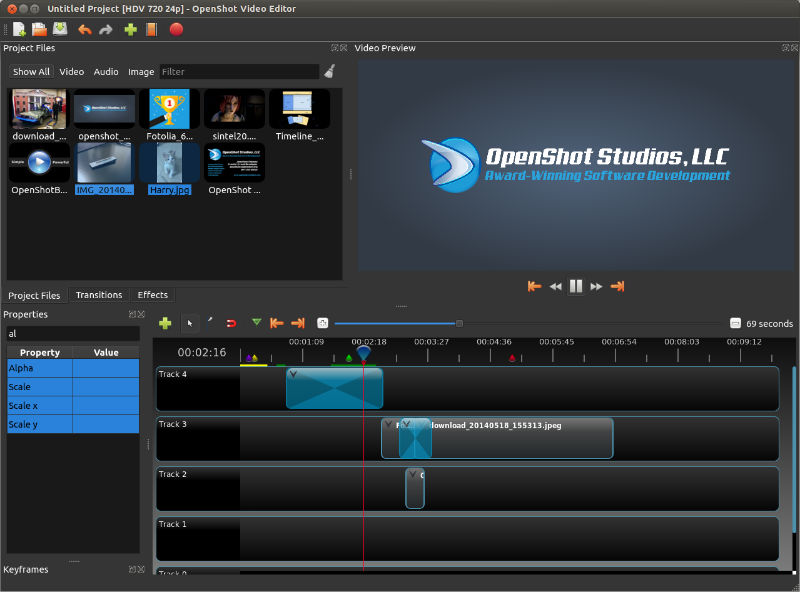
OpenShot can take your videos, photos, and music files and help you create the film you have always dreamed of. Easily add sub-titles, transitions, and effects, and then export your film to DVD, YouTube, Vimeo, Xbox 360, and many other common formats.
OpenShot supports many video, audio, and image formats (based on FFmpeg ) and Gnome integration (drag and drop support). It also features advanced timeline (including Drag & drop, scrolling, panning, zooming, and snapping).
OpenShot has an easy-to-use user interface, packed with many great features, such as trimming and arranging videos, adjusting audio levels, transitions between videos, compositing multiple layers of video, chroma-key / green screen effect, and support of most formats and codecs. With OpenShot, you can create 3D animated title sequences, which are guaranteed to impress your viewers.
Install OpenShot Video Editor
Run the following commands to install OpenShot video editor on Linux Ubuntu Systems:
sudo add-apt-repository ppa:openshot.developers/ppa

sudo apt-get update

sudo apt-get install openshot-qt
Once installed, make the program to use the OpenShot on Linux Ubuntu. To make it executable, right click the file and select Properties and under “Permissions” check the box next to “Executable”. You can also do it using the command line. To do so, run the command “chmod +x OpenShot-2.0.7.AppImage”. Once done, double click to open OpenShot.