
• Skip to primary navigation
  • Skip to main content
  • Skip to primary sidebar
Source Digit

Source Digit

Linux, Ubuntu Tutorials & News, Technology, Gadgets & Gizmos

  • Home
  • How To
  • Ubuntu
  • Instagram
  • Blogging
  • Android
  • WordPress
  • +More
    • Cloud Computing
    • Gadgets
    • Social Media
    • Technology
  • Write for Us
Home / How To / Install Ubuntu 16.04 – How To Create A Bootable USB On Ubuntu 16.04

Install Ubuntu 16.04 – How To Create A Bootable USB On Ubuntu 16.04

By Sourabh / April 22, 2016 Category: How To, Ubuntu

Install Ubuntu 16.04 LTS. How to create a bootable USB stick on Ubuntu. Creating a bootable Ubuntu 16.04 USB from Startup Disk Creator. Try Ubuntu before you install it.

To create a USB stick from which you can install Ubuntu, you must first download Ubuntu and, if you want, verify the download. Then, follow these instructions: Insert a USB stick with at least 2GB of free space. Open the dash and search for Startup Disk Creator.

Prerequisites

To create a USB installation device, you will need:

  1. A 2 GB USB flash device/drive/stick. Also make sure this USB device is properly formatted and mounted. If not please erase and format the USB before using.
  2. An Ubuntu flavour ISO file (Click Here To Download Ubuntu 16.04)

Create A Bootable USB Stick On Ubuntu 16.04

  • Insert a USB stick with at least 2GB of free space
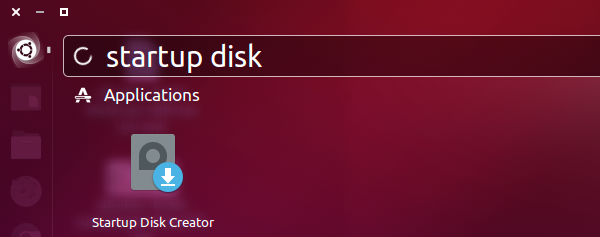
  • Open the dash and search for Startup Disk Creator
startup-ubuntu-01

  • Select the Startup Disk Creator to launch the app
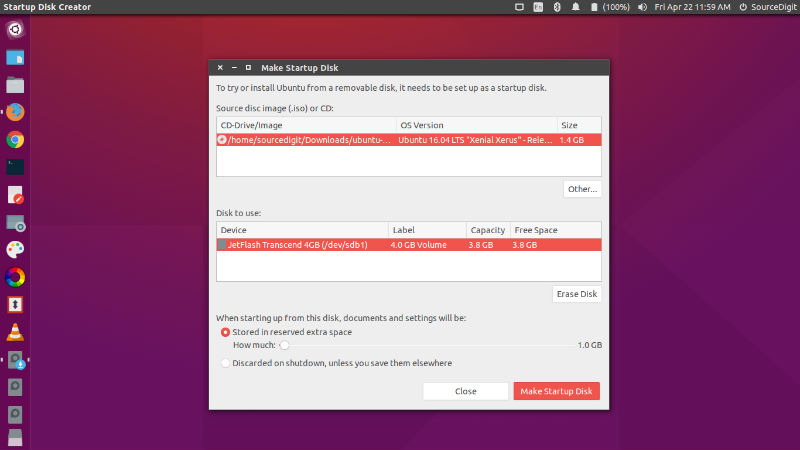
  • Click ‘Other’ to choose the downloaded ISO file if it isn’t found automatically, select the file and click ‘Open’
  • Select the USB stick in the bottom box and click ‘Make Startup Disk’ and then ‘Yes’
startup-ubuntu-02

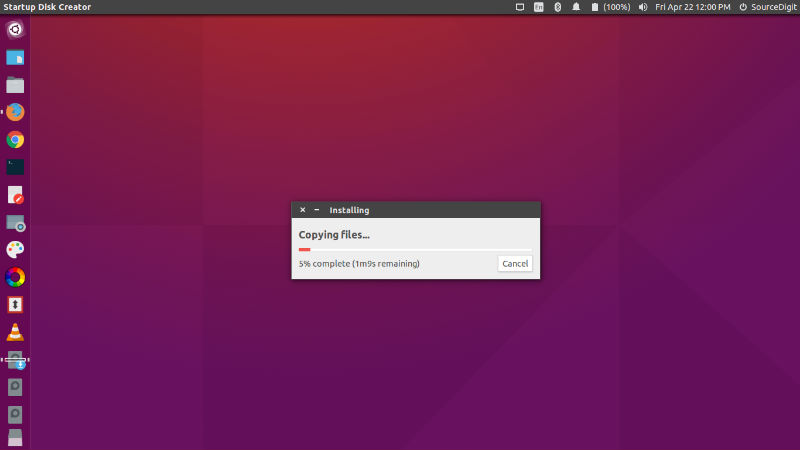
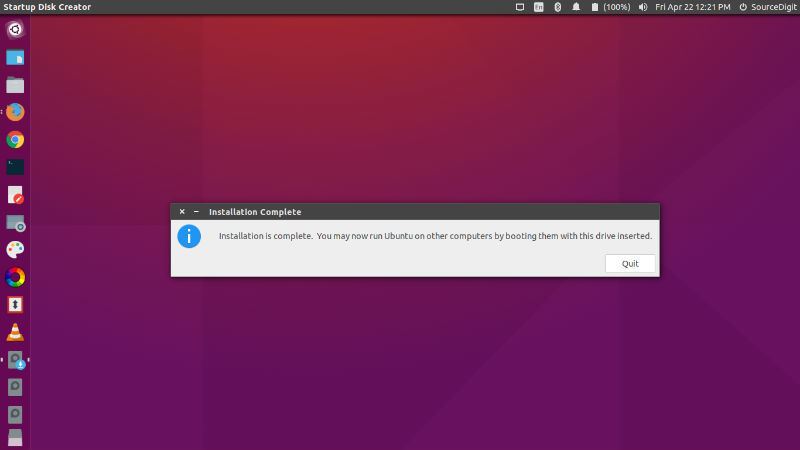
  • That’s it! When the process completes, you’ll be ready to restart your computer and begin installing Ubuntu
startup-ubuntu-03 startup-ubuntu-04

Try Ubuntu Before You Install It

You can try Ubuntu without actually installing it on your computer’s hard drive. You can do this by starting up your computer with either an Ubuntu DVD in the drive or a USB stick with Ubuntu on it in a USB port. Here’s how:

Try Ubuntu Before You Install It Using a USB Drive

Most newer computers can start up from a USB stick. You should see a welcome screen prompting you to choose your language and giving you the option to either install Ubuntu or try it from the USB.

If your computer does not automatically do this, you might need to change the device from which the computer starts up to the USB. You can usually do this by watching for a message appearing before Windows starts. You should be invited to change the boot device. Once you’ve selected that option, follow the instructions on screen.

Tip: You might be able to press ‘F12’ or ‘Escape’ while your computer is starting up to change your boot device order.

Depending on your computer and how your USB key was formatted, you should see an entry for ‘removable drive’ or ‘USB media’. Move this to the top of the list to force the computer to start from USB rather than the hard disk. Save your changes and continue.

Choose your preferred language and click on ‘Try Ubuntu’.

Tags: Create Bootable Usb From Iso Linux Command Line, Create Bootable Usb Ubuntu, Create Bootable Usb Ubuntu 16.04, Create Startup Disk Ubuntu 16.04 Command Line, Create Startup Disk Ubuntu Command Line, Creating Ubuntu 16.04 Boot Cd, Creating Ubuntu Boot Cd, Dd Iso To Usb Bootable, Format Disk Ubuntu 16.04 Command Line, Format Disk Ubuntu Command Line, Format Drive Ubuntu 16.04 Command Line, Format Drive Ubuntu Command Line, How to Create a Bootable USB Stick on Ubuntu, How To Create A Bootable Usb Stick On Ubuntu 16.04, How To Create A Startup Disk For Windows 7, How To Create A Startup Disk Mac, How To Make A Bootable Ubuntu 16.04 Disk, How To Make A Bootable Ubuntu Disk, Install Ubuntu 16.04 16.04 Lts, Install Ubuntu 16.04 Lts, Make Startup Disk Ubuntu 16.04 Not Working, Make Startup Disk Ubuntu Not Working, Reboot Ubuntu 16.04 Command Line, Reboot Ubuntu Command Line, Run Ubuntu 16.04 From Usb, Run Ubuntu From Usb, Startup Disc Creator Linux, Try Ubuntu 16.04 Before You Install It, Try Ubuntu Before You Install It, Ubuntu 16.04 Bootable Disk, Ubuntu 16.04 Command Line Disk Space, Ubuntu 16.04 ISO Download, Ubuntu 16.04 Make Startup Disk, Ubuntu 16.04 Startup Disk Creator Command Line, Ubuntu Bootable Disk, Ubuntu Command Line Disk Space, Ubuntu Iso Download, Ubuntu Make Startup Disk, Ubuntu Startup Disk Creator Command Line, Windows Ubuntu 16.04 Usb Creator, Windows Ubuntu Usb Creator

Primary Sidebar

Latest Posts

How To Fix Broken Packages On Ubuntu From Terminal

Re Execute The Previous Command In Linux Ubuntu Command Line

How Much RAM Is Needed For Ubuntu PC

How To Find Large Files And Directories In Linux Command Line

How To Use Clear Command History In Linux Terminal

Linux Command To Check RAM Size In Ubuntu Terminal In GB

How To Install Proprietary Drivers In Linux Ubuntu Using Terminal

How To Shutdown Linux With A 15 Minute Delay And Message

Free AI Courses With Certificate For Beginners In India

Best AI Plugins For WordPress To Use In 2026

© 2026 Source Digit • Linux, Ubuntu Tutorials & News, Technology, Gadgets & Gizmos

  • Home
  • About
  • Privacy Policy
  • Terms & Conditions
  • Contact Us
  • Sitemap