
• Skip to primary navigation
  • Skip to main content
  • Skip to primary sidebar
Source Digit

Source Digit

Linux, Ubuntu Tutorials & News, Technology, Gadgets & Gizmos

  • Home
  • How To
  • Ubuntu
  • Instagram
  • Blogging
  • Android
  • WordPress
  • +More
    • Cloud Computing
    • Gadgets
    • Social Media
    • Technology
  • Write for Us
Home / How To / How To Password Protect Folder In Linux – Encrypt Folder In Ubuntu, via Cryptkeeper

How To Password Protect Folder In Linux – Encrypt Folder In Ubuntu, via Cryptkeeper

By Sourabh / February 16, 2017 Category: How To, Ubuntu

How to password protect a folder in Ubuntu Linux. How to create password protected file in Ubuntu Linux. How to lock a folder in Linux.

Folders can be password protected in Ubuntu Linux Systems, via Cryptkeeper application. Cryptkeeper is a GUI tool, a Linux system tray applet that manages EncFS encrypted folders.

Install Cryptkeeper in Ubuntu
lock-folder-01

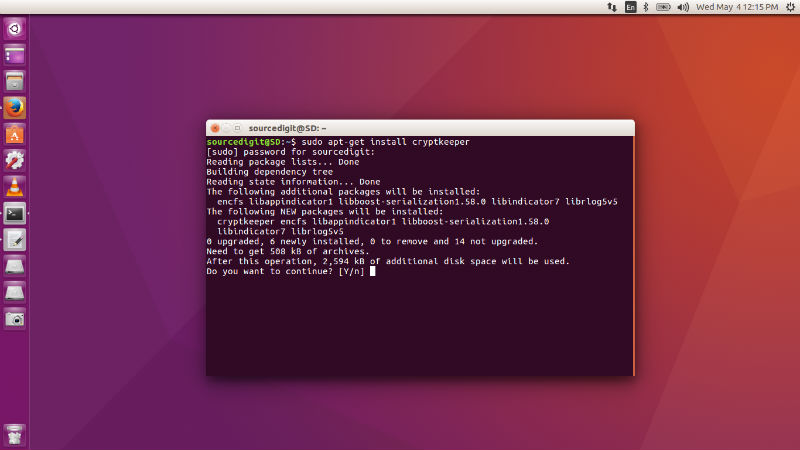
Cryptkeeper can be easily installed on Ubuntu and Ubuntu Derivatives. Run the following command in Terminal to install Cryptkeeper.

sudo apt-get install cryptkeeper

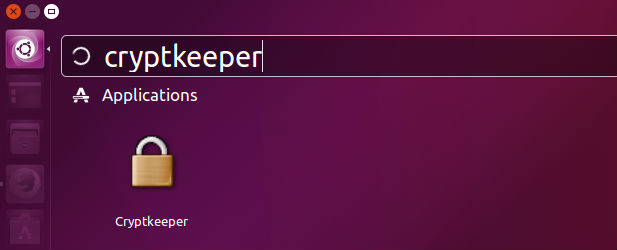
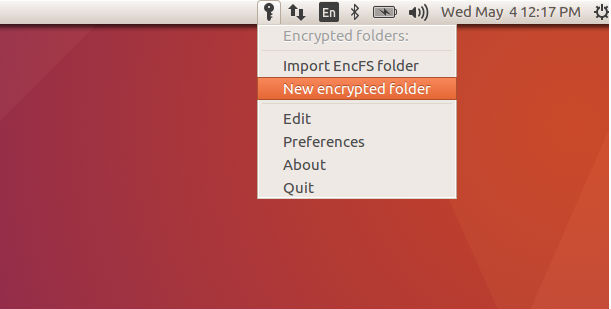
Once installed please restart the system. To use Cryptkeeper, please open it from Ubuntu Dash or Menu. When Cryptkeeper is started, you will see it in the top panel par. Please note that Cryptkeeper is an indicator applet.
cryptkeeper-ubuntu

lock-folder-02

There are two main options that you will use to lock and protect folder:

  • Import EncFS folder – To use already encypted folder
  • New encrypted folder – To create a new encypted folder

Password protect a folder in Ubuntu

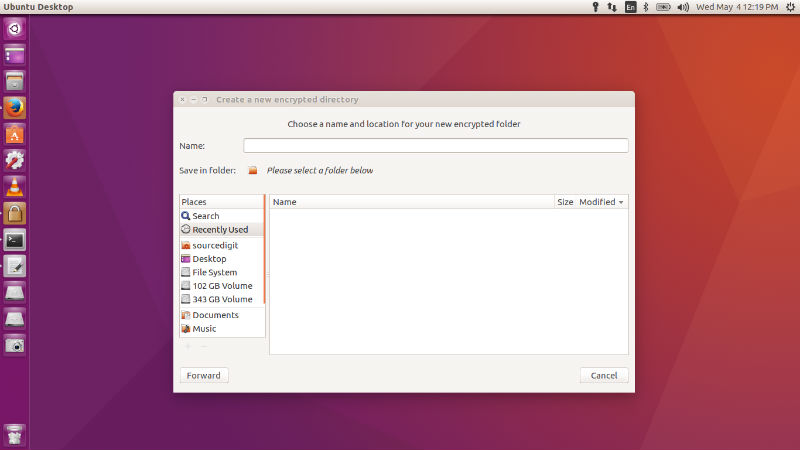
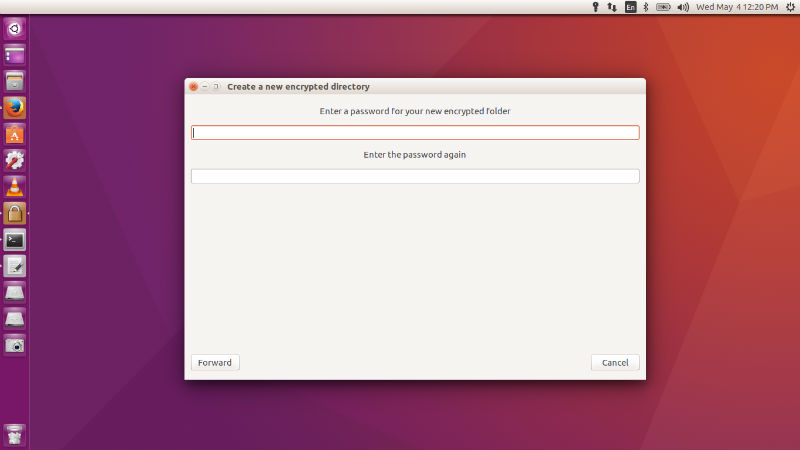
To create a new locked folder, please select the option. You will see the encrypted folder window and from here select the folder and select its location. After selecting folder, click on Forward button (bottom left). In the second window, provide a password for the encrypted/locked folder and once again click on Forward button.
lock-folder-03

lock-folder-05

Once the folder is locked and encrypted, you can see the folder in Cryptkeeper indicator applet in the panel bar. You can access the folder from here. When the locked folder is opened you can use it as a normal folder. When you again wish to lock the folder, de-select it from the indicator applet again.

If you want to delete the locked folder, select the Edit option from the Cryptkeeper indicator applet and delete the folder.

Tags: Cryptkeeper Ubuntu, Encrypt Folder In Linux, Encrypt Folder In Ubuntu, Encrypt Folder In Ubuntu 14.04, Encrypt Folder In Ubuntu 14.10, Encrypt Folder In Ubuntu 15.04, Encrypt Folder In Ubuntu 15.10, Encrypt Folder In Ubuntu 16.04, Folder Lock For Ubuntu Free Download, Folder Lock Software In Ubuntu, How To Encrypt A Folder In Linux, How To Encrypt Folder In Linux, How To Encrypt Folder In Ubuntu, How To Lock A Folder In Linux, How To Lock A Folder In Ubuntu, How To Lock A Folder In Ubuntu 14.04, How To Lock A Folder In Ubuntu 14.10, How To Lock A Folder In Ubuntu 15.04, How To Lock A Folder In Ubuntu 15.10, How To Lock A Folder In Ubuntu 16.04, How To Lock A Folder In Windows 7, How To Lock Folder In Linux, How To Password Protect A Folder In Linux, How To Password Protect A Folder In Ubuntu, How To Password Protect A Folder In Ubuntu 14.04, How To Password Protect A Folder In Ubuntu 14.10, How To Password Protect A Folder In Ubuntu 15.04, How To Password Protect A Folder In Ubuntu 15.10, How To Password Protect A Folder In Ubuntu 16.04, Password Protect A Folder In Linux, Password Protect A Folder In Ubuntu, Password Protect A Folder In Ubuntu 14.04, Password Protect A Folder In Ubuntu 14.10, Password Protect A Folder In Ubuntu 15.04, Password Protect A Folder In Ubuntu 15.10, Password Protect A Folder In Ubuntu 16.04, Password Protect Folder Linux, Ubuntu 14.04 Encrypt Folder, Ubuntu 14.10 Encrypt Folder, Ubuntu 15.04 Encrypt Folder, Ubuntu 15.10 Encrypt Folder, Ubuntu 16.04 Encrypt Folder

Primary Sidebar

Latest Posts

Delete Directory And Contents Recursively Without Prompt On Linux

Check User Login History In Ubuntu Linux Command Line

Use Locate Command To Find File In Linux Terminal By Name

How To Change Terminal Color In Ubuntu Command Line

How To Run Fsck Manually In Linux To Fix Unexpected Inconsistency

How To Fix Broken Packages On Ubuntu From Terminal

Re Execute The Previous Command In Linux Ubuntu Command Line

How Much RAM Is Needed For Ubuntu PC

How To Find Large Files And Directories In Linux Command Line

How To Use Clear Command History In Linux Terminal

© 2026 Source Digit • Linux, Ubuntu Tutorials & News, Technology, Gadgets & Gizmos

  • Home
  • About
  • Privacy Policy
  • Terms & Conditions
  • Contact Us
  • Sitemap