
• Skip to primary navigation
  • Skip to main content
  • Skip to primary sidebar
Source Digit

Source Digit

Linux, Ubuntu Tutorials & News, Technology, Gadgets & Gizmos

  • Home
  • How To
  • Ubuntu
  • Instagram
  • Blogging
  • Android
  • WordPress
  • +More
    • Cloud Computing
    • Gadgets
    • Social Media
    • Technology
  • Write for Us
Home / How To / How To Make Ubuntu Linux Look Like Windows

How To Make Ubuntu Linux Look Like Windows

By Sourabh / May 17, 2016 Category: How To, Ubuntu

How to make Ubuntu Linux look like Windows. Use Windows 10 icon pack for Linux Ubuntu System. and make Ubuntu look like Windows OS. ChaletOS 16.04 transformation pack easily transforms Ubuntu 16.04 LTS into a Windows 10 System.
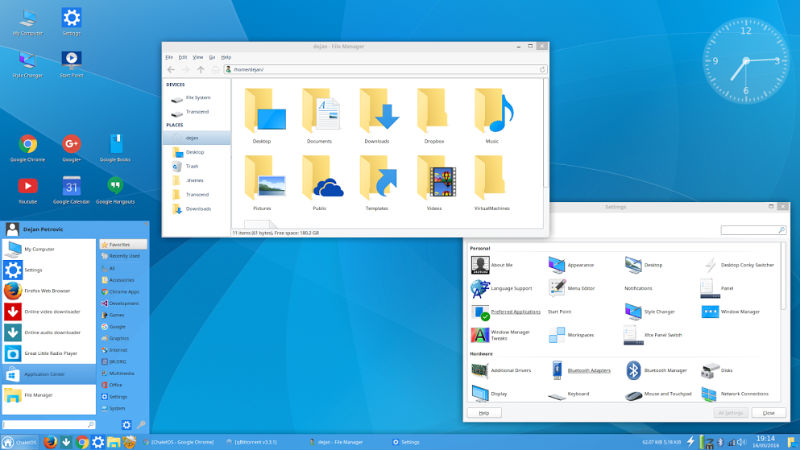
windows-icon-ubuntu

Using the ChaletOS 16.04 transformation pack is easy. All you have to do is to download this Windows 10 icon pack and extract the zip archive into icons folder.

ChaletOS with Windows 10 icons

Use Windows 10 icon pack and unpack it new folder in your home folder named ‘.icons’
https://github.com/Elbullazul/Windows-10/releases/download/v0.9.6/Windows.10.Icons.v0.4.1.zip

It is part of Windows 10 Transformation Pack site
http://gnome-look.org/content/show.php/Windows+10+Transformation+Pack?content=171327

Tags: How To Make Ubuntu Linux Look Like Windows

Primary Sidebar

Latest Posts

Delete Directory And Contents Recursively Without Prompt On Linux

Check User Login History In Ubuntu Linux Command Line

Use Locate Command To Find File In Linux Terminal By Name

How To Change Terminal Color In Ubuntu Command Line

How To Run Fsck Manually In Linux To Fix Unexpected Inconsistency

How To Fix Broken Packages On Ubuntu From Terminal

Re Execute The Previous Command In Linux Ubuntu Command Line

How Much RAM Is Needed For Ubuntu PC

How To Find Large Files And Directories In Linux Command Line

How To Use Clear Command History In Linux Terminal

© 2026 Source Digit • Linux, Ubuntu Tutorials & News, Technology, Gadgets & Gizmos

  • Home
  • About
  • Privacy Policy
  • Terms & Conditions
  • Contact Us
  • Sitemap