Install Calibre 2.58 on Ubuntu 16.04, via PPA. Calibre 2.58 eBook converter has been released with an improved Qt 5.5 support on Ubuntu and a new text search tool.
Calibre ebook management software is also a popular ebook reader which has many powerful features. Best of all, Calibre comes with an inbuilt e-book conversion feature. Calibre supports all the popular eBook formats such as epub, cbz, mobi, fb2 and others.
Calibre 2.58 Changes
New Features
- Edit Book: A text search tool to conveniently search for text even if it crosses multiple HTML tags (Search->Search ignoring HTML markup)
- OSX: Allow drag and drop of file onto viewer dock icon to view file
Bug Fixes
- Workaround for incompatibility between Qt 5.5+ and Ubuntu that caused the context menu for the book list to flicker.
- Windows: Workaround for explorer shell extensions on windows that write to stdout
- Edit Book: When jumping to next occurrence of a word, take language into account
- Edit Book: Fix import of words into user dictionary not working
- Fix use of non-ascii characters in identifiers causing an error when identifier rules are used.
- Fix a regression that caused the paste from clipboard button to paste two times in the Add books from ISBN dialog
- Fix for incompatibility with PyQt 5.6
Improved Sources
- Denver Post
- Financial Times
- bild.de
Install Calibre 2.58 On Ubuntu
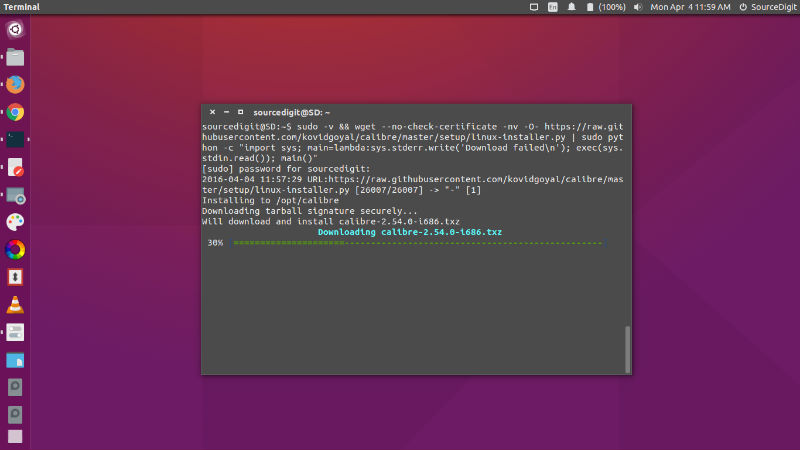
Run the following commands in Terminal to install Calibre 2.58 on Ubuntu 16.04, Ubuntu 15.10, Ubuntu 14.04, Ubuntu 15.04, Ubuntu 14.10 and Ubuntu Derivatives Systems:
$ sudo add-apt-repository ppa:n-muench/programs-ppa

$ sudo apt-get update

$ sudo apt-get install calibre
You can also install Calibre 2.58 using the following command:
$ sudo -v && wget --no-check-certificate -nv -O- https://raw.githubusercontent.com/kovidgoyal/calibre/master/setup/linux-installer.py | sudo python -c "import sys; main=lambda:sys.stderr.write('Download failed\n'); exec(sys.stdin.read()); main()"
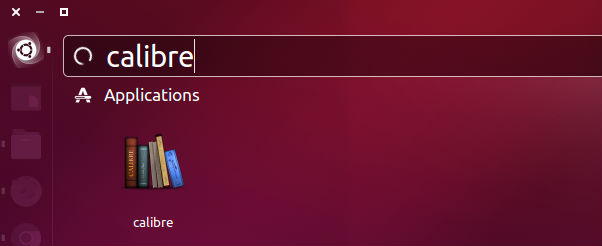
Once installed, open the Calibre ebook reader from Ubuntu Dash or Terminal. Run “calibre” to start calibre.