
Using timedatectl command in Ubuntu to display current time & date setting in Ubuntu. How to get date and time using command line interface. Ubuntu commands to get system time – Ubuntu set timezone or update system time. Ubuntu users can also change date and time via command line on Ubuntu Systems.
The Linux Ubuntu system is configured to read the RTC time in the local time zone. A Linux Ubuntu system has two clocks:
- Real Time Clock: The battery powered “Real Time Clock” also known as the “RTC”, “CMOS clock”, or “Hardware clock”. It keeps track of time when the system is turned off but is not used when the system is running.
- System Clock: Software clock maintained by the kernel and used to implement gettimeofday and time, as well as setting timestamps on files, etc.
A major difference between an RTC and the system clock is that RTCs run even when the system is Off or in a low power state and the system clock can’t. RTC usually has battery backup power so that it tracks the time even while the computer is turned off.
timedatectl Command
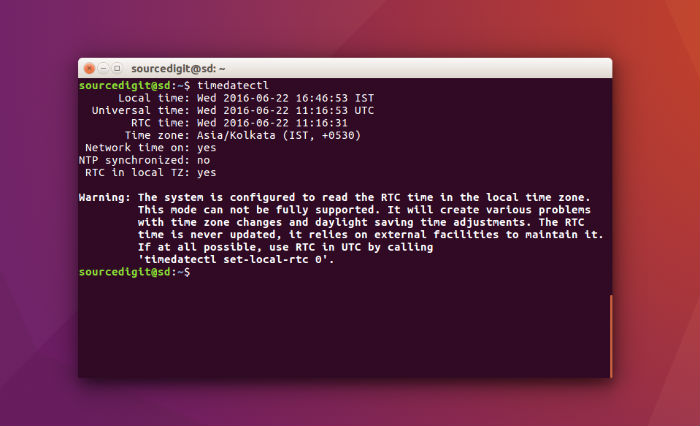
timedatectl command in Ubuntu is used to display current time & date setting. The command is primarily used to control the system time and date. timedatectl may be used to query and change the system clock and its settings.
timedatectl Usage
timedatectl [OPTIONS…] {COMMAND}
timedatectl Command Options
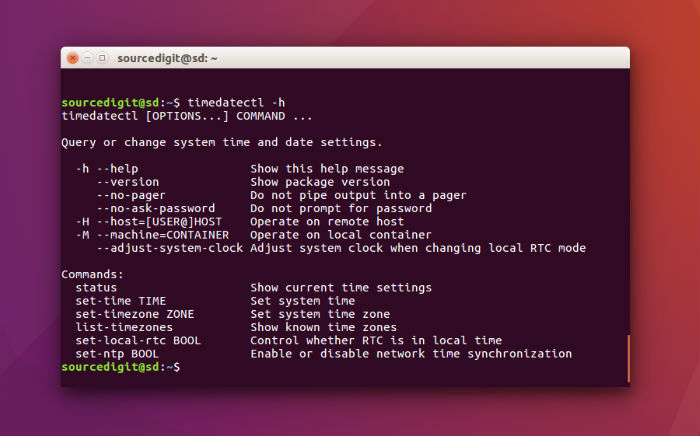
- –adjust-system-clock
If set-local-rtc is invoked and this option is passed, the system clock is synchronized from the RTC again, taking the new setting into account. Otherwise, the RTC is synchronized from the system clock. - –version
Print a short version string and exit. - -h, –help
Print a short help text and exit. - status
Show current settings of the system clock and RTC, including whether network time synchronization is on. Note that whether network time synchronization is on simply reflects whether the systemd-timesyncd.service unit is enabled. Even if this command shows the status as off, a different service might still synchronize the clock with the network. - set-time [TIME]
Set the system clock to the specified time. This will also update the RTC time accordingly. The time may be specified in the format “2012-10-30 18:17:16”. - set-timezone [TIMEZONE]
Set the system time zone to the specified value. Available timezones can be listed with list-timezones. If the RTC is configured to be in the local time, this will also update the RTC time. This call will alter the /etc/localtime symlink. See localtime(5) for more information. - list-timezones
List available time zones, one per line. Entries from the list can be set as the system timezone with set-timezone.
timedatectl Usage
When the timedatectl command is executed successfully, 0 is returned, a non-zero failure code otherwise.
Show current settings:
$ timedatectl
Enable network time synchronization:
$ timedatectl set-ntp true

$ systemctl status systemd-timesyncd.service
Set Timezone Using CLI
$ sudo timedatectl set-timezone Asia/Kolkata
Get The List Of Available Timezones
$ timedatectl list-timezones