
Download Nvidia Drivers for Ubuntu. How to install Nvidia Drivers on Ubuntu 16.04, via command line. Install Nvidia Graphics Drivers on Ubuntu via PPA.
Before we begin the installation, run the following command in Terminal to add the Proprietary GPU Drivers PPA in Ubuntu Systems:
sudo add-apt-repository ppa:graphics-drivers/ppa

sudo apt update
Now from here one can download and install Nvidia Drivers either from Software & Updates (System Settings) or Terminal commands.
Using Softwares & Updates
Open Software & Updates from System Settings or directly from Ubuntu Dash. Click on the “Additional Drivers” tab and here you can see the list of Drivers. Select the one you wish to apply (install) and click “Apply changes”. Once the Drivers are downloaded and installed, please restart the system.
Using Terminal Command
To install Nvidia Drivers from Terminal Commands, run the command given below to search all the available Drivers:
apt-cache search nvidia

apt search nvidia
You will then see the list of all available Nvidia Drivers. Scroll down and look for the packages termed “nvidia-VERSION”. Once you get the desired Nvidia Drivers, install it using the Terminal command.
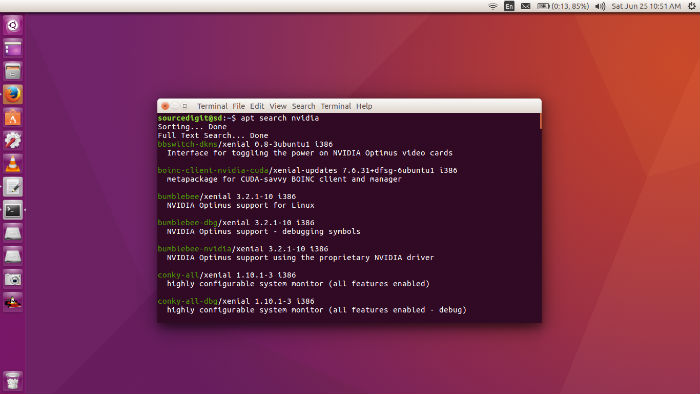
For example, if you wish to install nvidia-304-updates/xenial 304.131-0ubuntu3 i386 (NVIDIA legacy binary driver – version 304.131) run the command with the aprropriate version in the command sudo apt install nvidia-VERSION
So the final command looks like – sudo apt install nvidia-304-updates/xenial 304.131-0ubuntu3 i386
Adding Nvidia Graphics PPA
You can update your system with unsupported packages from this untrusted PPA by adding ppa:graphics-drivers/ppa to your system’s Software Sources. This PPA can be added to your system manually by copying the lines below and adding them to your system’s software sources.
On Ubuntu 16.04
deb http://ppa.launchpad.net/graphics-drivers/ppa/ubuntu xenial main
deb-src http://ppa.launchpad.net/graphics-drivers/ppa/ubuntu xenial main
On Ubuntu 15.10
deb http://ppa.launchpad.net/graphics-drivers/ppa/ubuntu wily main
deb-src http://ppa.launchpad.net/graphics-drivers/ppa/ubuntu wily main
On Ubuntu 14.04
deb http://ppa.launchpad.net/graphics-drivers/ppa/ubuntu trusty main
deb-src http://ppa.launchpad.net/graphics-drivers/ppa/ubuntu trusty main
Signing key: 4096R/1118213C (What is this?)
Fingerprint: 2388FF3BE10A76F638F80723FCAE110B1118213C