
• Skip to primary navigation
  • Skip to main content
  • Skip to primary sidebar
Source Digit

Source Digit

Linux, Ubuntu Tutorials & News, Technology, Gadgets & Gizmos

  • Home
  • How To
  • Ubuntu
  • Instagram
  • Blogging
  • Android
  • WordPress
  • +More
    • Cloud Computing
    • Gadgets
    • Social Media
    • Technology
  • Write for Us
Home / How To / Install Calibre 2.61 eBook Reader On Ubuntu 16.04, Via PPA

Install Calibre 2.61 eBook Reader On Ubuntu 16.04, Via PPA

By Sourabh / July 4, 2016 Category: How To, Ubuntu

Calibre ebook management software is also a popular ebook reader which has many powerful features. Best of all, Calibre comes with an inbuilt e-book conversion feature. Calibre supports all the popular eBook formats such as epub, cbz, mobi, fb2 and others.
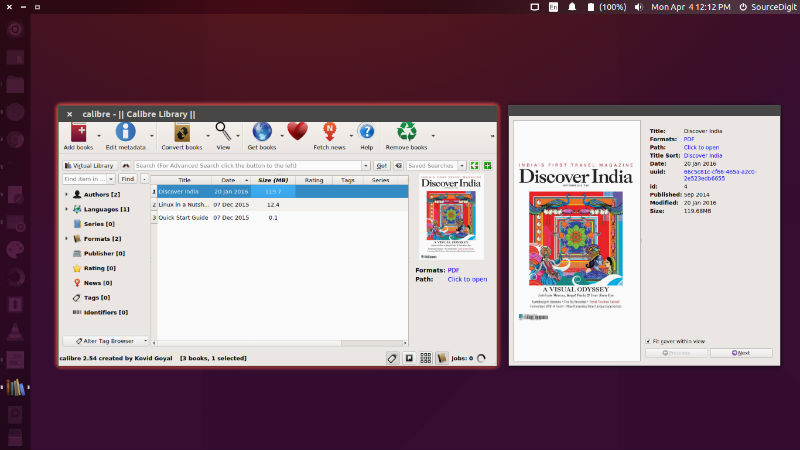
calibre-ubuntu

Calibre 2.61 New Features

  • Driver for FNAC (re-branded Bq) with new firmware.
  • Edit Book: Check Book: Add an auto fix action to remove all links to a missing resource (such as a deleted stylesheet) automatically.

Bug Fixes

  • Edit Book: Check Book: Fix incorrect handling of font family names with spaces in them that are not quoted.
  • E-book viewer: Fix Qt 5.7 breaking mouse wheel scrolling
  • Kobo driver: Fix a regression in the last release that broke connecting to older devices
  • Get Books: Fix detection of book formats broken for the Legimi plugin by a website change
  • Update builtin metadata source ozon.ru to handle website changes
  • Font subsetting: Fix incorrect handling of fonts whose names are included in font rules without quotes
  • Fix ebook-viewer broken when running the binary calibre release on systems with very old versions of glibc

Improved News Sources

  • derStandard
  • Kurier
  • Kliene Zeitung

Install Calibre 2.61 On Ubuntu
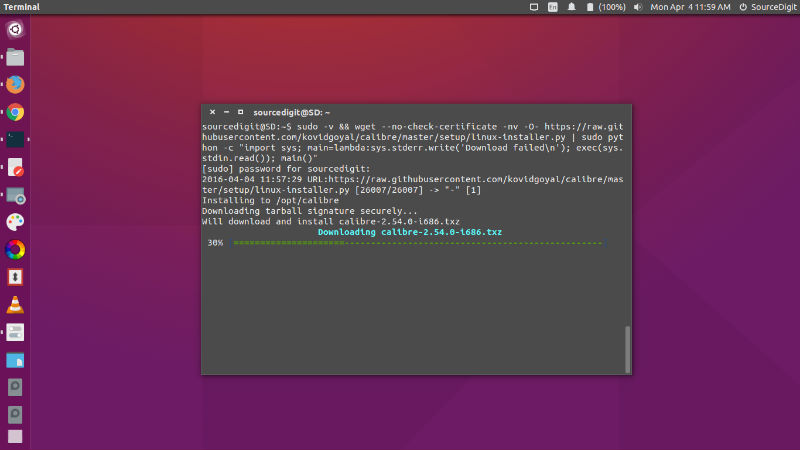
calibre-wget

Run the following commands in Terminal to install Calibre 2.61 on Ubuntu 16.04, Ubuntu 15.10, Ubuntu 14.04, Ubuntu 15.04, Ubuntu 14.10 and Ubuntu Derivatives Systems:

$ sudo add-apt-repository ppa:n-muench/programs-ppa
$ sudo apt-get update
$ sudo apt-get install calibre

You can also install Calibre 2.61 using the following command:

$ sudo -v && wget --no-check-certificate -nv -O- https://raw.githubusercontent.com/kovidgoyal/calibre/master/setup/linux-installer.py | sudo python -c "import sys; main=lambda:sys.stderr.write('Download failed\n'); exec(sys.stdin.read()); main()"

Once installed, open the Calibre ebook reader from Ubuntu Dash or Terminal. Run “calibre” to start calibre.
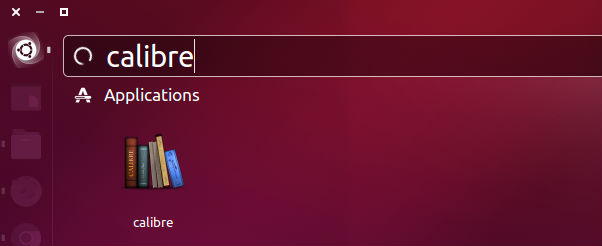
open-calibre

Tags: Calibre 2.60 Ubuntu, Calibre 2.60 Ubuntu PPA, Calibre 2.60 Ubuntu PPA Install, Calibre eBook Converter Ubuntu, Calibre eBook Reader Install, Calibre Ebook Reader Ubuntu, Calibre EBook Reader Ubuntu 16.04, Calibre Ebook Software Ubuntu, calibre Ubuntu, Calibre Ubuntu PPA Install, Download Calibre eBook Reader On Ubuntu, Download Calibre eBook Reader On Ubuntu 16.04, Install Calibre 2.60 On Ubuntu, Install Calibre 2.60 Ubuntu PPA, Install Calibre eBook Reader, Install Calibre eBook Reader On Ubuntu, Install Calibre eBook Reader On Ubuntu 16.04, Install Calibre On Ubuntu, Install Calibre Ubuntu PPA, Install Ubuntu PPA Calibre, Install Ubuntu PPA Calibre 2.60, Ubuntu 16.04 Calibre eBook Reader, Ubuntu calibre, Ubuntu Calibre eBook Converter, Ubuntu Calibre Ebook Reader, Ubuntu Calibre Ebook Software, Ubuntu PPA Calibre 2.60, Ubuntu PPA Calibre 2.60 Install, Ubuntu PPA Calibre Install

Primary Sidebar

Latest Posts

Delete Directory And Contents Recursively Without Prompt On Linux

Check User Login History In Ubuntu Linux Command Line

Use Locate Command To Find File In Linux Terminal By Name

How To Change Terminal Color In Ubuntu Command Line

How To Run Fsck Manually In Linux To Fix Unexpected Inconsistency

How To Fix Broken Packages On Ubuntu From Terminal

Re Execute The Previous Command In Linux Ubuntu Command Line

How Much RAM Is Needed For Ubuntu PC

How To Find Large Files And Directories In Linux Command Line

How To Use Clear Command History In Linux Terminal

© 2026 Source Digit • Linux, Ubuntu Tutorials & News, Technology, Gadgets & Gizmos

  • Home
  • About
  • Privacy Policy
  • Terms & Conditions
  • Contact Us
  • Sitemap