
digiKam 5.0.0 Image Editor released. Here’s how to install digiKam photo editor on Ubuntu 16.04. digiKam is an advanced digital photo management application for Linux, Windows, and Mac-OSX. digiKam is designed for editing images. It can be used to import, organize and export digital photos to and from your computer.
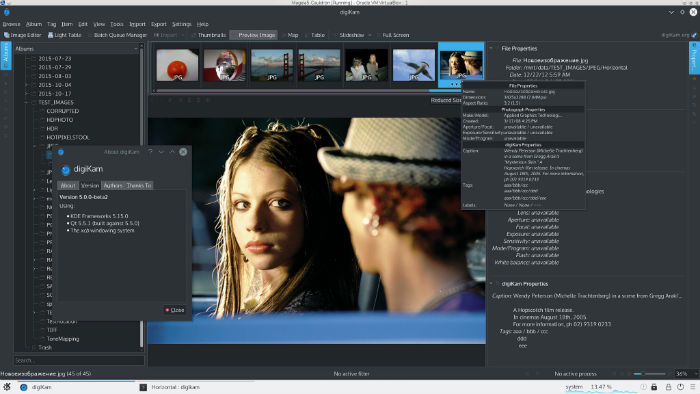
digiKam can import pictures, organize image collection, view items, edit and enhance images, create (slideshows, calendar, print, …) and share your creations (using social web services, email, your own web allery, …). digiKam core, image editor and image filters support 16 bits color depth pictures (RAW, TIFF, PNG, JPEG2000). Image Editor has a full Color Management support using ICC color profiles. The application also works as an image editor. It works as a fast image editor with keyboard shortcuts and basic photo editing/management features without losing metadata.
The application supports more than 1200 camera devices and has full support for RAW pictures using LibRaw included in libKdcraw. It support more 300 proprietary RAW camera file formats.
digiKam 5.0.0
The release announcement says:
“After two year of work, the digiKam team is proud to announce the final release of digiKam Software Collection 5.0.0. This main version introduces a new cycle of releases, which will be shortly released to quickly include all the fixes reported by end users. This release marks almost complete port of the application to Qt5. All Qt4/KDE4 code has been removed and many parts have been re-written, reviewed, and tested. Porting to Qt5 required a lot of work, as many important APIs had to be changed or replaced by new ones.” – https://www.digikam.org/node/755
The latest release brings several changes and optimizations, especially regarding dependencies on the KDE project. 80% of KDE dependencies have been removed. Although digiKam is still a KDE desktop application, it now uses many Qt dependencies instead of KDE dependencies. This simplifies the porting job on other operating systems, code maintenance, while reducing the sensitivity of API changes from KDE project.
Install digiKam 5.0.0
digiKam 5.0.0 can be installed on Ubuntu 16.04 and other Ubuntu Derivatives, via Terminal commands. Run the following command in Terminal to install digiKam 5.0:
sudo apt-get install digiKam
Once installed, open the digiKam application from Ubuntu Dash or Menu.