
VLC Media Player 2.2.4 released for Linux Ubuntu Systems. How to install VLC 2.2.4 Media Player on Ubuntu 16.04. VLC 2.2.4 “Weatherwax” release brings auto-rotation of phone movies, to fight Vertical Video Syndrome. It can now resume playback where you left off and has full support for WebVTT, Ogg/VP8, Opus/MKV, CAF. Whereas the normal support for WMV, Ogg, MP4 and AVI has been rewritten for better multimedia experience.
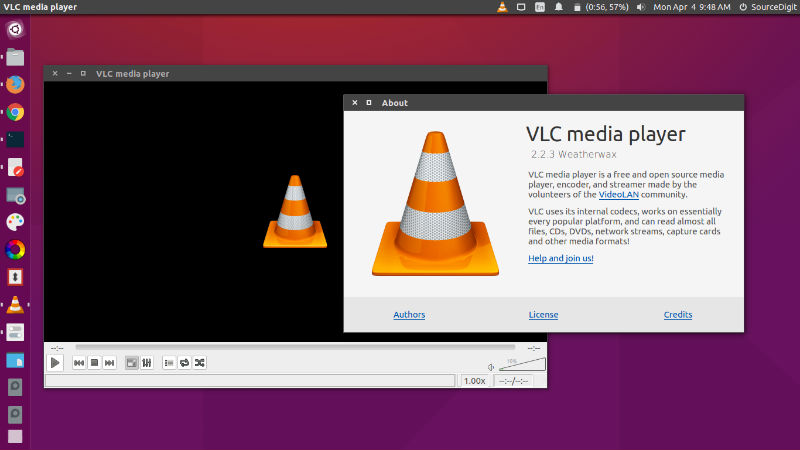
2.2.4 Highlights
- VLC 2.2.4 “Weatherwax” is the fourth update to VLC’s 2.2 release series.
- Fix crash in G.711 wav files
- Fix mp3 crash in libmad
- Fix out-of-bound write in adpcm QT IMA codec (VideoLAN-SA-1601, CVE-2016-5108)
- Fix overlay creation on Windows XP for DirectDraw video output
- Improve compilation support for GNU/HURD
- Minor UI improvements for the Qt interface on Windows, Linux, BSD, …
What’s new in VLC 2.2.X, codename WeatherWax?
- Fight the popular vertical video syndrome! VLC automatically detects rotated videos and rotates them using hardware acceleration (on compatible platforms)!
- This is supported for MP4/MOV, MKV and raw H264.
- Resume playback where you left off. Supported on all the mobile versions of VLC for quite some time, it is now available on the desktop.
- Vastly improved support for UltraHD video codecs like VP9 and H265, including encoding.
- New hardware acceleration mechanism, GPU 0-copy decoding, faster and implementations for Linux, Android, and Raspberry Pi. (Other OSes will have it in 3.0.0)
- Extensions: supported since a long time, we now feature an in-app downloader for the desktop, like Firefox
- Subtitles downloading extension
- Compatibility with a very large number of unusual codecs
- Vastly improved compatibility for problematic files in Ogg, MP4, and WMV.
- Support for Digital Cinema Package to play native movie theater formats.
- Experimental support of Interactive Menus of BluRays: BD-J
- On OS X, we’ve updated the interface for Yosemite compatibility.
- On Android, we rewrote most of the UI to match Google Material Design.
- This is the first public beta releases for Windows Phone, Windows RT and Android TV.
- It is also the first non-beta release on Android.
Install VLC 2.2.4 on Ubuntu
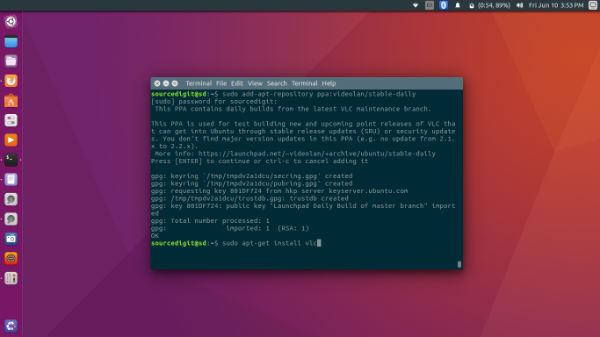
Run the following commands in Terminal to install VLC 2.2.4 Media Player on Ubuntu 16.04 and other Ubuntu Derivatives:
sudo apt-get build-dep vlc

wget -c download.videolan.org/pub/videolan/vlc/2.2.4/vlc-2.2.4.tar.xz

tar -xJvf vlc-2.2.4.tar.xz

cd vlc-2.2.4

./configure

make

sudo make install
Once installed, open VLC from Ubuntu Dash or Terminal.