
Slack for Linux. Install Slack on Ubuntu 16.04. Slack is an instant messaging and a cloud-based collaboration tool. Slack for Linux brings all the features you find in your browser, plus support for multiple teams, right to your desktop.
Slack messaging app offers IRC-like features: messaging chat rooms (known as channels) organized by topic and support for private groups and direct messaging. Not just your messages, but all your files, images, PDFs, documents, and spreadsheets can be dropped right into Slack and shared with anyone you want. It also features integration with services like Google Drive and Dropbox. Everything in Slack—messages, notifications, files, and all—is automatically indexed and archived.
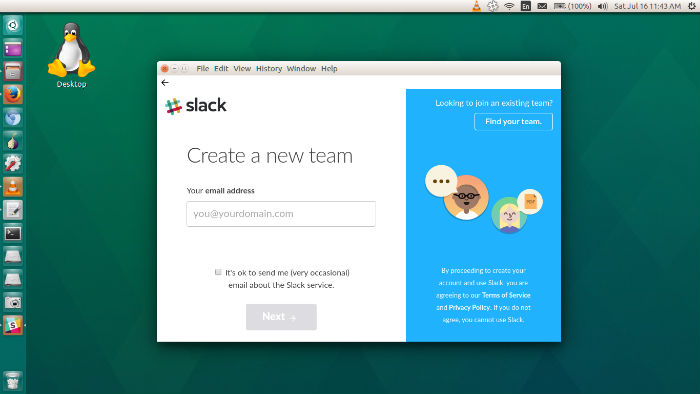
For secure messaging, besides public channels and direct messages, create private channels can also be created for subjects that are sensitive or confidential. You can also create a group message of up to eight other people if you have a couple of teammates that you collaborate with in a short-term, lightweight basis. Private channels and group messages will only be visible to those in the channel or group.
Download and Installing Slack
- Visit the Slack downloads page at https://slack.com/downloads
- Under Linux (Beta), choose between Ubuntu 32-bit and Ubuntu 64-bit in the drop-down menu, then press the green download button to the right.
- Find the downloaded file in your Downloads folder. The file name will begin “slack-desktop”.
- Double click the file to view Slack in Ubuntu Software Center.
- Click the Install button to the right. You may need to enter the password you use to log in to Ubuntu.
- To run the app, search your computer for Slack, then double click the Slack icon.
Using Slack
Once Slack is installed, open it from Ubuntu Dash.
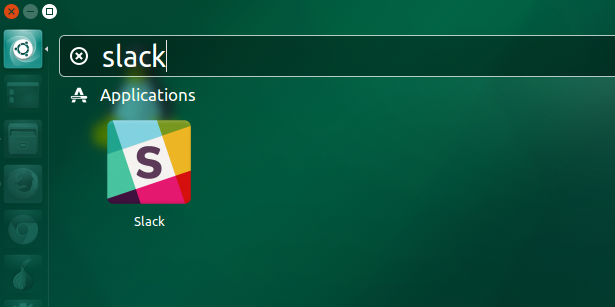
You can either login to an already created account or create a new one. Preferences can also be set to:
- Launching Slack at login – You can choose to have Slack start automatically when you log in to Linux. Just click your team name to open the Team Menu and select Preferences. Next, click the Linux App tab, and check Launch app on login.
Signing in to multiple teams – You can use the app to sign in to multiple Slack teams. Simply click your team name to open the Team Menu, then click Sign in to another team… to get started. - Using the Team Switcher – If you’re signed in to multiple teams, you can easily switch between them by using the Team Sidebar. You can even use keyboard shortcuts, and so on, to switch even faster. You can even drop the team icons to reorder them.
Updating Slack
Update Slack by entering “sudo apt-get update” and then “sudo apt-get upgrade” from the command line.