
MPV media player (FFmpeg version). How to Install the Latest MPV Media Player in Ubuntu 16.04. MPV is a fork of mplayer2 and MPlayer. It shares some features with the former projects while introducing many more.
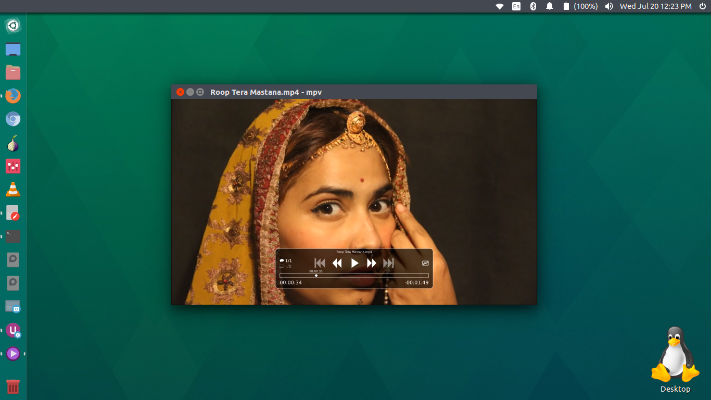
Some of the most interesting features are:
- Streamlined CLI options – MPlayer’s options parser was improved to behave more like other CLI programs, and many option names and semantics were reworked to make them more intuitive and memorable.
- On Screen Controller – While mpv has no official GUI, it has a small controller that is triggered by mouse movement.
- High quality video output – mpv has a OpenGL based video output that is capable of many features loved by videophiles, such as video scaling with popular high quality algorithms, color management, frame timing, interpolation, and more.
- GPU video decoding – mpv leverages the FFmpeg hwaccel APIs to support VDPAU, VAAPI, DXVA2, VDA and VideoToolbox video decode acceleration.
Install MPV Media Player
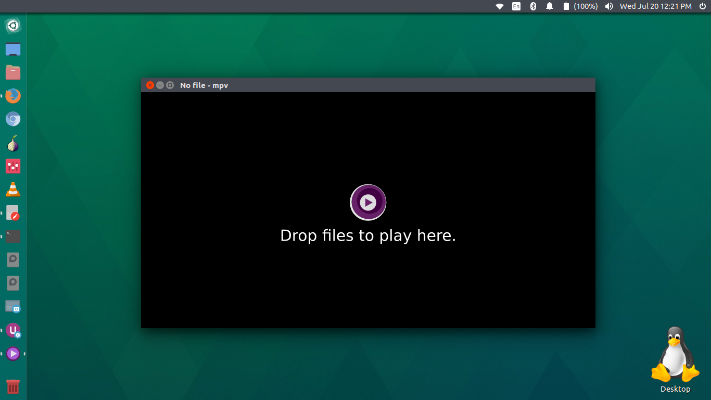
Run the following commands in Terminal to install MPV Media Player on Ubuntu Linux:
sudo add-apt-repository ppa:mc3man/mpv-tests

sudo apt update

sudo apt install mpv
Once installed, open the MPV media player from Ubuntu Dash. Note that you won’t find any menu options. Simply drop the media file into the player window to play.
For unity users if you pin mpv to launcher there is a quicklist option to open the man in evince.
By default osc (on screen controller) is enabled. Osc config options now go into ~/.mpv/lua-settings/osc.config. Note that osc does have a slight hit on cpu use, if unsuitable then disable at runtime. Refer to manpage or pdf in /usr/share/doc/mpv
If you don’t want to use it anymore and wish to uninstall and remove the MPV media player from Ubuntu Systems, run the following commands:
sudo apt remove mpv

sudo apt autoremove

sudo apt-get update
A pdf version of the manpages is available in /usr/share/doc/mpv. You can also visit https://mpv.io/manual/.