
• Skip to primary navigation
  • Skip to main content
  • Skip to primary sidebar
Source Digit

Source Digit

Linux, Ubuntu Tutorials & News, Technology, Gadgets & Gizmos

  • Home
  • How To
  • Ubuntu
  • Instagram
  • Blogging
  • Android
  • WordPress
  • +More
    • Cloud Computing
    • Gadgets
    • Social Media
    • Technology
  • Write for Us
Home / How To / Install Anatine Twitter Client on Linux Ubuntu 16.04

Install Anatine Twitter Client on Linux Ubuntu 16.04

By Sourabh / July 29, 2016 Category: How To, Ubuntu

Install Anatine Twitter Client on Linux Ubuntu 16.04. Anatine is a simple and minimal Desktop Twitter App for Linux Ubuntu Systems. The app has basic, but powerful features that makes it one of the best Twitter clients for Linux Desktop. The app has a simpler login screen and an optional dark mode. The Dark mode can be enabled in the Anatine menu or with Cmd Shift D / Ctrl Shift D.
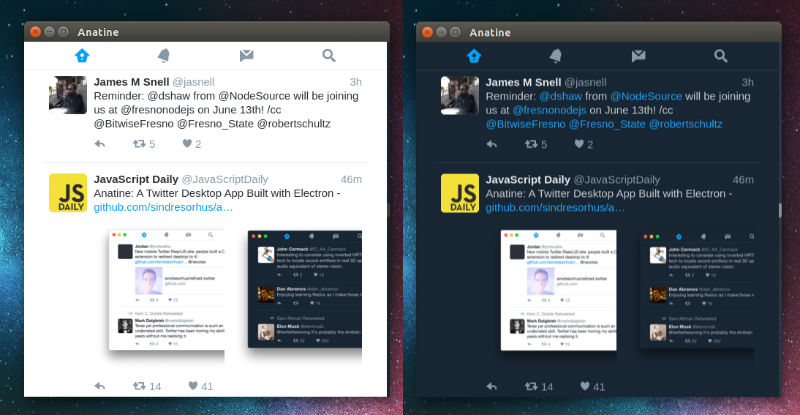
twitter-ubuntu-linux

Install & Use Anatine App on Ubuntu

To install the Anatine Twitter app, simply download (link below) the app unzip. To use the app, simply extract the folder and clickon the Anantine exe file. To add a shortcut to the app, create a file in “~/.local/share/applications” called “anatine.desktop” with the following contents:

[Desktop Entry] Name=Anatine
Exec=/full/path/to/folder/Anatine
Terminal=false
Type=Application
Icon=/full/path/to/folder/Anatine/resources/app/static/Icon.png

Keyboard shortcuts

  • New tweet: n
  • New DM: m
  • Send tweet/DM: Cmd Enter or Ctrl Enter
  • Go to Home: g h
  • Go to Notifications: g n
  • Go to Messages: g m
  • Go to Search: /
  • Go to Profile: g p
  • Go to Likes: g l
  • Go to Lists: g i
  • Go to previous page: Delete or Backspace
  • Next tab: Ctrl Tab
  • Previous tab: Ctrl Shift Tab
  • Go to next tweet: j
  • Go to previous tweet: k
  • Page down: Ctrl d
  • Page up: Ctrl u
  • Scroll to top: g g
  • Scroll to bottom: G

Note: When closing the window, the app will continue running in the background, in the dock on macOS and the tray on Linux/Windows. Right-click the dock/tray icon and choose Quit to completely quit the app. On Linux, right-click the tray icon and choose Toggle to toggle the window.

Download Anatine: https://github.com/sindresorhus/anatine

Tags: Anatine Pristine Twitter app, Anatine Pristine Twitter Client, Anatine Twitter app, Anatine Twitter Client, Install Anatine Pristine Twitter app, Install Anatine Pristine Twitter app Ubuntu, Install Anatine Pristine Twitter Client, Install Anatine Pristine Twitter Client Ubuntu, Install Anatine Twitter app, Install Anatine Twitter app Ubuntu, Install Anatine Twitter app Ubuntu 16.04, Install Anatine Twitter Client, Install Anatine Twitter Client Ubuntu, Install Anatine Ubuntu, Ubuntu 16.04 Install Anatine Twitter app, Ubuntu Install Anatine Twitter app

Primary Sidebar

Latest Posts

Delete Directory And Contents Recursively Without Prompt On Linux

Check User Login History In Ubuntu Linux Command Line

Use Locate Command To Find File In Linux Terminal By Name

How To Change Terminal Color In Ubuntu Command Line

How To Run Fsck Manually In Linux To Fix Unexpected Inconsistency

How To Fix Broken Packages On Ubuntu From Terminal

Re Execute The Previous Command In Linux Ubuntu Command Line

How Much RAM Is Needed For Ubuntu PC

How To Find Large Files And Directories In Linux Command Line

How To Use Clear Command History In Linux Terminal

© 2026 Source Digit • Linux, Ubuntu Tutorials & News, Technology, Gadgets & Gizmos

  • Home
  • About
  • Privacy Policy
  • Terms & Conditions
  • Contact Us
  • Sitemap