
Install Calibre 2.66 eBook reader and converter on Ubuntu 16.04. Calibre 2.66 eBook reader and converter brings DOCX Input and Output improvements and a better HiDPI support.
Calibre is a free and open source e-book library management application developed by users of e-books for users of e-books. Calibre 2.X version is the most powerful release of the Calibre ebook software. The e-book editor supports Android phones, tablets on OS X and support for touchscreen windows tablets. It uses Qt 5.
Calibre 2.66
Calibre 2.66 eBook reader and converter brings DOCX Input and Output improvements and a better HiDPI support. Other features are:
New Features
- A simplified calibre logo
- Edit Book: Allow restricting a search to the files currently open for editing
- Driver for the PocketBook Touch HD
- Kobo driver: Add support for firmware version 3.20
Bug Fixes
- DOCX Input: Fix right-to-left alignment not working for footnotes.
- Sending email: Allow setting up a mail relay that uses encryption without a username and password.
- Linux: Fix calibre not working when the username is non-ASCII.
- DOCX Output: Ignore invalid text-indent values in the input document instead of erroring out.
- Portable Installer: Auto-create the installation folder specified on the command line if it does not exist
- Kobo driver: Fix the ignore collections in option not working
- More user interface fixes for high DPI screens
- DOCX Input: Fix a regression in the previous release that could cause invalid values to be output for the text-align CSS property
New news sources
- Contropiano by michele
Install Calibre 2.66 on Ubuntu
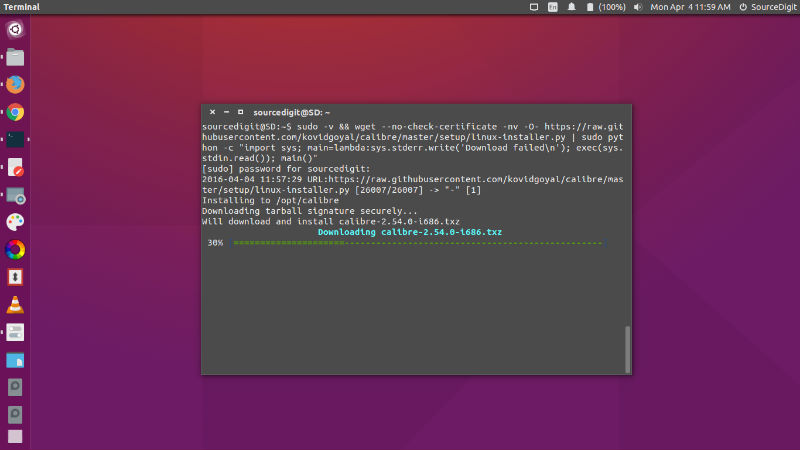
Run the following commands in Terminal to install Calibre 2.66 on Ubuntu 16.04, Ubuntu 15.10, Ubuntu 15.04, Ubuntu 14.04 and Ubuntu Derivatives:
sudo -v && wget -nv -O- https://raw.githubusercontent.com/kovidgoyal/calibre/master/setup/linux-installer.py | sudo python -c "import sys; main=lambda:sys.stderr.write('Download failedn'); exec(sys.stdin.read()); main()"
Once installed, open Calibre from Ubuntu Dash or run “calibre” in Terminal (without quotes) to start Calibre .