
How to connect Android device on Ubuntu Linux System. Install KDE Connect on Ubuntu 16.04 and sync Android mobile with the Linux Ubuntu Desktop. KDE Connect can connect the Android device on Ubuntu Linux.
KDE Connect can easily communicate all the connected devices – Android and Linux Desktop. For example, with KDE Connect Linux Ubuntu users can receive Android notifications on Linux Ubuntu System. Android user can also be used as a remote control for Linux desktop. To achieve this, KDE Connect implements a secure communication protocol over the network, and allows any developer to create plugins on top of it. Currently there are KDE Connect clients on KDE, Android and Blackberry, and soon we will support iPhone as well.
Install KDE Connect on Ubuntu
Please note that there you will need to install KDE Connect on Ubuntu system and Android smartphone. Run the following commands to install KDE Connect on Ubuntu 16.04 Systems.
sudo add-apt-repository ppa:vikoadi/ppa

sudo apt update

sudo apt install kdeconnect indicator-kdeconnect
Now install KDE Connect on the Android phone via Google play store.
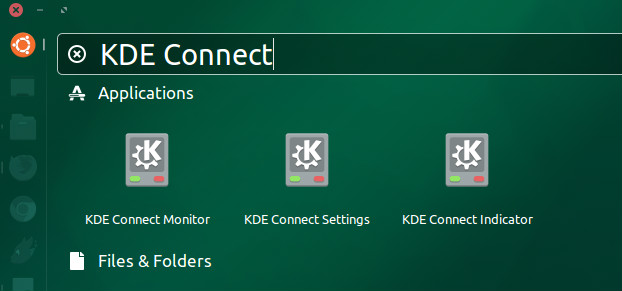
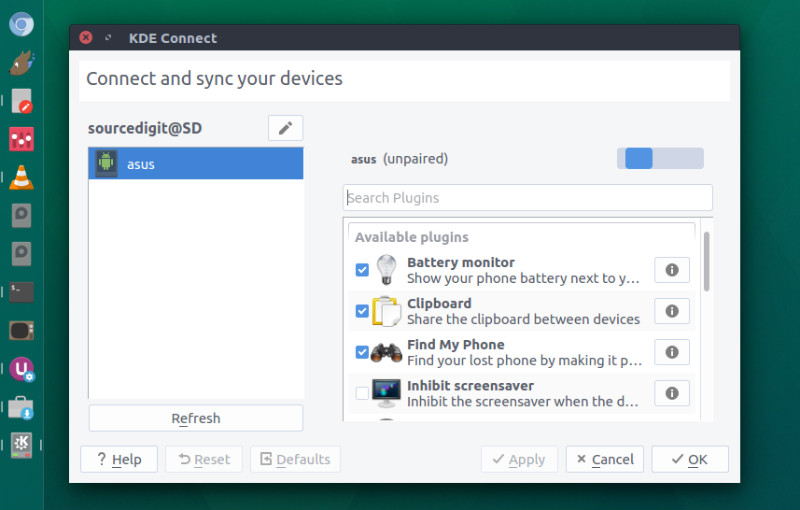
Once it’s installed, launch KDE Connect Settings from Unity Dash or your application menu. You should also open KDE Connect app on your Android phone.
Using KDE Connect
- As soon as you start the KDE connect on Ubuntu, it will automatically detect the Android phone (provided they are on the same network). Select and pair both the device.
- Click on Request Pair to do so and you will receive a pair request on your phone, select Accept.
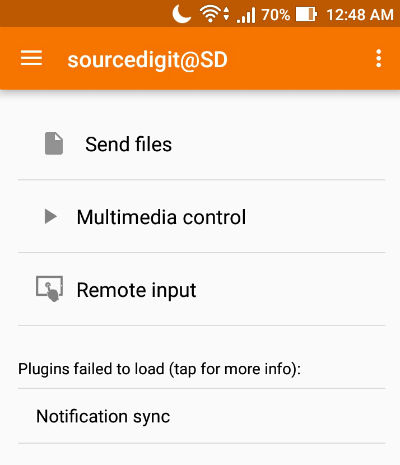
- Once the Ubuntu and Android phone are paired, simply use the KDE Connect app to send files, control or access notifications between the two connected devices.
Please note that the files sent from Android smartphone to Linux Desktop PC are stored in ~/Downloads directory.