
digiKam 5.2.0 is released with better face recognition. Install digiKam 5.2.0 on Ubuntu 16.04, Ubuntu 15.04, Ubuntu 14.04 and other Ubuntu Derivatives. digiKam is an advanced digital photo management application for Linux, Windows, and Mac-OSX. digiKam is designed for editing images. It can be used to import, organize and export digital photos to and from your computer.
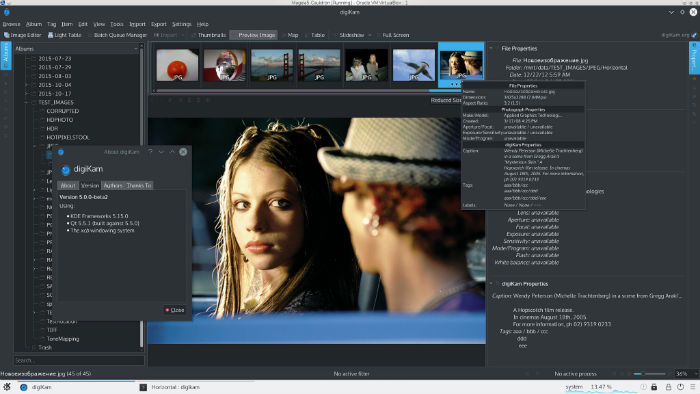 With DigiKam Linux Ubuntu users can import pictures, organize image collection, view, edit and enhance the images. Photos can be organized in albums and sub-albums to which comments and tags can be added. It also features exif support. For serious photographers, digiKam supports over 1200 digital camera devices enabling serial and USB connection. It supports RAW pictures – more than 300 proprietary RAW camera file formats.
digiKam 5.2.0
digiKam 5.2.0 is released with better shape and face recognition. It also brings a new red eyes tool which automatize the red-eyes effect reduction process, including faces detection.
digiKam 5.2.0 Changelog
- This release introduce also a new red eyes tool which automatize the red-eyes effect reduction process. Faces detection is processed on whole image and a new algorithm written by a Google Summer of Code 2016 student named Omar Amin is dedicated to recognize shapes and try to found eyes with direct flash reflection on retina.
- This new tool is available in Image Editor and also in Batch Queue Manager to be able to process a set of photos at the same time. The algorithm have been very optimized for speed efficiency and for small memory fingerprint. End user can adjust just a single parameter about the reducing level of retina red color to the average of blue and green channels. The default threshold have been tested successfully with a trial and error basis from a large data-set of images. So typically, no user interaction are need with this new version of this tool compared to older one, where no red eyes detection was performed, and a lots of manual settings was required to process this kind of correction.
Install digiKam 5.2.0 on Ubuntu 16.04
digiKam 5.2.0 can be installed on Ubuntu 16.04, Ubuntu 15.04, Ubuntu 14.04 and other Ubuntu Derivatives:
sudo apt-add-repository ppa:philip5/extra

sudo apt-get update

sudo apt-get install digikam5
Once installed, open digiKam from Ubuntu Dash or Terminal.
Uninstall digiKam 5.2.0 from Ubuntu
Run the following commands in Terminal to uninstall and remove digiKam 5.2.0 from Ubuntu Systems:
sudo apt remove digikam5

sudo apt autoremove

sudo apt-get update