
• Skip to primary navigation
  • Skip to main content
  • Skip to primary sidebar
Source Digit

Source Digit

Linux, Ubuntu Tutorials & News, Technology, Gadgets & Gizmos

  • Home
  • How To
  • Ubuntu
  • Instagram
  • Blogging
  • Android
  • WordPress
  • +More
    • Cloud Computing
    • Gadgets
    • Social Media
    • Technology
  • Write for Us
Home / Ubuntu / How To Install Themes & Icons On Ubuntu 17.04

How To Install Themes & Icons On Ubuntu 17.04

By Sourabh / April 14, 2017 Category: How To, Ubuntu

New Ubuntu users, learn how to install Themes and Icons on Ubuntu 17.04. Here’s how to install Themes in Ubuntu 17.04, manually or via PPA. Change Unity Desktop themes on Ubuntu with Ubuntu/Gnome Tweak Tool or via Terminal Commands. You can download and install custom themes in Ubuntu 17.04.

There are two ways to download and install themes in Ubuntu:

  1. Install Themes via PPA – Run terminal commands to install themes via PPA using Terminal commands
  2. Install Themes Manually – Download the custom theme file and install them manually
ubuntu-theme-cli

Install Themes Manually

Ubuntu users can manually download the theme and install it on their Ubuntu Systems. If you download the custom theme file, you will have to extract theme file to ~/.themes or /user/share/themes directory. You can directly download the theme files and extract it to the theme folder and use it.

To use the downloaded Ubuntu theme:

  • Extract and move the theme to usr/share//themes directory. For security reasons, Themes folder is restricted to use. Luckily, you can also create a folder in your Home directory (name it .theme) and extract the zip archive (downloaded theme) there.
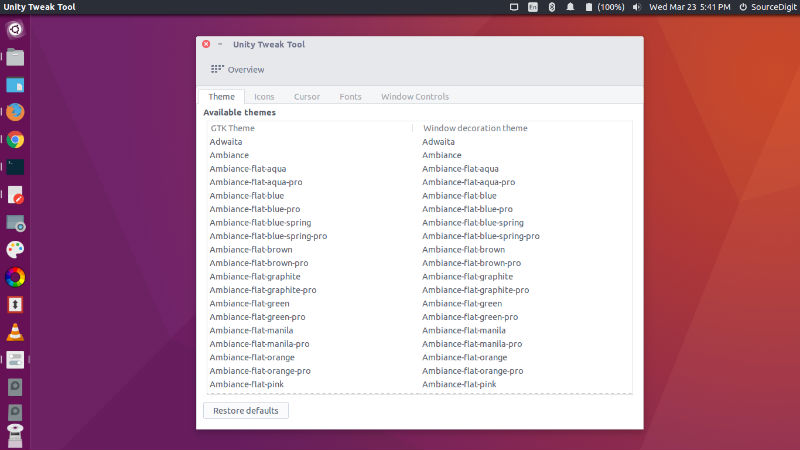
  • Use the theme via Ubuntu Tweak Tool. Open Ubuntu Tweak Tool and go to the Tweaks tab, and select the Theme option. Choose the theme you wish to use from the list.

Install Themes via PPA or Terminal Commands

When you install themes via a PPA using Terminal, all you have to do is execute the command and rest is done by the system itself. For example, to install Numix Icon Theme, run the following commands in Terminal:

sudo apt-add-repository ppa:numix/ppa
sudo apt-get update
sudo apt-get install numix-icon-theme numix-icon-theme-circle numix-icon-theme-shine numix-icon-theme-utouch

Once the Theme is downloaded on the Ubuntu System, it can be used. You can also use the downloaded/installed Ubuntu Themes using Ubuntu configuration tools such as Ubuntu Tweak Tool, Unity Tweak Tool or GNOME Tweak Tool.

Tags: Install Themes Manually, Install Themes Manually Ubuntu 16.10, Install Themes Manually Ubuntu 17.04, Install Themes on Ubuntu 16.10, Install Themes on Ubuntu 17.04, Install Themes via Command Line, Install Themes via Command Line Ubuntu 16.10, Install Themes via Command Line Ubuntu 17.04, Install Themes via PPA, Install Themes via PPA Ubuntu 16.10, Install Themes via PPA Ubuntu 17.04, Install Themes via Terminal, Install Themes via Terminal Ubuntu 16.10, Install Themes via Terminal Ubuntu 17.04, Ubuntu 16.10 Install Themes, Ubuntu 16.10 Install Themes Manually, Ubuntu 16.10 Install Themes via Command Line, Ubuntu 16.10 Install Themes via PPA, Ubuntu 16.10 Install Themes via Terminal, Ubuntu 17.04 Install Themes, Ubuntu 17.04 Install Themes Manually, Ubuntu 17.04 Install Themes via Command Line, Ubuntu 17.04 Install Themes via PPA, Ubuntu 17.04 Install Themes via Terminal

Primary Sidebar

Latest Posts

Job Scheduling Using At Command In Linux With Examples

How To Check Permissions Of A Directory In Linux Command

Delete Directory And Contents Recursively Without Prompt On Linux

Check User Login History In Ubuntu Linux Command Line

Use Locate Command To Find File In Linux Terminal By Name

How To Change Terminal Color In Ubuntu Command Line

How To Run Fsck Manually In Linux To Fix Unexpected Inconsistency

How To Fix Broken Packages On Ubuntu From Terminal

Re Execute The Previous Command In Linux Ubuntu Command Line

How Much RAM Is Needed For Ubuntu PC

© 2026 Source Digit • Linux, Ubuntu Tutorials & News, Technology, Gadgets & Gizmos

  • Home
  • About
  • Privacy Policy
  • Terms & Conditions
  • Contact Us
  • Sitemap