
• Skip to primary navigation
  • Skip to main content
  • Skip to primary sidebar
Source Digit

Source Digit

Linux, Ubuntu Tutorials & News, Technology, Gadgets & Gizmos

  • Home
  • How To
  • Ubuntu
  • Instagram
  • Blogging
  • Android
  • WordPress
  • +More
    • Cloud Computing
    • Gadgets
    • Social Media
    • Technology
  • Write for Us
Home / Ubuntu / Fix E: Could not get lock /var/lib/dpkg/lock – Unable to lock the directory

Fix E: Could not get lock /var/lib/dpkg/lock – Unable to lock the directory

By Sourabh / February 11, 2019 Category: How To, Ubuntu

How to fix error “E: Could not get lock /var/lib/dpkg/lock – open (11: Resource temporarily unavailable). E: Unable to lock the administration directory (/var/lib/dpkg/), is another process using it?” The problem arises when a specific process locks the dpkg resource.
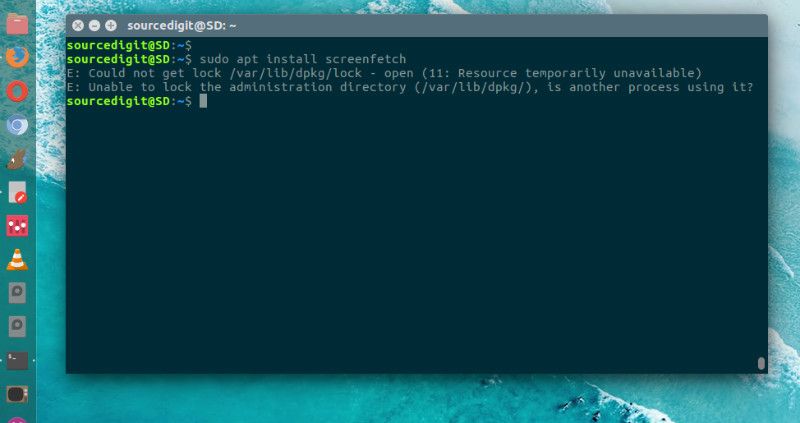
lock-ubuntu

To solve it, search for process that’s holding up the resource and kill it. To search the process, run:

$ ps -A | grep apt-get

or

$ sudo lsof /var.lib/dpkg/lock

The above command will display the process. You can easily see the one which has locked the resource. Note the process id (PID) and kill it using the kill command.

$ sudo kill PID

Read More : How To Kill Process in Linux Ubuntu By PID Or Name

Each Linux or Unix process or a running program is automatically assigned a unique process identification number (PID). A PID is automatically assigned number to each process on the system.

Kill command can be used to kill or terminate a process using “Signal” or “PID.” The command kill sends the specified signal to the specified processes or process groups. If no signal is specified, the TERM signal is sent. This TERM signal will kill processes that do not catch it; for other processes it may be necessary to use the KILL signal (number 9), since this signal cannot be caught.

Once the process is killed, you may have to manually run ‘sudo dpkg –configure -a’ to correct the problem “dpkg was interrupted”. Run the command:

$ sudo dpkg --configure -a
$ apt-get update

That’s all. The problem must be resolved by now. If the error persists, run the following commands in terminal,

$ sudo su
$ sudo rm /var/lib/apt/lists/lock
$ apt-get update

Alternate Method – There is also another method to solve the problem:

$ sudo rm /var/lib/dpkg/lock
$ sudo apt-get update

Tags: Could not get lock /var/lib/dpkg/lock, Could not get lock /var/lib/dpkg/lock - open (11: Resource temporarily unavailable), Could not get lock /var/lib/dpkg/lock Fix, Could not get lock /var/lib/dpkg/lock Solve, Could not get lock /var/lib/dpkg/lock Ubuntu, Error Unable to lock the administration directory, Fix Could not get lock /var/lib/dpkg/lock, Fix Resource temporarily unavailable, Fix Unable to lock the administration directory, is another process using it?", Resource temporarily unavailable, Resource temporarily unavailable Fix, Resource temporarily unavailable Solve, Resource temporarily unavailable Ubuntu, Solve Could not get lock /var/lib/dpkg/lock, Solve Resource temporarily unavailable, Solve Unable to lock the administration directory, Ubuntu Could not get lock /var/lib/dpkg/lock, Ubuntu Resource temporarily unavailable, Ubuntu Unable to lock the administration directory, Unable to lock the administration directory, Unable to lock the administration directory (/var/lib/dpkg/), Unable to lock the administration directory Fix, Unable to lock the administration directory Solve, Unable to lock the administration directory Ubuntu, var lib dpkg is another process using it?

Primary Sidebar

Latest Posts

Job Scheduling Using At Command In Linux With Examples

How To Check Permissions Of A Directory In Linux Command

Delete Directory And Contents Recursively Without Prompt On Linux

Check User Login History In Ubuntu Linux Command Line

Use Locate Command To Find File In Linux Terminal By Name

How To Change Terminal Color In Ubuntu Command Line

How To Run Fsck Manually In Linux To Fix Unexpected Inconsistency

How To Fix Broken Packages On Ubuntu From Terminal

Re Execute The Previous Command In Linux Ubuntu Command Line

How Much RAM Is Needed For Ubuntu PC

© 2026 Source Digit • Linux, Ubuntu Tutorials & News, Technology, Gadgets & Gizmos

  • Home
  • About
  • Privacy Policy
  • Terms & Conditions
  • Contact Us
  • Sitemap