
• Skip to primary navigation
  • Skip to main content
  • Skip to primary sidebar
Source Digit

Source Digit

Linux, Ubuntu Tutorials & News, Technology, Gadgets & Gizmos

  • Home
  • How To
  • Ubuntu
  • Instagram
  • Blogging
  • Android
  • WordPress
  • +More
    • Cloud Computing
    • Gadgets
    • Social Media
    • Technology
  • Write for Us
Home / Ubuntu / How To Hibernate Or Shutdown Ubuntu Laptop When Lid Is Closed

How To Hibernate Or Shutdown Ubuntu Laptop When Lid Is Closed

By Sourabh / November 1, 2016 Category: How To, Ubuntu

On Ubuntu 16.04 and Ubuntu 16.10, hibernate or shutdown laptop when lid is closed. Customize Ubuntu’s Power setting so that Ubuntu Laptop auto-shutdowns or hibernate when the lid is closed.

Ubuntu: Auto Shutdown/Hibernate When Lid Closed

Step 1
ubuntu-suspend

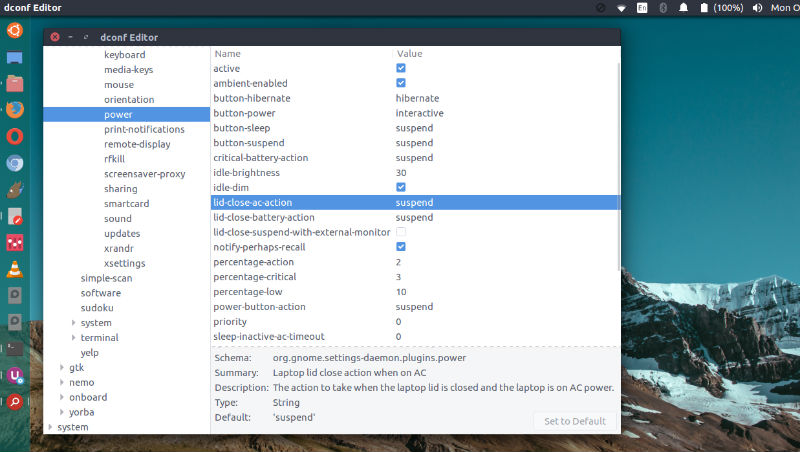
Dconf editor is used to enable auto shutdown or hibernate when lid is closed. If Dconf editor isn’t installed on Ubuntu Systems, install dconf Editor from Ubuntu Software Center or by running the following command:

sudo apt install dconf-editor

Once installed, launch Dconf editor. Once Dconf editor opens, navigate to org > gnome > settings daemon > plugins > power. Now follow these steps:

  • Double click on “lid-close-ac-action” line
  • Turn off use default value.
  • Change Custom value to anything other to the default
  • Do the same process to change the value of “lid-close-battery-action”.

Step 2
ubuntu-suspend-2

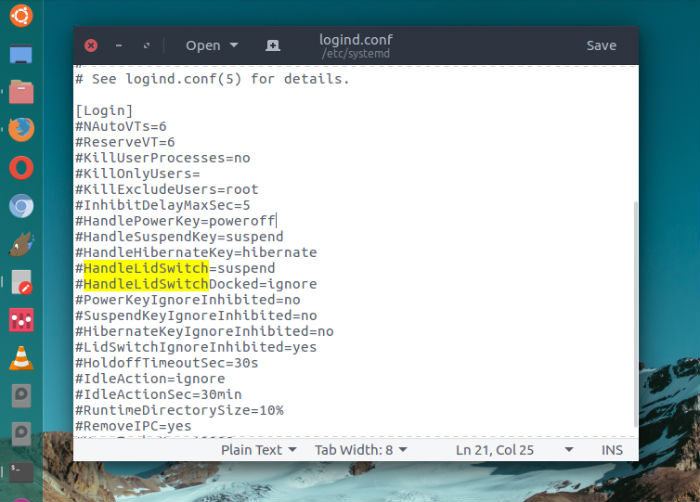
Once the Dconf part is done, open terminal and run the command gives below to open and edit the login configuration file:

sudo gedit /etc/systemd/logind.conf

When the login configuration file opens, search and uncomment the line #HandleLidSwitch=suspend and change its value to the following ones:

HandleLidSwitch=poweroff – automatic shutdown when lid closed.
HandleLidSwitch=hibernate – automatic hibernate.
HandleLidSwitch=ignore – do nothing.

Make changes into the file and save it. Close the file and restart systemd service by restarting the system. If you don’t want to restart the system, you can simply run the following command:

systemctl restart systemd-logind.service

Please note that on Ubuntu Systems, the hibernate function is disabled by default. Which means, you will need to enable hibernate function manually.

Tags: Handlelidswitch=Ignore, Handlelidswitchdocked, Lidswitchignoreinhibited, Ubuntu 14.04 Close Lid, Ubuntu 14.04 Hibernate On Lid Close, Ubuntu 14.04 Suspend On Lid Close, Ubuntu 14.10 Hibernate On Lid Close, Ubuntu 14.10 Suspend On Lid Close, Ubuntu 15.04 Hibernate On Lid Close, Ubuntu 15.04 Suspend On Lid Close, Ubuntu 15.10 Hibernate On Lid Close, Ubuntu 15.10 Suspend On Lid Close, Ubuntu 16.04 Auto Shutdown When Lid Closed, Ubuntu 16.04 Close Lid, Ubuntu 16.04 Hibernate On Lid Close, Ubuntu 16.04 Hibernate When Lid Closed, Ubuntu 16.04 Shutdown When Lid Closed, Ubuntu 16.04 Suspend On Lid Close, Ubuntu 16.10 Auto Shutdown When Lid Closed, Ubuntu 16.10 Close Lid, Ubuntu 16.10 Hibernate On Lid Close, Ubuntu 16.10 Hibernate When Lid Closed, Ubuntu 16.10 Shutdown When Lid Closed, Ubuntu 16.10 Suspend On Lid Close, Ubuntu Close Lid External Monitor, Ubuntu Doesn'T Suspend When Lid Is Closed, Ubuntu Don'T Sleep When Lid Closed, Ubuntu Hibernate Commandline, Ubuntu Hibernate On Lid Close, Ubuntu Hibernate Option, Ubuntu Ignore Lid Close, Ubuntu Suspend Commandline, Ubuntu Suspend On Lid Close, Ubuntu Suspend Option

Primary Sidebar

Latest Posts

Delete Directory And Contents Recursively Without Prompt On Linux

Check User Login History In Ubuntu Linux Command Line

Use Locate Command To Find File In Linux Terminal By Name

How To Change Terminal Color In Ubuntu Command Line

How To Run Fsck Manually In Linux To Fix Unexpected Inconsistency

How To Fix Broken Packages On Ubuntu From Terminal

Re Execute The Previous Command In Linux Ubuntu Command Line

How Much RAM Is Needed For Ubuntu PC

How To Find Large Files And Directories In Linux Command Line

How To Use Clear Command History In Linux Terminal

© 2026 Source Digit • Linux, Ubuntu Tutorials & News, Technology, Gadgets & Gizmos

  • Home
  • About
  • Privacy Policy
  • Terms & Conditions
  • Contact Us
  • Sitemap