
• Skip to primary navigation
  • Skip to main content
  • Skip to primary sidebar
Source Digit

Source Digit

Linux, Ubuntu Tutorials & News, Technology, Gadgets & Gizmos

  • Home
  • How To
  • Ubuntu
  • Instagram
  • Blogging
  • Android
  • WordPress
  • +More
    • Cloud Computing
    • Gadgets
    • Social Media
    • Technology
  • Write for Us
Home / Ubuntu / How To Install Latest Emacs On Ubuntu via Command Line

How To Install Latest Emacs On Ubuntu via Command Line

By Sourabh / November 2, 2016 Category: How To, Ubuntu

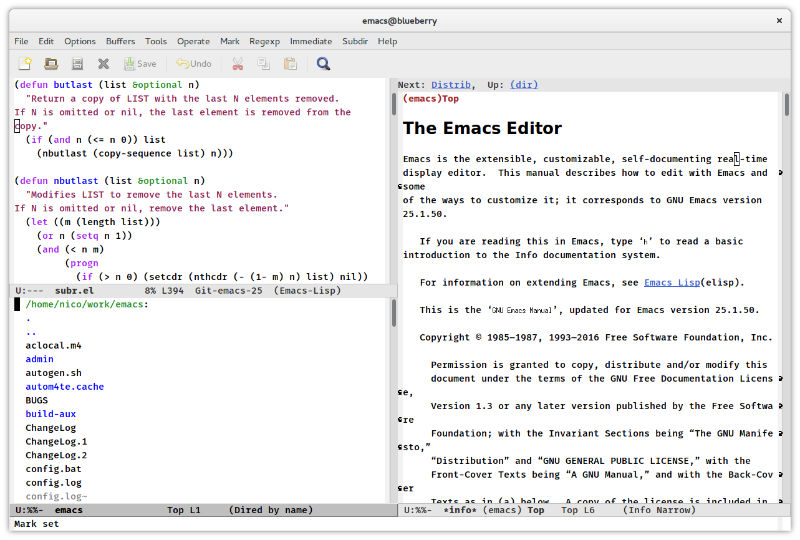
How to install Emacs text editor on Ubuntu 16.10, Ubuntu 16.04 and other Ubuntu Linux Derivatives. GNU Emacs is the most popular and most ported Emacs text editor, and it was created by Richard Stallman for the GNU Project.

GNU Emacs is an extensible, customizable, free/libre text editor — and more. Its core is an interpreter for Emacs Lisp, a dialect of the Lisp programming language with extensions to support text editing.

Features:

  • Content-aware editing modes, including syntax coloring, for many file types.
  • Complete built-in documentation, including a tutorial for new users.
  • Full Unicode support for nearly all human scripts.
  • Highly customizable, using Emacs Lisp code or a graphical interface.
  • An entire ecosystem of functionality beyond text editing, including a project planner, mail and news reader, debugger interface, calendar, and more.
  • A packaging system for downloading and installing extensions.
emac-ubuntu

Install Emacs in Ubuntu

Emacs 25.1 is the latest release of the GNU Emacs. (Released September 17, 2016). Emacs 25.1 has a wide variety of new features, including:

  • Emacs can now load shared/dynamic libraries (modules). A dynamic Emacs module is a shared library that provides additional functionality for use in Emacs Lisp programs, just like a package written in Emacs Lisp would.
  • Experimental support for Cairo drawing.
  • Enhanced network security (TLS/SSL certificate validity and the like) via the new Network Security Manager (NSM).
  • New minor mode ‘electric-quote-mode’ for using curved quotes as you type.
  • Character folding support in isearch.el.
  • New and improved facilities for inserting Unicode characters: C-x 8 now has shorthands for several chars, such as U+2010 (HYPHEN), U+2011 (NON-BREAKING HYPHEN), and U+2012 (FIGURE DASH).

To install Emacs 25.1 on Ubuntu Systems, run the following commands in Terminal:

sudo apt-get update
sudo apt-get install build-essential
sudo apt-get build-dep emacs24
wget https://ftp.gnu.org/gnu/emacs/emacs-25.1.tar.gz
cd ~/Downloads && tar -xf emacs-25.1.tar.* && cd emacs-25.1
./configure
make
sudo make install

You can also manually download and install Emacs 25.1 from https://www.gnu.org/software/emacs/download.html

Once installed, launch Emacs by running emacs or emacs-24.4 in terminal and lock the shortcut to the Unity Launcher.

For more info, visit https://www.gnu.org/software/emacs/

Tags: Apt-Get Install Emacs, Emacs Snapshot, How to install Emacs on Ubuntu Linux, Install Emacs 24.4 Ubuntu, Install Emacs 24.5 Ubuntu, Install Emacs 25 Ubuntu, Install Emacs 25 Ubuntu 14.04, Install Emacs 25 Ubuntu 14.10, Install Emacs 25 Ubuntu 15.04, Install Emacs 25 Ubuntu 15.10, Install Emacs 25 Ubuntu 16.04, Install Emacs 25 Ubuntu 16.10, Install Emacs on Linux, Install Emacs on Ubuntu, Install Emacs on Ubuntu 14.04, Install Emacs on Ubuntu 14.10, Install Emacs on Ubuntu 15.04, Install Emacs on Ubuntu 15.10, Install Emacs on Ubuntu 16.04, Install Emacs on Ubuntu 16.10, Install Emacs Text Editor on Linux, Install Emacs Text Editor On Ubuntu, Install Emacs Ubuntu Command Line, Ubuntu 14.04 Install Emacs, Ubuntu 14.04 Install Emacs 25, Ubuntu 14.10 Install Emacs, Ubuntu 15.04 Install Emacs, Ubuntu 15.10 Install Emacs, Ubuntu 16.04 Install Emacs, Ubuntu 16.04 Install Emacs 25, Ubuntu 16.10 Install Emacs, Ubuntu 16.10 Install Emacs 25, Ubuntu Emacs 25, Ubuntu Install Emacs, Ubuntu Install Emacs 25, Ubuntu Install Latest Emacs

Primary Sidebar

Latest Posts

Delete Directory And Contents Recursively Without Prompt On Linux

Check User Login History In Ubuntu Linux Command Line

Use Locate Command To Find File In Linux Terminal By Name

How To Change Terminal Color In Ubuntu Command Line

How To Run Fsck Manually In Linux To Fix Unexpected Inconsistency

How To Fix Broken Packages On Ubuntu From Terminal

Re Execute The Previous Command In Linux Ubuntu Command Line

How Much RAM Is Needed For Ubuntu PC

How To Find Large Files And Directories In Linux Command Line

How To Use Clear Command History In Linux Terminal

© 2026 Source Digit • Linux, Ubuntu Tutorials & News, Technology, Gadgets & Gizmos

  • Home
  • About
  • Privacy Policy
  • Terms & Conditions
  • Contact Us
  • Sitemap