
Calibre 2.73 eBook reader released. Here’s how to install the latest release of Calibre eBook editor, Calibre 2.73 on Ubuntu 16.10 and Ubuntu 16.04 Systems. The Calibre 2.73 allows export/import of column coloring and icon rules. For editing purposes, the editor will now allow bulk changing of file extension for selected files by right clicking on the selected files in the file browser.
Calibre is a free and open source e-book library management application developed by users of e-books for users of e-books. Calibre 2.X version is the most powerful release of the Calibre ebook software. The e-book editor supports Android phones, tablets on OS X and support for touchscreen windows tablets. It uses Qt 5.
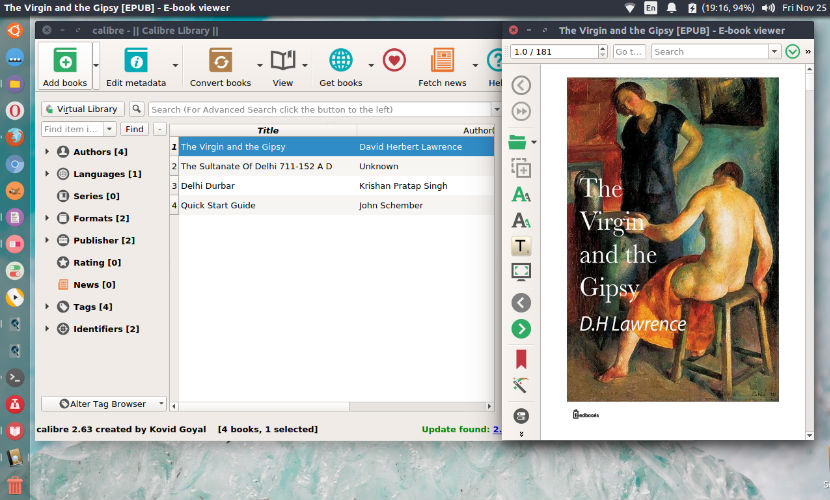
Here’s the complete changes and bug fixes for the Calibre 2.73 eBook reader:
New Features
- Add a preference in Preferences->Look & Feel to hide the row numbers in the main book list.
- Allow Export/Import of column coloring and icon rules.
- Edit Book: Allow bulk changing of file extension for selected files by right clicking ont he selected files in the file browser.
- Edit Book: Check Book: Add a check for nav documents that contain no ToC in EPUB 3 books
- Edit Book: Check Book: Add a test to check if the embedded fonts in the book have their embedding permissions enabled
Bug Fixes
- Pressing the up arrow in an date edit with undefined value should jump to the current date rather than Feb 101
- EPUB Input: When an invalid nav based ToC is used in an EPUB 3.0 document that also has a fallback NCX ToC, use the fallback ToC.
- Fix a regression that broke the icon theme creation tool in the previous release
- Fix insert character dialog not reflowing characters on resize. Also only allow the search bar in the dialog to get input focus
Improved news sources
- Dilbert
- The Hindu
Install Calibre 2.73 on Ubuntu
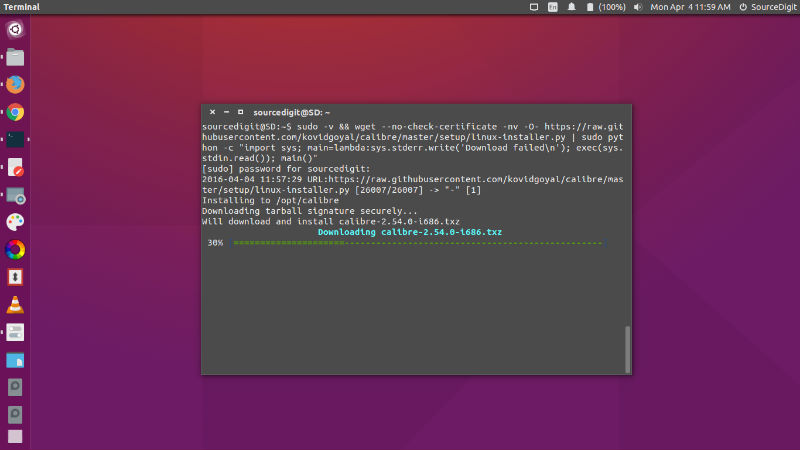
Run the following commands in Terminal to install Calibre 2.67 on Ubuntu 16.04, Ubuntu 15.10, Ubuntu 15.04, Ubuntu 14.04 and Ubuntu Derivatives:
sudo -v && wget -nv -O- https://raw.githubusercontent.com/kovidgoyal/calibre/master/setup/linux-installer.py | sudo python -c "import sys; main=lambda:sys.stderr.write('Download failedn'); exec(sys.stdin.read()); main()"
Once installed, open Calibre from Ubuntu Dash or run “calibre” in Terminal (without quotes) to start Calibre .