
• Skip to primary navigation
  • Skip to main content
  • Skip to primary sidebar
Source Digit

Source Digit

Linux, Ubuntu Tutorials & News, Technology, Gadgets & Gizmos

  • Home
  • How To
  • Ubuntu
  • Instagram
  • Blogging
  • Android
  • WordPress
  • +More
    • Cloud Computing
    • Gadgets
    • Social Media
    • Technology
  • Write for Us
Home / How To / How To Repair & Reinstall Grub Boot Loader

How To Repair & Reinstall Grub Boot Loader

By Sourabh / February 27, 2017 Category: How To, Ubuntu

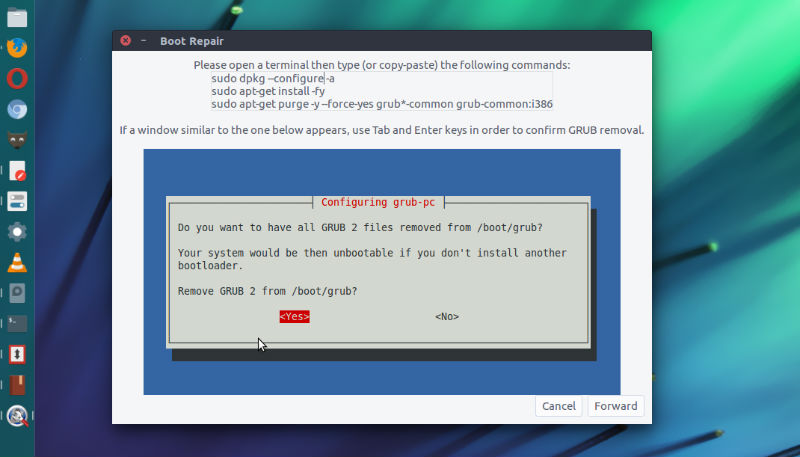
How to repair Grub Boot Loader on Ubuntu or restore or reinstall Grub on Ubuntu. Install Boot-Repair application than can be used to repair Grub on Ubuntu Linux. Boot-Repair is a simple tool to repair frequent boot issues you may encounter in Ubuntu like when GRUB is not displayed anymore, some upgrade breaks GRUB, etc.

Boot-Repair repair MBR-locked OEM computer boot if the original bootsector has been saved by Clean-Ubiquity. It can also repair the boot when you have the “GRUB Recovery” error message. Boot-Repair also has advanced options to back up table partitions, back up bootsectors, create a Boot-Info (to get help by email or forum), or change the default repair parameters: configure GRUB, add kernel options (acpi=off …), purge GRUB, change the default OS, restore a Windows-compatible MBR, repair a broken filesystem, specify the disk where GRUB should be installed, etc.
boot-repair-2

Install Boot Repair

RUn the following commands in terminal to install Boot Repair on Ubuntu 16.10, Ubuntu 16.04, Ubuntu 15.10, Ubuntu 15.04, Ubuntu 14.10, Ubuntu 14.04 and other Ubuntu Derivatives:

sudo add-apt-repository ppa:yannubuntu/boot-repair
sudo apt-get update
sudo apt-get install boot-repair

Using Boot Repair

Once installed open the Boot Repair from Ubuntu Dash.

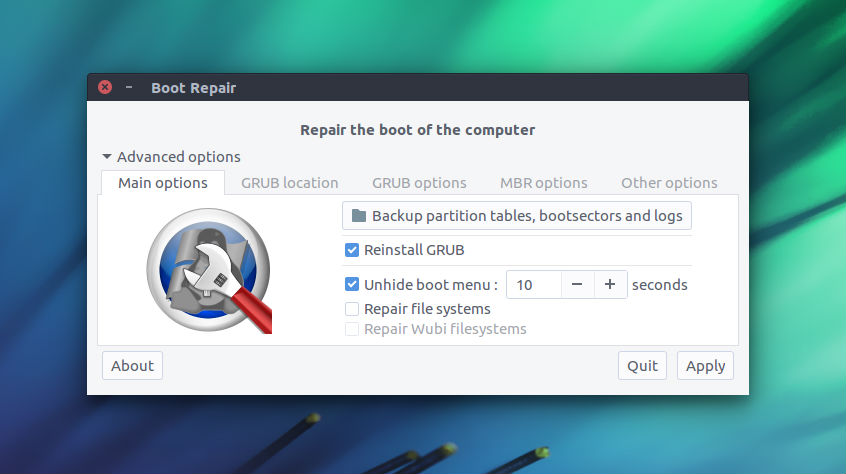
When you start the Boot Repair for the first time, it will scan the system for any possible damage or error. This scanning process may take some time depending on the system. Once the scan is complete you will see the Boot Repair window.
boot-repair

There are two options.

  1. Recommended repair
  2. Create a BootInfo summary

The Recommended repair option is what you should select. It will repair all the most frequent problems.

To do so, click the “Recommended repair” button. When repair is finished, note the URL (paste.ubuntu.com/XXXXX) that appeared on a paper, then reboot and check if you recovered access to your OSs.

Boot-Repair lets you fix these issues with a simple click, which (generally reinstalls GRUB and) restores access to the operating systems you had installed before the issue.

Tags: Boot Repair Ubuntu, Boot Repair Usb, Boot Repair Windows 10, Fix Grub Errors on Linux, Fix Grub Errors on Ubuntu, Grub Install Error Failed To Get Canonical Path Of Cow, Install Boot Repair On Ubuntu, Install Grub Boot Loader On Ubuntu, Install Grub On Ubuntu, Linxu Fix Grub Errors, Recover Grub Boot Loader On Ubuntu, Recover Grub On Ubuntu, Reinstall Grub Boot Loader On Ubuntu, Reinstall Grub On Ubuntu, Reinstall Grub2, Reinstall Grub2 Ubuntu, Repair Grub Boot Loader On Ubuntu, Repair Grub Bootloader, Repair Grub From Windows, Repair Grub On Ubuntu, Repair Grub Ubuntu, Restore Grub Boot Loader On Ubuntu, Restore Grub On Ubuntu, Ubuntu Boot Repair, Ubuntu Fix Grub Errors, Ubuntu Reinstall Grub2, Ubuntu Repair, Ubuntu Repair Grub, Unable To Locate Package Boot-Repair, Use Boot Repair On Ubuntu

Primary Sidebar

Latest Posts

How To Run Fsck Manually In Linux To Fix Unexpected Inconsistency

How To Fix Broken Packages On Ubuntu From Terminal

Re Execute The Previous Command In Linux Ubuntu Command Line

How Much RAM Is Needed For Ubuntu PC

How To Find Large Files And Directories In Linux Command Line

How To Use Clear Command History In Linux Terminal

Linux Command To Check RAM Size In Ubuntu Terminal In GB

How To Install Proprietary Drivers In Linux Ubuntu Using Terminal

How To Shutdown Linux With A 15 Minute Delay And Message

Free AI Courses With Certificate For Beginners In India

© 2026 Source Digit • Linux, Ubuntu Tutorials & News, Technology, Gadgets & Gizmos

  • Home
  • About
  • Privacy Policy
  • Terms & Conditions
  • Contact Us
  • Sitemap