
• Skip to primary navigation
  • Skip to main content
  • Skip to primary sidebar
Source Digit

Source Digit

Linux, Ubuntu Tutorials & News, Technology, Gadgets & Gizmos

  • Home
  • How To
  • Ubuntu
  • Instagram
  • Blogging
  • Android
  • WordPress
  • +More
    • Cloud Computing
    • Gadgets
    • Social Media
    • Technology
  • Write for Us
Home / How To / How To Install Opera In Ubuntu 16.04 & Ubuntu 16.10

How To Install Opera In Ubuntu 16.04 & Ubuntu 16.10

By Sourabh / December 15, 2016 Category: How To, Ubuntu

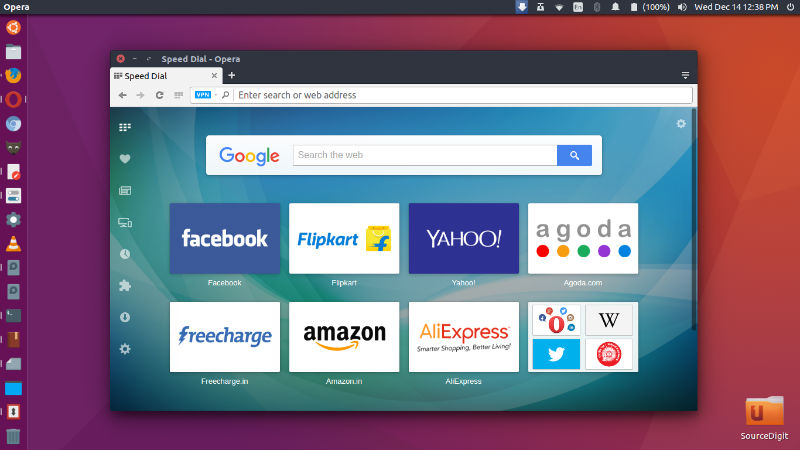
How to install Opera browser on Linux Ubuntu? Commands to install Opera in Ubuntu 16.04/16.10 using terminal or manually. Opera 42 brings built-in currency converter and many UI tweaks. Opera is the first major browser that can block ads for you without add-ons.

Opera 42 brings built-in currency converter – Opera is now the first of the major browsers to add a built-in currency converter. It makes it easy to check what items cost, and is ready to improve the way people shop online.
opera-42

To use the currency converter, simply select the price you want to convert on the page and Opera will automatically show it in your local currency. You can also change your output currency in the browser settings. Opera 42 supports conversion in 32 currencies based on daily values from the European Central Bank.

Easy to add news feeds from websites – Opera’s personal newsreader has been given a fresh, new look and now offers an easier way to discover feeds. If a page publishes a web feed, a little newspaper icon will appear in the address bar. Simply click it and then select one to open. If you find it interesting, you can always add it to your existing sources. We want to keep the address bar as clean as possible, so this feature is disabled by default. To enable it, go to Settings (Preferences) > Browser > Personal news > Show available news feeds on address bar and check the checkbox.

Install Opera In Ubuntu

The new version comes with the network installer for 64-bit builds, which installs the best option for you. In other words, it detects the architecture it’s run on and installs either Opera 64-bit or Opera 32-bit.

  1. To install Opera in Linux Ubuntu, simply download the installer package from Opera website.
  2. Once the DEB file is downloaded, Open with the Software Center to download it automatically.
  3. Once installed, open Opera from Ubuntu Dash.

Tags: How To Install Opera In Ubuntu 16.04 Using Terminal, How To Install Opera On Linux, How To Open Opera In Ubuntu, Install Opera Browser How To Install Opera On Linux, Install Opera On Linux, Install Opera on Ubuntu, Install Opera On Ubuntu 14.04, Install Opera On Ubuntu 15.04, Install Opera On Ubuntu 16.04, Install Opera On Ubuntu 16.10, Opera For Linux 32 Bit, Opera Ubuntu 14.04, Opera Ubuntu 15.04, Opera Ubuntu 16.04, Opera Ubuntu 16.10, Opera Ubuntu Repository, Safari Ubuntu, Ubuntu 16.04 Opera, Ubuntu 16.10 Opera, Uninstall Opera Ubuntu

Primary Sidebar

Latest Posts

Re Execute The Previous Command In Linux Ubuntu Command Line

How Much RAM Is Needed For Ubuntu PC

How To Find Large Files And Directories In Linux Command Line

How To Use Clear Command History In Linux Terminal

Linux Command To Check RAM Size In Ubuntu Terminal In GB

How To Install Proprietary Drivers In Linux Ubuntu Using Terminal

How To Shutdown Linux With A 15 Minute Delay And Message

Free AI Courses With Certificate For Beginners In India

Best AI Plugins For WordPress To Use In 2026

3 Commands To Check USB Connection In Linux Terminal

© 2026 Source Digit • Linux, Ubuntu Tutorials & News, Technology, Gadgets & Gizmos

  • Home
  • About
  • Privacy Policy
  • Terms & Conditions
  • Contact Us
  • Sitemap